

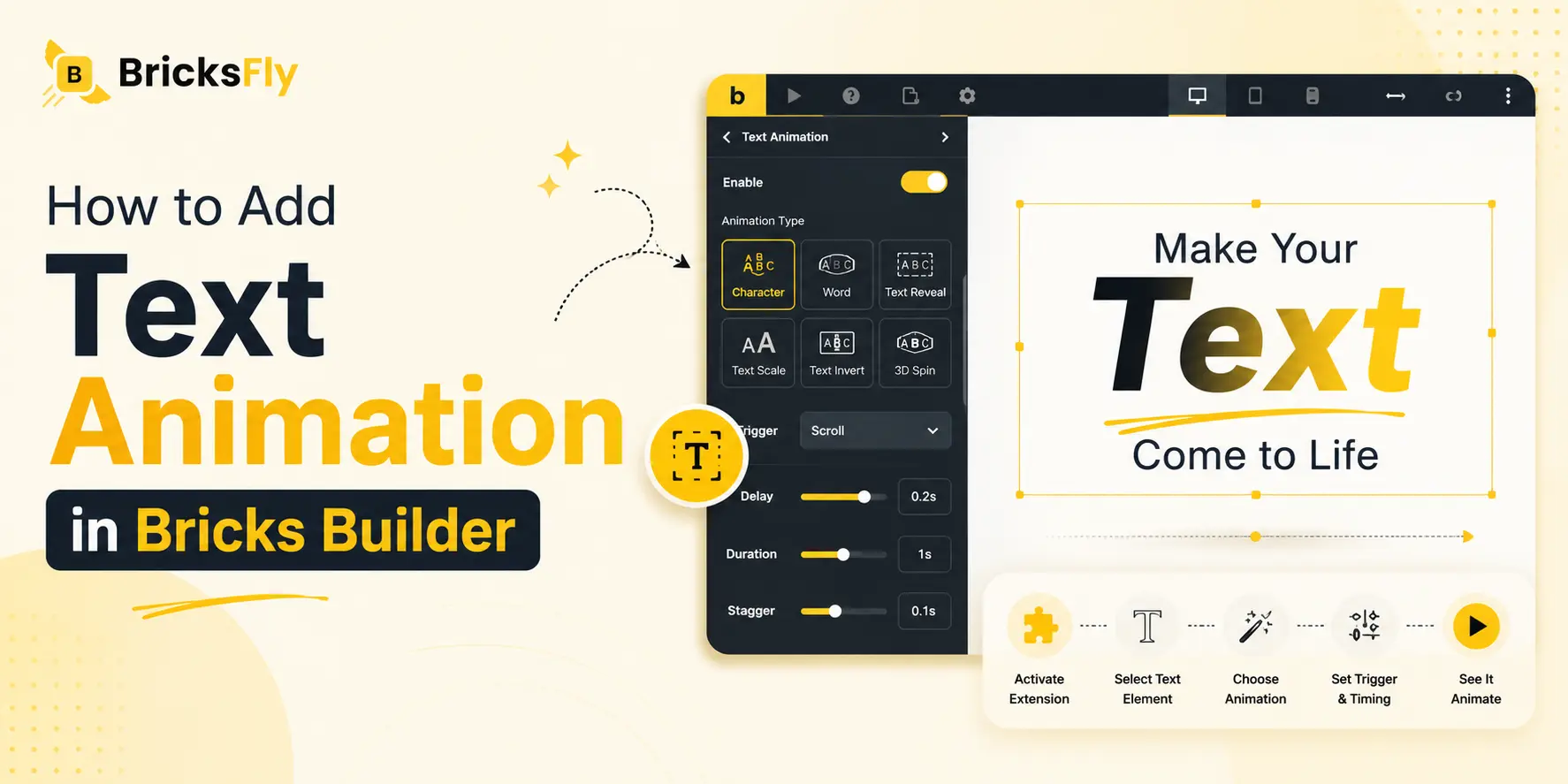
Text alone doesn’t always hold attention, but Bricks text animation can change that. A heading that reveals character by character, a subheading that scales into view, or a block of text that inverts on scroll turns static content into something dynamic and eye-catching.
The reason it used to be hard is that text animation relies on GSAP and JavaScript. Effects like staggered character reveals and scroll-triggered inversions traditionally required custom scripting. With a no-code tool, the same effects become a matter of choosing an animation type and adjusting a few visual settings.
This guide walks through how to add text animation in Bricks Builder using BricksFly, from activating the feature to configuring each effect. You’ll learn the available animation types (character, word, reveal, scale, invert, and more), how the trigger and timing settings work, and how to apply them to any heading or text element.
Quick Answer
To add text animation in Bricks Builder, activate the Text Animation extension in BricksFly (Dashboard, BricksFly, Extensions), then edit a page in Bricks, select a heading or text element, and open Text Animation. Choose an animation type such as Character, Word, Text Reveal, or Text Scale, set the trigger and timing, and the text animates without any code.
What Is Text Animation in Bricks?
Text animation in Bricks means applying motion to a heading or text element, animating the words or characters as they appear, move, or respond to scroll. Instead of text simply loading in place, each character, word, or line animates according to the effect you choose, creating rhythm and drawing attention to your most important content.
The effects are powered by GSAP, the animation engine behind most premium web motion. Text animation typically splits a heading into smaller pieces (characters or words) and animates each one, often with a small delay between them (called a stagger) that creates a flowing, wave-like reveal. Scroll-based text effects tie the animation to the user’s scroll position.
In BricksFly specifically, Text Animation is one of the GSAP extensions. Rather than writing GSAP code, you enable the extension, select your text element, and configure the effect through visual controls, choosing the animation type, when it triggers, and how it’s timed. The tool generates the animation for you.
Before You Start: Requirements and Activation
Text Animation is a Pro extension in BricksFly, so a quick setup comes first.
Requirements
Make sure you have installed:
- The Bricks theme
- BricksFly Pro
Text Animation is part of BricksFly’s Pro GSAP extensions, so the Pro plugin is required to access it.
Activating Text Animation
Enable the feature before using it in the editor:
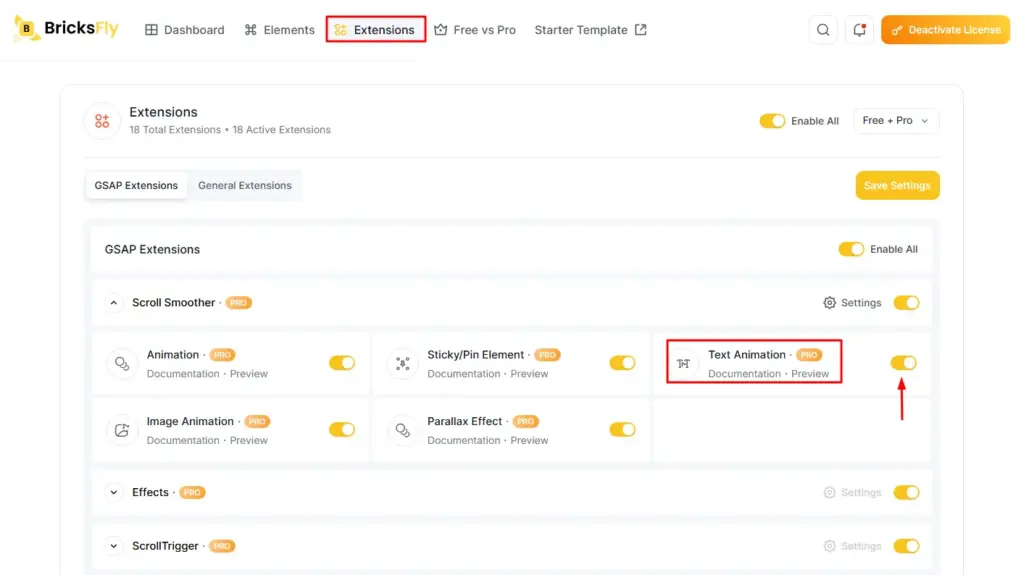
- Go to your WordPress Dashboard.
- Click on BricksFly.
- Head to the Extensions tab.
- Under ScrollSmoother, toggle on Text Animation.
Once activated, the Text Animation controls appear in the Bricks editor when you select a text element. With that done, you’re ready to apply animation to any heading or text block on your pages.
The Text Animation Types in BricksFly
When you open the Animation settings, you’ll see a range of effect types. Each produces a different result, so you can match the effect to your design.
| Animation Type | What It Does | Best For |
| None | No animation (default) | Turning animation off |
| Character | Animates each character individually | Bold, dramatic headlines |
| Word | Animates each word as a unit | Readable, stylish headings |
| Text Move | Moves text with rotation and motion | Dynamic entrances |
| Text Reveal | Reveals text as it enters view | Clean, professional reveals |
| Text Scale | Scales text up or down as it animates | Emphasis and impact |
| Text Invert | Inverts text on scroll | Scroll-driven, editorial effects |
| 3D Spin | Spins text in 3D on scroll | Eye-catching, playful motion |
Character and Word
The Character effect animates each letter individually, ideal for bold, dramatic headlines. The Word effect animates each word as a unit, which stays more readable while still feeling stylish. The settings for Character and Word are the same; the difference is in the final result, so you can choose either based on preference.
Text Move
Text Move animates text by moving it from one position to another. You can use it to make text enter from the top, bottom, left, or right. This effect helps guide attention toward headings, descriptions, and important content.
Text Reveal
Text Reveal gradually uncovers text using a smooth reveal animation. The text can appear line by line, word by word, or character by character depending on the selected settings. It works well for hero headings, section titles, and storytelling content.
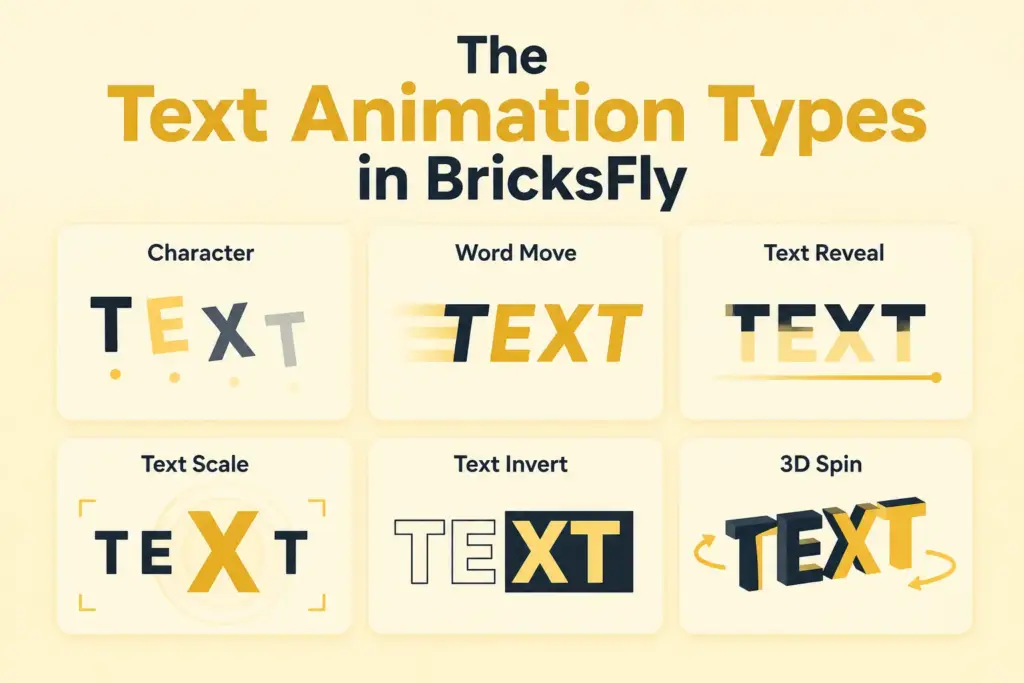
Text Scale
Text Scale animates text by increasing or decreasing its size. It can make the text appear as though it is zooming in or zooming out. This effect is useful for creating strong headings and highlighting important messages.
Text Invert
Text Invert changes the appearance of text as the user scrolls or interacts with the page. It can reverse the text and background colors to create a noticeable visual transition. This animation works well for bold sections, dark layouts, and scroll-based storytelling.
3D Spin
3D Spin rotates text in a three-dimensional direction. The text can spin horizontally, vertically, or from different angles while entering the page. This effect creates a dynamic and modern appearance for headings and featured content.
Understanding the Text Animation Settings
Most text animation types share a common set of controls. Understanding them means you can fine-tune any effect.
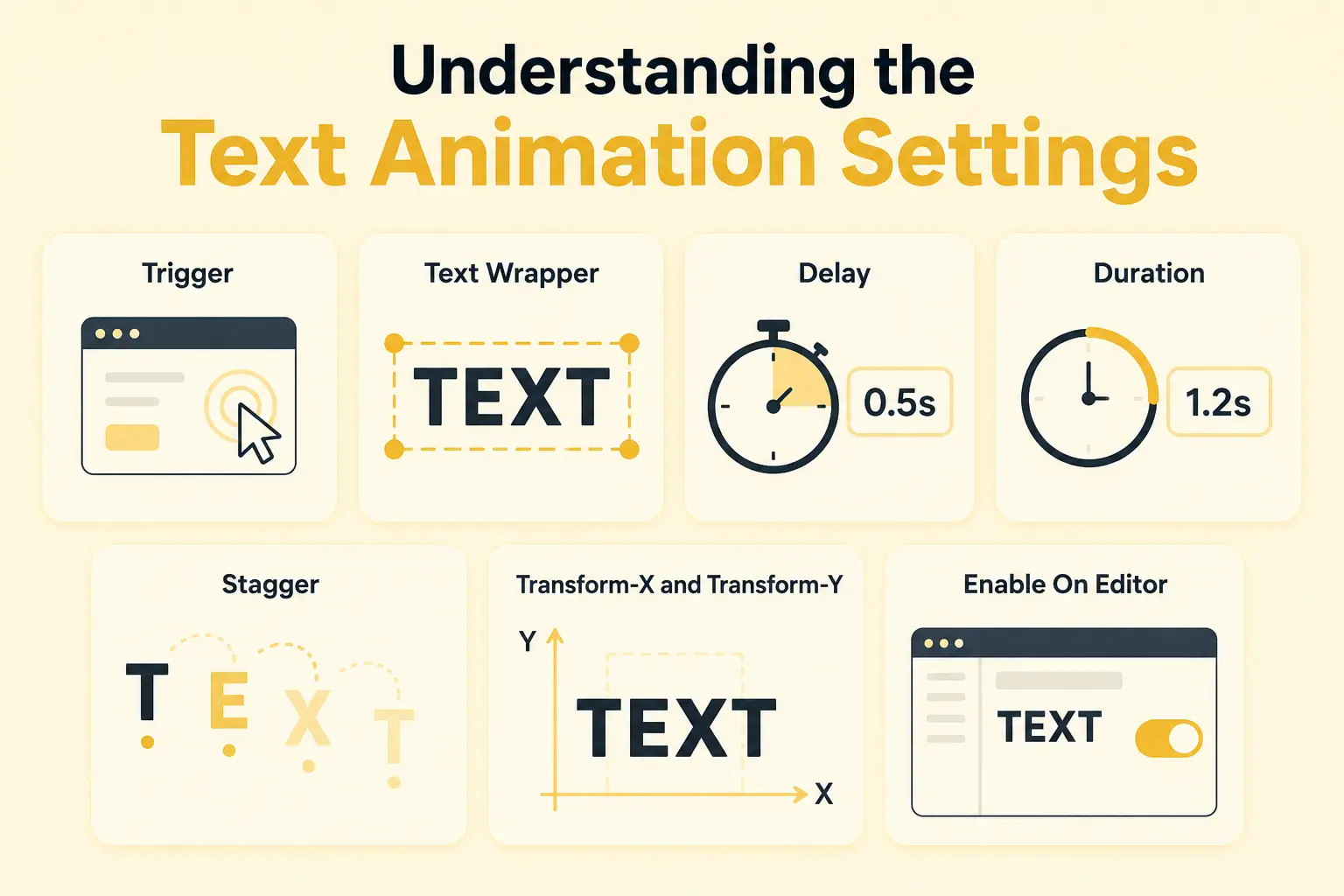
Trigger – Controls when the animation starts. Options include: On Scroll (starts when the element enters the viewport while scrolling), On Page Load (starts automatically as the page loads), Play with Scroll (animation progress links directly to scroll movement), On Hover (starts when the user hovers over the element), and On Click (starts when the user clicks the element).
Text Wrapper – Controls how the text is grouped for animation. You can use a predefined wrapper or a custom wrapper to animate characters separately.
Delay – How long to wait before the animation starts. In BricksFly’s Character example it’s set to 0.15 seconds, and you can adjust it as needed.
Duration – How long the animation takes to complete. In the Character example it’s set to 3 seconds, adjustable to taste.
Stagger – The delay added between each character or word’s animation, this is what creates the smooth, wave-like effect. In the Character example it’s set to 0.02 seconds. A smaller stagger feels tighter; a larger one feels more spread out.
Transform-X and Transform-Y – These move the text horizontally and vertically as it animates. In the Character example, Transform-X is set to 20 (the text starts 20px to the right before returning to position) and Transform-Y to 50 (the text starts 50px lower before settling). Adjust both to control the direction of the entrance.
Enable On Editor – Lets you preview the animation inside the Bricks editor. If disabled, the animation still works on the live site, it just won’t play in the editor.
Some effects add their own controls, for example, Text Scale includes an Ease and a break-by option, Text Move includes rotation settings, and scroll-based effects like Text Invert and 3D Spin include Start and End points that define where the effect begins and finishes during scrolling.
How to Add Text Animation in Bricks (Step by Step)
With the extension activated, here’s how to apply text animation to any element.
Step 1: Open Text Animation in the Bricks Editor
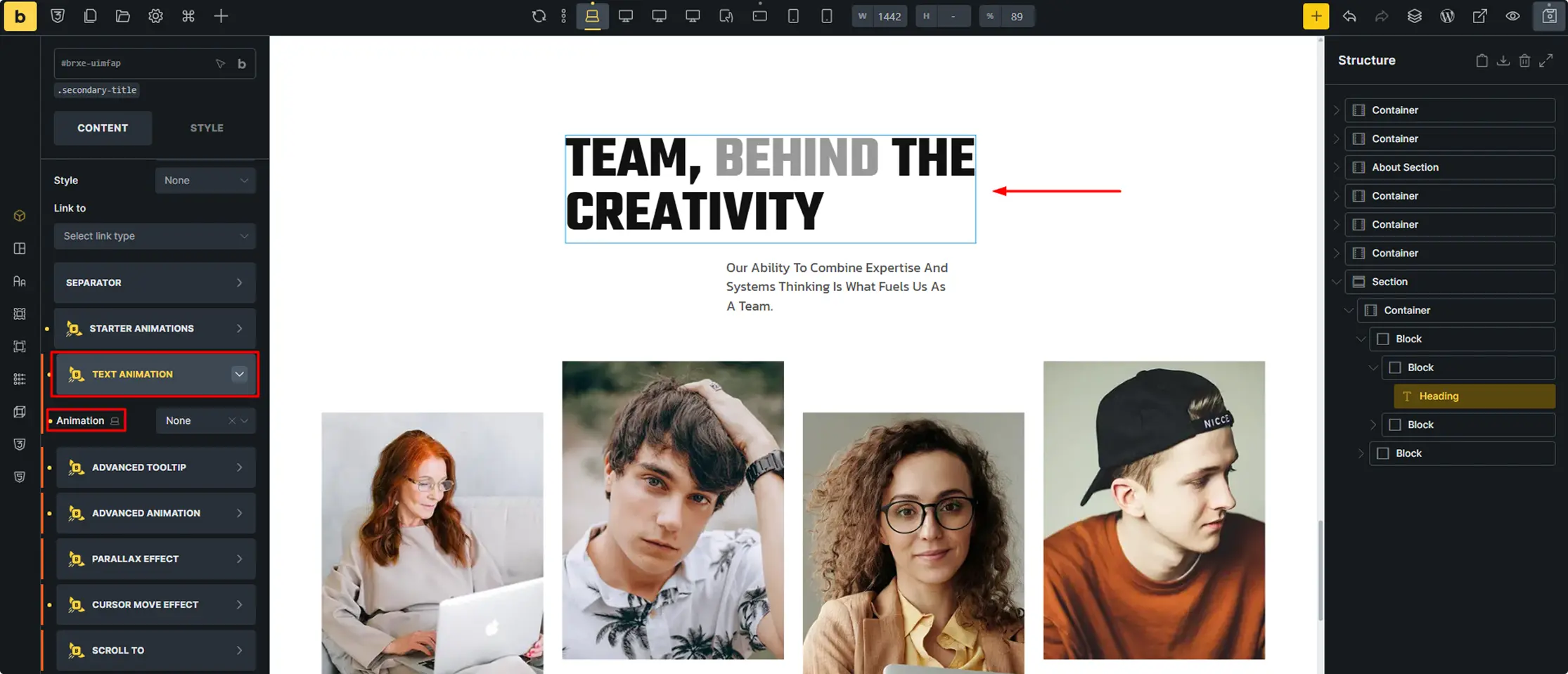
Go to the page you want to edit and open it in Bricks (Edit with Bricks). In the editor, select the specific heading or text element you want to animate. With the element selected, click on Text Animation in the editor panel. This opens the animation controls for that element.
Step 3: Choose the Animation Type
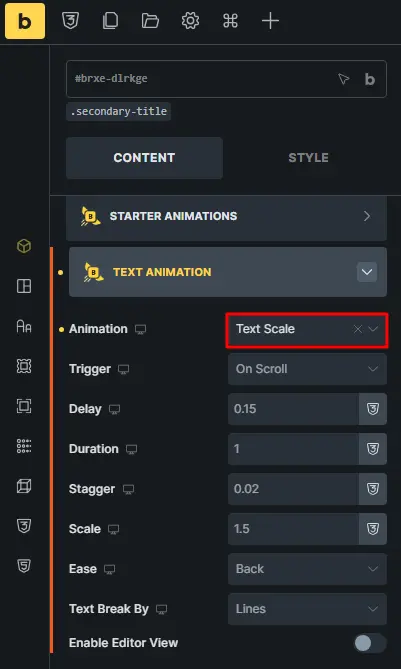
Under Animation, select the effect you want like – Character, Word, Text Move, Text Reveal, Text Scale, Text Invert, or 3D Spin. For most headings, Text Reveal or Word is a safe, stylish choice; Character adds more drama; 3D Spin and Text Invert are bolder, scroll-driven options.
Here, we use Text Scale for the text animation. The Text Scale animation lets you change how big or small the text gets, when the animation starts, and how it moves.
Step 4: Set the Trigger
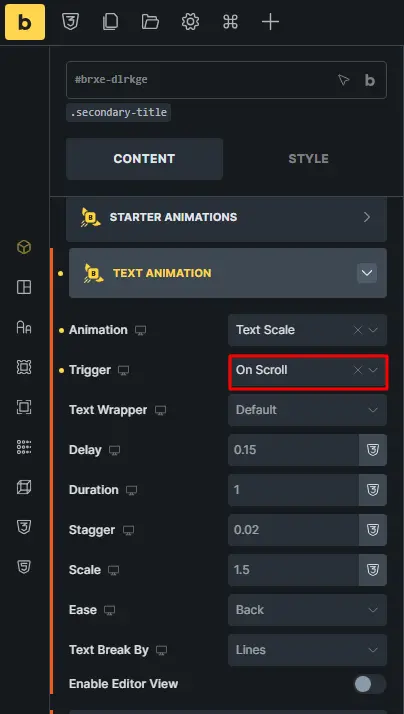
Controls when the text animation starts. On Scroll is a natural, common choice that plays the effect as the element enters view. On Page Load for above-the-fold headings or On Hover / On Click for interactive elements. In this example, “On Scroll” is selected, but you can choose any option you prefer.
Step 5: Configure Timing and Movement
Set the Delay, Duration, and Stagger to control the pacing, and use Transform-X and Transform-Y to set the direction of the entrance.
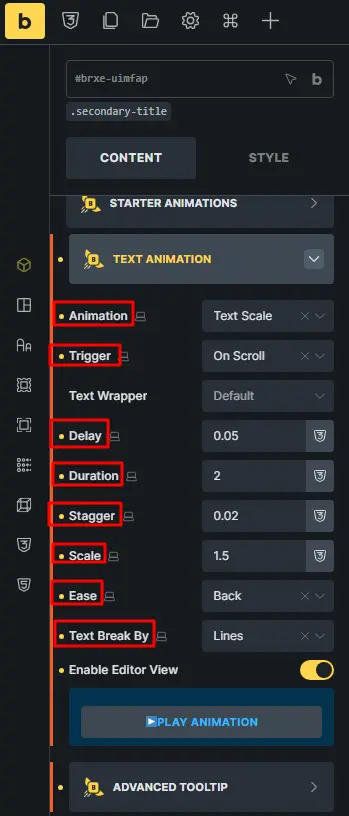
Text Wrapper: Sets how text is split for animation effects. You can use default or custom wrappers to animate each character individually.
Delay: Here, the delay is set to 0.5s, but you can adjust it according to your choice.
Duration: Controls how long the animation takes to finish. In this example, it’s set to 2 seconds, so the animation runs for 2 seconds.
Stagger: Adds a small delay between each animated text part. In this example, it’s set to 0.02s, so the letters animate one after another instead of all at once.
Ease: Controls the animation speed style, such as smooth or fast.
Scale: Sets the starting or ending zoom size of the text. Here, the value is set to 1.5, but you can adjust it as needed.
Step 6: Preview and Publish
Turn on Enable On Editor to preview the animation as you work, or check it on the live page (scroll-based effects show properly on the front end). Test on mobile, confirm the timing feels right, and publish.
That’s the full process, a GSAP-powered text animation applied entirely through visual controls.
Also, you can read the full documentation here – Text Animation Documentation
Examples and Use Cases
Here’s how the text animation types work on real Bricks pages.
A bold hero headline – Use the Character effect with On Page Load so the headline reveals letter by letter as the page loads, setting a premium tone. A tight stagger (around 0.02s) keeps it snappy.
A section heading on scroll – Apply Text Reveal with the On Scroll trigger so an important section heading animates cleanly into view as the visitor reaches it, drawing attention without being flashy.
An editorial statement – Use Text Invert on a standout quote or statement so it flips on scroll, giving a magazine-style, editorial feel that suits creative and portfolio sites.
A playful brand heading – Use 3D Spin with Play with Scroll so the heading rotates as the user scrolls, an eye-catching effect for brands that want personality.
Notice the pattern
Reserve the bolder effects (Character, 3D Spin, Text Invert) for headlines and standout statements, and use the cleaner effects (Text Reveal, Word) for supporting headings. Matching the effect to the content is what keeps a page premium rather than busy.
Common Mistakes to Avoid
Text animation is easy to apply, which makes a few mistakes common.
Animating every heading – Text animation on everything is exhausting and slow. Reserve it for hero headlines and a few key headings.
Duration too long – A long duration makes text feel slow to arrive and delays your message. Keep most effects quick.
Stagger too wide – A large stagger on a long heading drags out the reveal. Keep it tight so the whole heading animates promptly.
Using Character on long text – Character animation on a long heading means many pieces to animate, which feels tedious. Use Word or Text Reveal for longer text.
Forgetting the front-end check – Scroll-based effects like Text Invert and 3D Spin show properly on the live page, not always in the editor. Preview the real page.
Ignoring reduced motion and mobile. Respect reduced-motion preferences and test on mobile so the effect stays usable for everyone.
How BricksFly Helps
Text Animation is one of BricksFly’s Pro GSAP extensions, part of a complete Bricks Builder toolkit that also includes full website templates, 500+ sections, extra Elements, and other no-code animation features. So text animation isn’t a standalone plugin here, it’s integrated with the tools you use to build the whole site.
Note
Once activated (Dashboard, BricksFly, Extensions, then toggle Text Animation under ScrollSmoother), the feature adds eight animation types, Character, Word, Text Move, Text Reveal, Text Scale, Text Invert, and 3D Spin, all configured through visual controls. You select a heading or text element, choose an effect, set the trigger and timing, and the GSAP-powered animation is applied without any code. The settings (Delay, Duration, Stagger, Transform-X/Y, and per-effect options) give you precise control while staying entirely visual.
Because it lives in the same toolkit as BricksFly’s templates, sections, and other animation features (like ScrollTrigger, split text, and parallax), you can import a site, build pages, and animate your text all in one workflow. For designers and freelancers who want premium, animated headings without writing GSAP, that’s the whole job in one place.
Conclusion
Adding text animation in Bricks Builder is one of the simplest ways to make a page feel dynamic and premium, and with BricksFly it’s entirely no-code. Once you activate the Text Animation extension, you get eight effect types, from clean Text Reveal to bold Character and playful 3D Spin, all configured through visual controls: choose the effect, set the trigger, and tune the delay, duration, and stagger.
The key is restraint. Reserve the bolder effects for hero headlines and standout statements, use cleaner effects for supporting headings, keep duration quick, and always preview scroll-based effects on the live page. Matching the effect to the content, and testing on mobile, keeps your text animation feeling premium rather than busy.
FAQs
Activate the Text Animation extension in BricksFly (Dashboard, BricksFly, Extensions, then toggle Text Animation under ScrollSmoother). Then edit a page in Bricks, select a heading or text element, and open Text Animation. Choose an animation type such as Character, Word, or Text Reveal, set the trigger and timing, and the text animates, no code required.
No. With BricksFly’s Text Animation extension, you add GSAP-powered text effects through visual controls. You select the element, choose an animation type, and adjust settings like trigger, delay, duration, and stagger. The tool generates the underlying GSAP animation, so designers and non-developers can create premium text motion without JavaScript.
BricksFly’s Text Animation includes eight options: None, Character (animates each letter), Word (animates each word), Text Move (movement with rotation), Text Reveal (clean entrance), Text Scale (scales the text), Text Invert (flips on scroll), and 3D Spin (3D rotation on scroll). You choose the effect that best suits your design.
Text Animation is a Pro GSAP extension in BricksFly, so it requires BricksFly Pro along with the Bricks theme. Once you have Pro installed, you activate Text Animation in the Extensions tab (under ScrollSmoother) and can then apply it to any heading or text element in the Bricks editor.
The Character effect animates each letter individually for a bold, dramatic reveal, while the Word effect animates each word as a unit, which stays more readable. Their settings are identical; only the final result differs. Use Character for short, punchy headlines and Word (or Text Reveal) for longer or more readable headings.
Use On Page Load for above-the-fold headings you want animating immediately as the page appears. Use On Scroll for headings further down, so they animate as the visitor reaches them. BricksFly also offers Play with Scroll (tied to scroll progress), On Hover, and On Click for interactive cases. On Scroll is a common, natural default for most headings.





Leave a Reply
You must be logged in to post a comment.