

Bricks Builder gives you a fast, clean way to build layouts. The moment a design calls for a pinned product story, a horizontal portfolio strip, or a heading that splits into animated words, most builders either write GSAP code or add another plugin.
BricksFly extensions close that gap. They add GSAP animation, scroll behavior, cursor interactions, and small workflow features directly to the Elements you already use in Bricks, so you configure them in the editor instead of writing JavaScript.
This guide covers every Extension in the current BricksFly Pro list. For each one you will see what it does, where to switch it on, the main settings from the official documentation, and the type of page it suits best. You will also find a page-type planner, an example homepage build, a fair comparison with native Bricks Interactions, and tips for keeping animated pages fast and accessible.
Quick Answer
BricksFly extensions are add-on features in BricksFly Pro that attach new behavior to existing Bricks Elements. They come in two groups: GSAP Extensions (such as ScrollTrigger, Text Animation, Parallax Effect, Sticky/Pin Element, Horizontal, and Magnetic Effect) and General Extensions (such as Wrapper Link, Advanced Tooltip, Preloader, Cursor, and Scroll Indicator). You can switch each one on under BricksFly → Extensions in your WordPress dashboard.
What Are BricksFly Extensions?
BricksFly adds two kinds of features to Bricks Builder: Elements and Extensions. They solve different problems.
- An Element is a new building block you drag onto the canvas, such as a Timeline, Image Hotspot, or Video Popup.
- An Extension adds settings or behavior to an Element you already placed. For example, the Sticky/Pin Element Extension adds pin controls to a native Bricks container, and Wrapper Link makes an existing container clickable.
| BricksFly Elements | BricksFly Extensions | |
|---|---|---|
| What it is | A new block in the Bricks Elements panel | New controls added to existing Elements |
| Where you find it | Bricks editor, BricksFly Element group | The selected Element’s settings after you enable the Extension |
| Example | Timeline, Video Popup, Image Hotspot | Text Animation, Sticky/Pin Element, Wrapper Link |
| Typical use | Add content you cannot build natively | Add motion or behavior to content you already built |
| Plan | Free plugin includes many Elements; some are Pro | Part of BricksFly Pro |
Extensions are the reason BricksFly works well with imported templates and sections. You can take any section, native or from the BricksFly library, and animate it without rebuilding it with a special animated Element.
How to Turn On BricksFly Extensions
Extensions are switched off until you enable them, which keeps unused scripts off your pages.
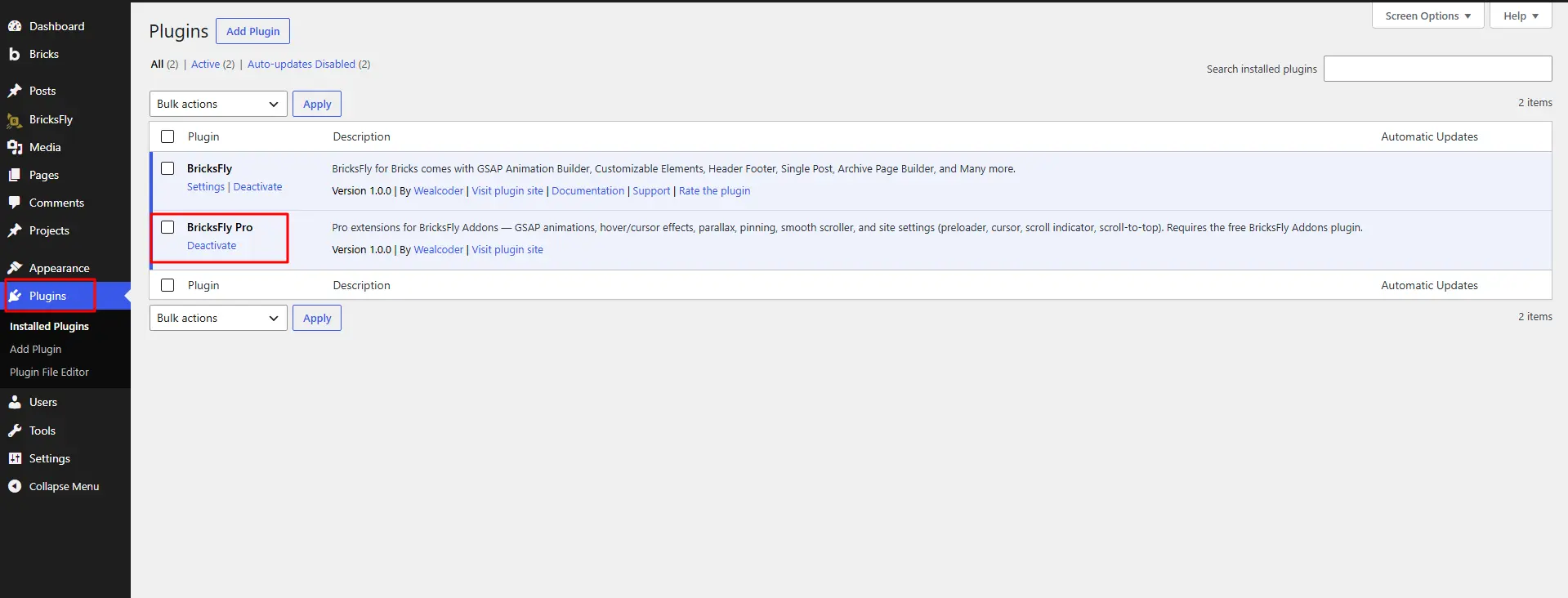
Requirements:
- The Bricks theme installed and active
- The free BricksFly plugin and the separate BricksFly Pro plugin with an active license
Steps:
- In the WordPress dashboard, click BricksFly.
- Open the Extensions tab.
- Find the Extension under its group (GSAP Extensions or General Extensions) and toggle it on.
- Open a page in Bricks, select the Element you want to change, and find the Extension’s panel in that Element’s settings.
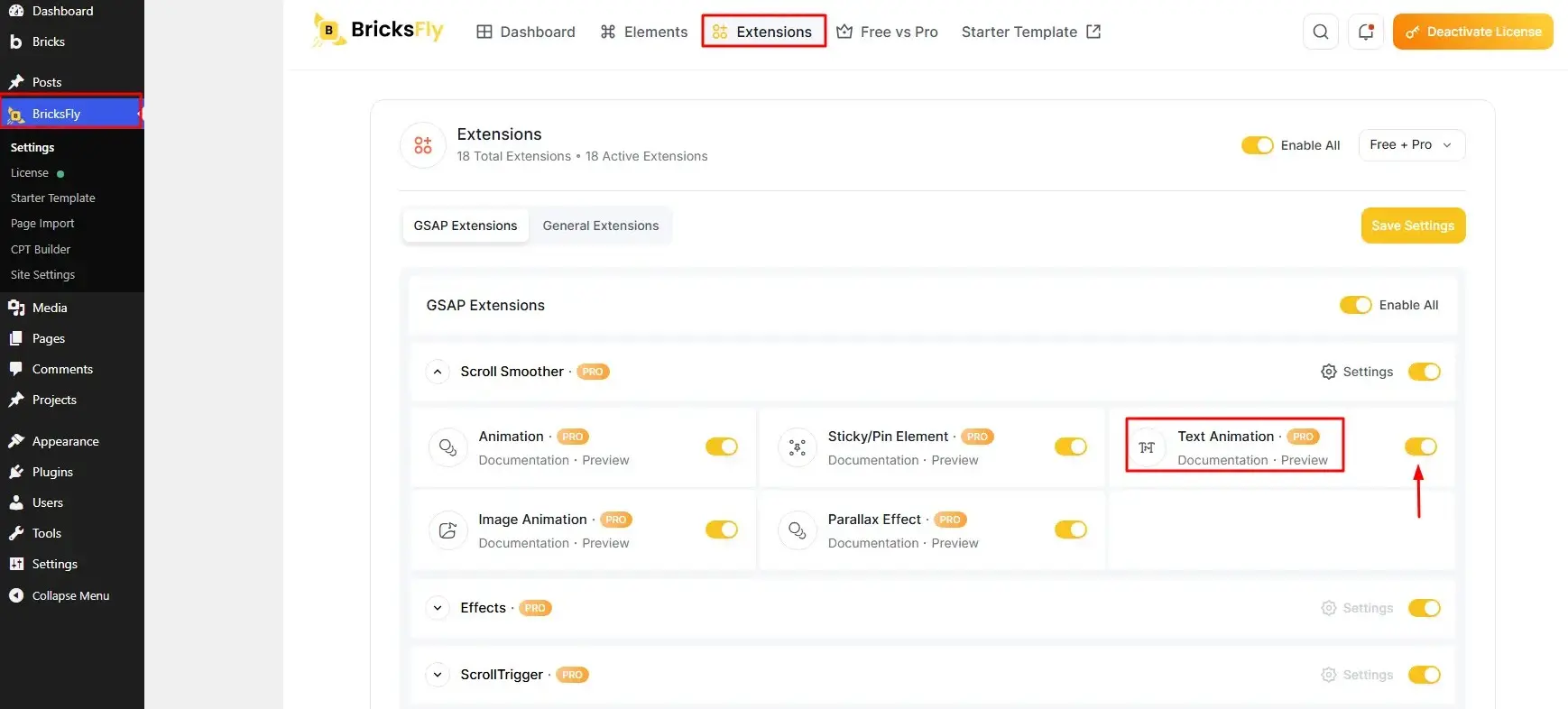
- Lets say here we want to use text animation. Set Enable to Yes where the Extension has an enable switch, then configure the options.
Inside the GSAP group, the dashboard places some Extensions under sub-headings. The documentation shows Horizontal Scroll under ScrollTrigger, Image Reveal On Hover under Effects, and Parallax Effect, Sticky Elements, Text Animation, Image Animation, and Advanced Animation under ScrollSmoother.
All BricksFly Extensions at a Glance
The current BricksFly Pro list includes 15 GSAP Extensions and 7 General Extensions.
| Extension | Group | What it does | Best use case |
|---|---|---|---|
| Scroll Smoother | GSAP | Smooth, eased page scrolling | Premium landing pages and portfolios |
| Animation (Advanced Animation) | GSAP | Fade, 3D Wave, or custom GSAP animation with triggers | Entrance effects on any Element |
| ScrollTrigger | GSAP | Ties animation to scroll position | Scroll-linked reveals and progress effects |
| Text Animation | GSAP | SplitText effects on headings and text | Hero headlines and section titles |
| Image Animation | GSAP | Reveal, Scale, and Stretch motion for images | Feature images and case study visuals |
| Parallax Effect | GSAP | Moves Elements at a different speed than the scroll | Hero backgrounds and layered visuals |
| Effects | GSAP | Ready-made motion effects | Quick motion without custom setup |
| Sticky/Pin Element | GSAP | Pins a section or Element while the page scrolls | Product stories and sticky sidebars |
| Horizontal | GSAP | Moves content sideways as the visitor scrolls down | Portfolios, timelines, team strips |
| Stacking Cards | GSAP | Turns containers into a pinned or sticky card stack | Feature walkthroughs and process steps |
| ScrollTo | GSAP | Smooth scroll-to navigation | One-page websites |
| Image Reveal on Hover | GSAP | Shows an image when hovering a link or row | Project lists and service menus |
| Cursor Hover Effect | GSAP | Hover animation driven by the cursor | Interactive cards and buttons |
| Cursor Move Effect | GSAP | Motion that follows cursor movement | Hero visuals and decorative shapes |
| Magnetic Effect | GSAP | Pulls buttons, icons, or cards toward the cursor | Call-to-action buttons |
| Tilt Effect | General | Mouse-based tilt on an Element | Product cards and pricing cards |
| Advanced Tooltip | General | Rich tooltips on hover | Feature tables and icons |
| Wrapper Link | General | Makes a whole container clickable | Blog cards, service cards |
| Preloader | General | Custom loading animation | Portfolio and agency sites |
| Cursor | General | Replaces the default cursor | Creative and studio sites |
| Scroll Indicator | General | Reading progress bar | Long blog posts and guides |
| Scroll To Top | General | Back-to-top button | Long pages of any type |
GSAP Extensions Explained
GSAP (the GreenSock Animation Platform) is a JavaScript animation library used for high-performance web animation. Its ScrollTrigger plugin links animation to scroll position, and SplitText breaks text into characters, words, or lines for animation. BricksFly runs GSAP underneath and gives you visual controls in the Bricks editor, so you do not write the JavaScript yourself.
Scroll Smoother
Scroll Smoother adds smooth scrolling to the page so movement feels eased instead of stepped.
- Use case: a design studio homepage where large images and parallax layers need to glide.
- Good to know: the Parallax Effect uses this feature. Its panel includes an Enable Scroll Smoother switch.
- When to skip it: content-heavy sites such as documentation or news, where readers expect native scrolling.
Animation (Advanced Animation)
The Animation Extension (named Advanced Animation in the docs) adds an animation panel to almost any Element: text, images, headings, buttons, icons, and navigation menus.
You choose one of four types: None, Fade Animation, 3D Wave, or Custom.
| Setting | What it controls |
|---|---|
| Method | From animates into the original position; To animates away from it |
| Trigger | When the animation starts: On Scroll, On Page Load, Play with Scroll, On Hover, or On Click |
| Delay | Wait time before the animation starts |
| Duration | Speed; a higher value is slower |
| Ease | Movement style, for example Power2.out |
| Fade From / Fade Offset | Direction and distance of the fade (offset default 50) |
| Rotation Direction / Value / Transform Origin | 3D Wave rotation axis (X or Y), strength, and pivot point |
| Enable on Editor | Preview the animation inside the Bricks editor |
- Use case: fade service cards in from the left on scroll, or give a feature heading a 3D Wave entrance.
Full setup: Advanced Animation documentation.
Text Animation
Text Animation brings GSAP SplitText effects to headings and text Elements, including text reveal, fade, 3D text, and character-by-character effects. The BricksFly tutorial lists animation types such as Character, Word, Text Move, Text Reveal, Text Scale, Text Invert, and 3D Spin.
- Use case: a SaaS hero headline that reveals word by word, or a section title that slides in character by character.
- Tip: keep long paragraphs static. Split effects work best on short headings.
Learn more: split text animation and the Bricks text animation tutorial.
Image Animation
Image Animation applies scroll-based motion to image Elements, with Reveal, Scale, and Stretch effects.
- Use case: reveal each case study image as it scrolls into view, or scale a product screenshot up slightly as the visitor reaches it.
Learn more: image animation and the image animation tutorial.
Parallax Effect
Parallax Effect moves an Element at a different speed than the page scroll to add depth.
| Setting | What it controls | Example values |
|---|---|---|
| Speed | How fast the Element moves compared to the scroll | 1 = normal, 0.5 = slower, 2 = faster |
| Lag | How smoothly the Element catches up with the scroll | 0 = no lag, 0.5 = slight delay, 1+ = stronger delay |
- Use case: a hero with a foreground product image at speed 1 and a background shape at 0.5.
Full setup: Parallax Effect documentation.
Effects
Effects applies ready-made motion effects to Bricks Elements. It is the fastest route when you want movement without setting triggers, durations, and eases yourself.
- Use case: add a preset motion to decorative icons on a services page.
Sticky/Pin Element
Sticky/Pin Element keeps a section or Element fixed in place while the page scrolls, using GSAP ScrollTrigger pinning.
| Setting | What it controls |
|---|---|
| Pin Trigger | Default (container position) or Custom (a trigger Element you choose) |
| End Trigger | Default (container boundary) or Custom (a CSS class such as .sticky-section) |
| Pin | True (fixed), False (scrolls normally), or Custom |
| Pin Start / Pin End | Where pinning begins and ends, such as Top Top or Bottom Top |
| Pin Spacing | True adds space equal to the Element’s height; False adds none |
| Pin Markers | Shows start and end markers while you set it up |
| Toggle Class | Adds a CSS class while pinned, for example to change the background |
| Breakpoint | Which devices the pin runs on |
- Use case: pin a product image on the left while three feature blocks scroll past on the right.
- Tip: turn markers on while building, then off before publishing.
Learn more: sticky and pin elements and the Sticky/Pin documentation.
Horizontal Scrolling
Horizontal moves content sideways while the visitor scrolls down the page.
| Setting | What it controls |
|---|---|
| Enable | Turns the effect on and shows the other settings |
| Width | Width of the horizontal track; the docs use 100% |
| End | Scroll distance in pixels for the full movement; 3000 means the strip finishes after 3,000px of scrolling |
- Use case: an agency portfolio strip with six project cards, or a company history timeline.
- Requirement: set the parent container to full width, or the effect will not run correctly.
Learn more: horizontal scroll and the Horizontal Scroll documentation.
Stacking Cards
Stacking Cards turns native Bricks containers into a pinned card deck or a cascading sticky stack, with scroll-driven scale, opacity, and blur.
- Use case: a four-step onboarding process where each step card stacks on the previous one.
- Note: BricksFly also offers a separate Stacking Cards Element (Pro) with eight transition effects. Use the Extension when you want to keep your own native containers.
ScrollTo
ScrollTo creates smooth scroll-to navigation, so menu links glide to a section instead of jumping.
- Use case: a one-page event or product site with a sticky menu linking to Features, Pricing, and FAQ.
Image Reveal on Hover
Image Reveal on Hover shows an image when the visitor hovers over an Element, such as a project name. Settings include the image Width (the docs suggest about 300px) and its Position Top and Position Left offsets.
- Use case: a text-only project list where each name reveals a thumbnail on hover.
Learn more: image reveal on hover.
Cursor Hover Effect
Cursor Hover Effect adds animations that respond when the cursor moves over an Element.
- Use case: portfolio cards that react as the cursor enters them.
Learn more: cursor hover effect.
ScrollTrigger
ScrollTrigger runs animation based on scroll position instead of time. Animations can start when an Element enters the viewport or play in sync with the scroll.
- Use case: a statistic block that animates as it reaches the center of the screen, or a progress line that fills as the reader scrolls a process section.
- Related: Horizontal is grouped under ScrollTrigger in the dashboard.
Cursor Move Effect
Cursor Move Effect creates motion that follows the visitor’s cursor movement across an area.
- Use case: floating shapes in a hero that drift slightly with the cursor.
Want these effects without writing GSAP?
Every GSAP Extension above is included in
BricksFly Pro, along with full website
templates and 500+ sections.
See BricksFly plans →
General Workflow Extensions Explained
General Extensions solve everyday build tasks that would otherwise need custom code or a separate small plugin.
Wrapper Link
Wrapper Link makes an entire section, container, or block clickable.
- Use case: blog cards and service cards where the whole card should link to the article or service page, not only the title.
Docs: Wrapper Link documentation.
Advanced Tooltip
Advanced Tooltip adds rich, interactive tooltips that appear on hover.
- Use case: explain feature names in a pricing comparison table without crowding the layout.
Learn more: advanced tooltip.
Tilt Effect
Tilt Effect adds a mouse-based 3D tilt to an Element.
- Use case: product or pricing cards that tilt slightly toward the cursor.
Preloader
Preloader displays a custom loading animation while the site loads.
- Use case: a creative studio site that opens with a branded logo animation.
- Tip: keep it short. A long preloader delays the moment visitors see content.
Docs: Preloader documentation.
Cursor
Cursor replaces the default cursor with a custom design.
- Use case: a portfolio site with a circular cursor that grows over links.
Scroll Indicator
Scroll Indicator shows a reading progress bar on a page.
- Use case: long tutorials and blog posts, so readers can see how much is left.
Scroll To Top
Scroll To Top adds a customizable back-to-top button.
- Use case: long landing pages, documentation, and blog archives.
Which BricksFly Extensions to Use by Page Type
| Page type | Recommended Extensions | What they add |
|---|---|---|
| SaaS landing page | Text Animation, Sticky/Pin Element, Stacking Cards, Magnetic Effect | Animated headline, pinned product walkthrough, stacked feature steps, standout CTA |
| Agency or studio homepage | Preloader, Horizontal, Image Reveal on Hover, Cursor | Branded intro, sideways project strip, hover thumbnails, custom cursor |
| Product storytelling page | Sticky/Pin Element, Image Animation, Parallax Effect | Pinned product visual, revealed detail shots, depth in the hero |
| Blog and long guides | Scroll Indicator, Scroll To Top, Wrapper Link | Reading progress, quick return to top, clickable post cards |
| One-page website | ScrollTo, Scroll Smoother, Animation | Smooth section links, eased scrolling, entrance animations |
| Pricing page | Advanced Tooltip, Tilt Effect, Magnetic Effect | Feature explanations, interactive plan cards, focused CTA |
Example: Building an Agency Homepage With Six Extensions
This example shows how the Extensions combine on one real page.
- Preloader: show the agency logo for a short moment while the page loads.
- Text Animation: split the hero headline “Websites that move people” into words that reveal on load.
- Parallax Effect: set the hero image to speed 0.5 so it moves slower than the text.
- Horizontal: place six case study cards in a full-width container with End set to 3000, so they slide sideways as visitors scroll.
- Wrapper Link: make each case study card fully clickable.
- Magnetic Effect: apply it to the “Start a project” button at the bottom.
Every step happens in the Bricks editor. Starting from a BricksFly starter template shortens the work further, because the layout is ready before you add motion.
BricksFly Extensions vs Native Bricks Interactions
Bricks Builder includes native Interactions, which handle triggers such as clicks, hovers, and entering the viewport, with actions like toggling classes, showing or hiding Elements, and starting entrance animations. For simple effects, native Interactions are often enough and need no add-on.
| Need | Native Bricks | BricksFly Extensions |
|---|---|---|
| Show or hide an Element on click | Yes | Not needed |
| Simple entrance animation | Yes | Yes, with more control over easing and 3D options |
| Scroll-synced animation (scrub) | Requires custom code | Yes (ScrollTrigger, Play with Scroll trigger) |
| Pinning with start, end, and spacing controls | Requires custom code | Yes (Sticky/Pin Element) |
| Horizontal scroll section | Requires custom code | Yes (Horizontal) |
| SplitText heading effects | Requires custom code | Yes (Text Animation) |
| Magnetic buttons and cursor effects | Requires custom code | Yes |
| Clickable containers, preloader, progress bar | Partial or custom code | Yes (Wrapper Link, Preloader, Scroll Indicator) |
The practical rule: One can use native Interactions for simple show, hide, and class changes. Use BricksFly Extensions when the design depends on scroll position, pinning, text splitting, or cursor-driven motion.
Performance and Accessibility Tips
Animation should support the content, not slow it down.
- Enable only what you use. Extensions stay off until you toggle them, and BricksFly loads only the scripts and styles a page uses.
- Respect reduced motion. BricksFly animation controls can respect the visitor’s reduced-motion preference. Keep that on for visitors who set “reduce motion” in their operating system.
- Test on mobile. Use the Breakpoint setting on Sticky/Pin Element, and consider simpler effects on small screens for horizontal and pinned sections.
- Animate transforms and opacity. Moving, scaling, and fading are lighter for browsers than animating layout properties such as width or height.
- Keep preloaders short. A preloader that hides content for several seconds hurts both visitors and Core Web Vitals.
Common Mistakes to Avoid
- Enabling every Extension “just in case.” Turn on only what the site uses.
- Forgetting the full-width container for Horizontal. Without it, the horizontal track will not scroll correctly.
- Leaving Pin Markers on. Markers are for setup only. Turn them off before publishing.
- Splitting long paragraphs with Text Animation. Use split effects on short headings for readability.
- Stacking several effects on one Element. Parallax, tilt, and a magnetic pull on the same card compete with each other.
- Skipping reduced-motion and mobile checks. Test on a phone and with reduced motion enabled before launch.
- Running a second animation add-on on the same page. Two systems controlling the same Element cause conflicts. Use one animation system per page.
How BricksFly Helps
BricksFly is a complete Bricks Builder toolkit that helps you build modern animated websites faster with full website templates, 500+ sections, extra Elements, Extensions, and no-code GSAP animations.
The Extensions are where the toolkit becomes practical. Import a starter template, swap in sections from the Bricks section library, then add motion with the Extensions covered in this guide, all inside the Bricks editor. The Extensions are included in every paid BricksFly plan, including the Builder Toolkit plan for builders who design their own layouts and do not need templates.
Explore the full GSAP animation engine and the Bricks Builder Extensions page for demos.
Add GSAP Animation to Your Bricks Builder Sites
Get every BricksFly Extension, the no-code GSAP animation engine, and the full toolkit in BricksFly Pro. The Black Friday sale runs until December 10, 2026, with up to 50% off yearly and lifetime plans.
Get BricksFly Pro →Conclusion
BricksFly extensions turn the Elements you already use in Bricks Builder into animated, interactive parts of the page. The GSAP group covers scroll-linked motion, pinning, horizontal scrolling, text splitting, parallax, and cursor effects. The General group handles daily tasks such as clickable cards, tooltips, preloaders, and reading progress.
Start with the Extensions your next page needs, keep the rest switched off, and test on mobile with reduced motion enabled. That approach gives you premium motion without custom JavaScript and without slowing the site down.
FAQs
What is the difference between BricksFly Elements and Extensions?
Elements are new building blocks you drag onto the Bricks canvas, such as a Timeline or Video Popup. Extensions add new settings or behavior to Elements you already placed, such as pinning a container, splitting a heading into animated words, or making a card clickable. Elements add content, while Extensions add motion and behavior to existing content.
Are BricksFly Extensions free?
No. The Extensions are part of BricksFly Pro, a separate plugin. The free BricksFly plugin on WordPress.org includes many Elements, Starter Animations with preset entrance and text effects, and the free items in the Template Library. Pro adds the GSAP animation engine, all Extensions, more Elements, 30+ full templates, and 500+ sections.
How do I enable BricksFly Extensions?
Install the Bricks theme, the free BricksFly plugin, and BricksFly Pro. In the WordPress dashboard, go to BricksFly, open the Extensions tab, and toggle on the Extension you need. Then select an Element in the Bricks editor, open the Extension’s panel in its settings, and set Enable to Yes where that option appears.
Do BricksFly Extensions slow down my website?
Extensions stay off until you enable them, and BricksFly loads only the scripts and styles a page uses. Performance depends on how you use them. Animating transforms and opacity, keeping preloaders short, and limiting effects per page keep animated Bricks pages fast. Test key pages in PageSpeed Insights after adding animation.
Can I use BricksFly Extensions on imported templates and sections?
Yes. Extensions attach to existing Elements, so they work on BricksFly starter templates, sections from the library, and layouts you built yourself. For example, you can import a section and add Sticky/Pin Element to its container or Text Animation to its heading without rebuilding it.
Do I need to know GSAP or JavaScript to use them?
No. Each Extension is configured with visual controls in the Bricks editor, such as triggers, duration, ease, and start and end points. BricksFly writes the GSAP animation for you. Knowing basic GSAP terms such as ease, pin, and scrub helps you choose settings faster, but writing code is not required.


Leave a Reply
You must be logged in to post a comment.