

Adding GSAP animation in Bricks Builder is one of the fastest ways to make a website feel premium, but it usually comes with a catch: you need to write JavaScript. Effects like scroll-triggered reveals, split text headings, horizontal scroll, and pinned sections are powered by GSAP, and most tutorials assume you’re comfortable with code. For designers and many freelancers, that’s a wall.
It doesn’t have to be. The animation engine is the same whether you write it by hand or configure it visually. What’s changed is that you can now apply GSAP animation for Bricks through visual controls, no custom JavaScript required.
This guide walks through it end to end. You’ll learn what GSAP is and why it’s the standard for web animation, why doing it by hand is harder than it looks, which effects you’ll actually use on real projects, and exactly how to add them in Bricks without code using a tool like BricksFly.
Quick Answer: To add GSAP animation in Bricks Builder without code, install a no-code animation addon like BricksFly, select the Element you want to animate, choose an animation type such as scroll reveal, split text, or parallax, and adjust the timing and trigger settings visually. The addon handles the GSAP and ScrollTrigger code for you.
What Is GSAP Animation in Bricks Builder?
GSAP (the GreenSock Animation Platform) is the most widely used JavaScript animation library on the web. It powers smooth, high-performance motion: elements that fade and slide in, headings that animate letter by letter, sections that pin while you scroll, and images that move at different speeds for a parallax effect.
In Bricks Builder, GSAP animation means using that engine to animate your Elements. Bricks has some built-in interaction and basic CSS animation options, but advanced motion (especially scroll-based effects) relies on GSAP and its plugins, mainly ScrollTrigger for scroll-linked animation and SplitText for breaking headings into animated characters or words.
The important point is that “GSAP animation for Bricks” doesn’t have to mean writing code. The animation itself is defined by GSAP either way. A no-code addon simply gives you a visual interface to set the same values, the trigger, the direction, the duration, the easing, and writes the GSAP for you behind the scenes. You get professional motion without opening a code editor.
Why Use GSAP Instead of Basic CSS Animation?
Bricks can do simple CSS transitions and hover effects on its own, so why reach for GSAP at all?
CSS animation is fine for small touches: a button color change, a subtle hover lift. But it hits limits quickly. CSS struggles with sequencing multiple animations into a timeline, reacting precisely to scroll position, pinning an element while the page scrolls, and animating individual characters in a heading. Those are exactly the effects that make a site feel modern and premium.
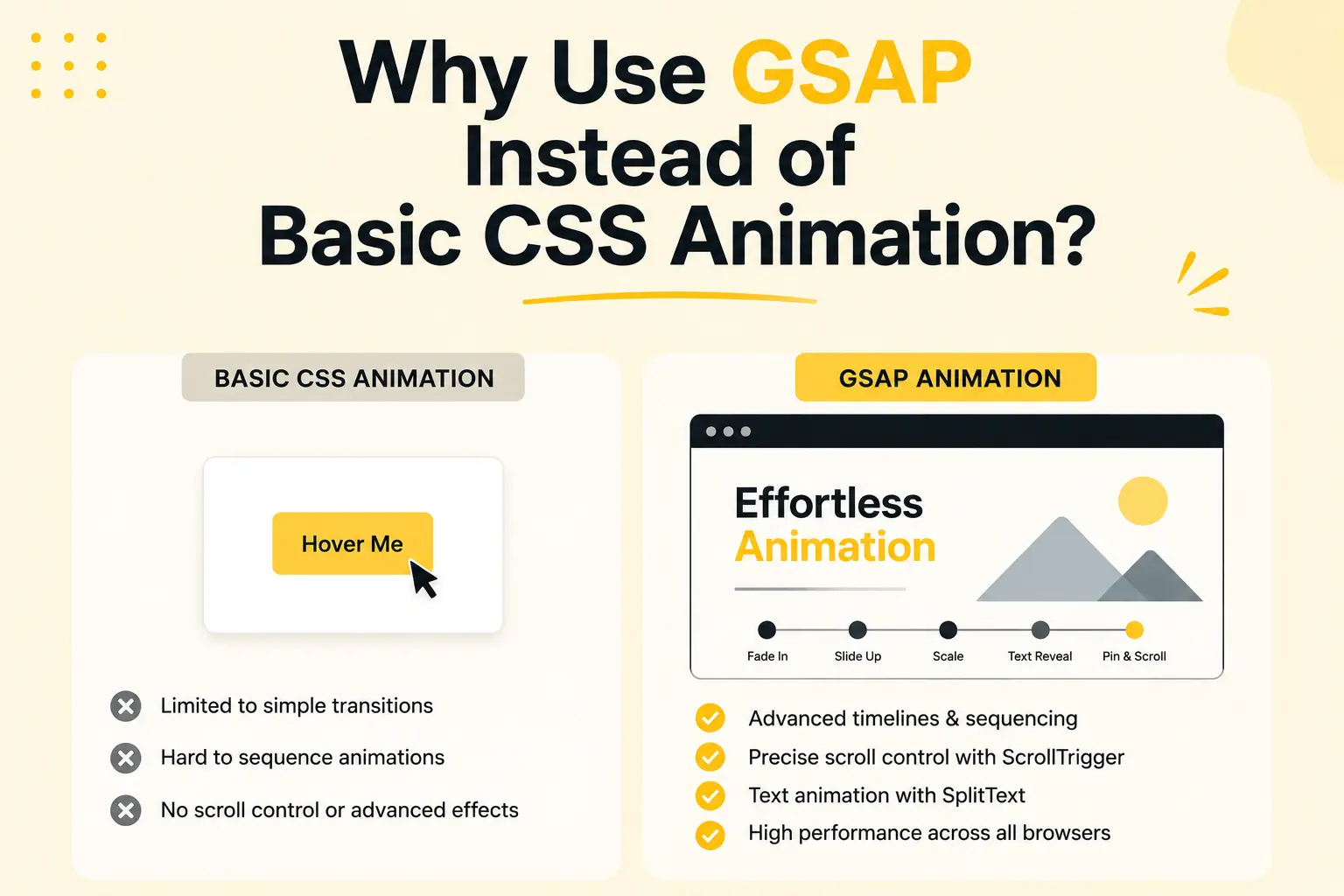
GSAP handles all of it smoothly and performs well across browsers. ScrollTrigger gives you precise control over when an animation starts, ends, and how it ties to scroll position. SplitText makes per-letter and per-word text reveals possible. Timelines let you choreograph several elements in sequence. For the kind of motion clients ask for in 2026, GSAP is the practical standard, and CSS alone can’t match it.
The trade-off has always been the coding requirement. That’s the gap a no-code workflow closes: GSAP-level results without GSAP-level JavaScript knowledge.
The Problem: Adding GSAP by Hand Is Harder Than It Looks
Before the visual approach, here’s what doing this by hand actually involves, so you can see why the no-code path is worth it.
To add even a simple scroll reveal manually in Bricks, you’d typically need to enqueue the GSAP library and the ScrollTrigger plugin, then write a code block that selects the right element, registers the plugin, and defines the animation:
gsap.from(".my-heading", {

  scrollTrigger: {

    trigger: ".my-heading",

    start: "top 80%",

  },

  y: 50,

  opacity: 0,

  duration: 1,

  ease: "power2.out",

});
That’s the simple version. A split-text heading requires loading SplitText, splitting the element, and staggering each character. A pinned section needs careful start, end, and pin settings or it jumps awkwardly. Horizontal scroll involves calculating widths and tying them to scroll distance. Every effect means more selectors to manage, more values to tune, and more chances for one typo to break the page.
Then there’s maintenance. Hand-coded animations are fragile: rename a class in Bricks and the script silently stops working. Multiply that across a client site with a dozen animated sections, and you’re maintaining a small JavaScript project on top of your design work. For designers and freelancers, that’s time and risk that doesn’t need to exist.
Common GSAP Animation Types You’ll Actually Use
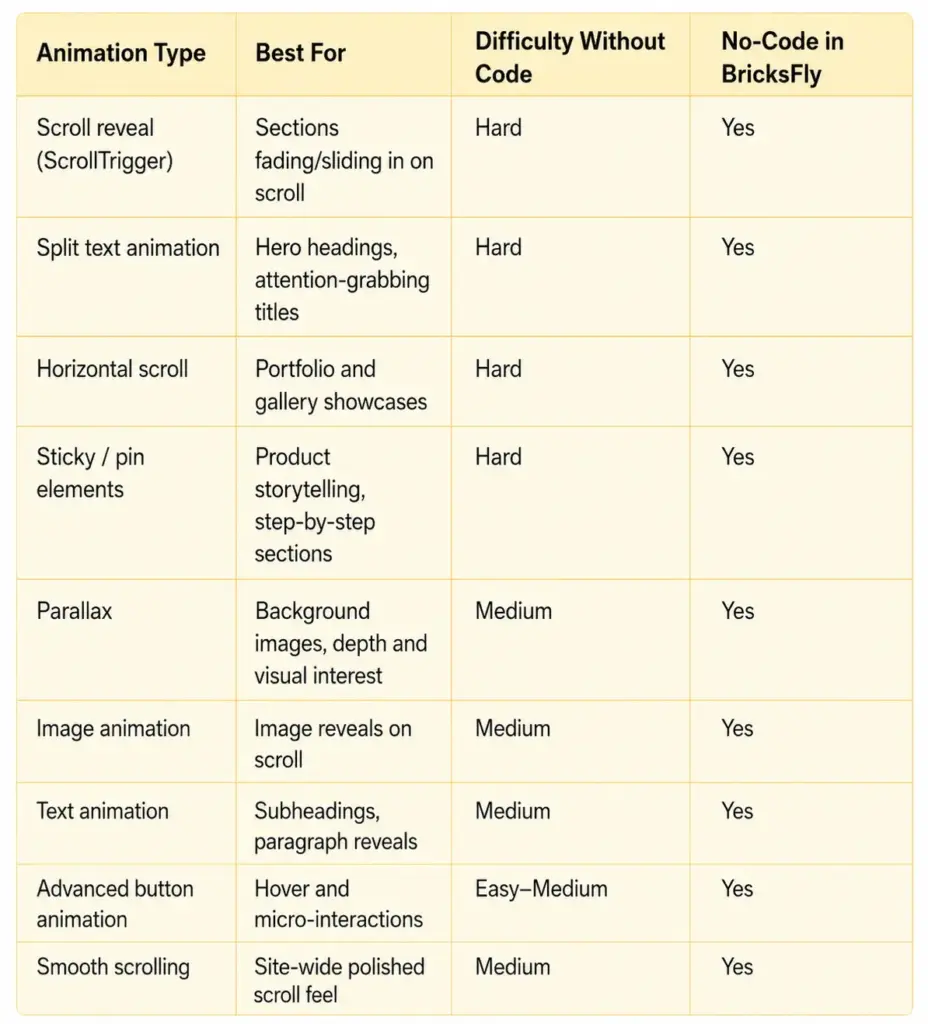
You don’t need every possible effect. A handful of GSAP animations cover most real projects. Here are the ones worth knowing, all available through no-code controls in BricksFly.
Scroll Reveal with ScrollTrigger
The workhorse effect: content fades or slides into view as the user scrolls to it. Used on almost every modern site to make pages feel alive without being distracting.
Split Text Animation
Breaks a heading into individual characters or words that animate in sequence. Perfect for hero sections where you want the headline to make an impression.
Horizontal Scroll and Pinned Sections
Horizontal scroll turns a vertical scroll into sideways movement, great for portfolios. Pinned (sticky) sections hold an element in place while related content scrolls past, ideal for product storytelling.
Parallax and Image Animation
Parallax moves background and foreground at different speeds to create depth. Image animation reveals or scales images on scroll for a more premium feel.
How to Add GSAP Animation in Bricks Without Code
Here’s the visual workflow. The exact panel names may vary slightly, but the steps are the same: pick an Element, choose an animation, set the trigger, tune the timing.
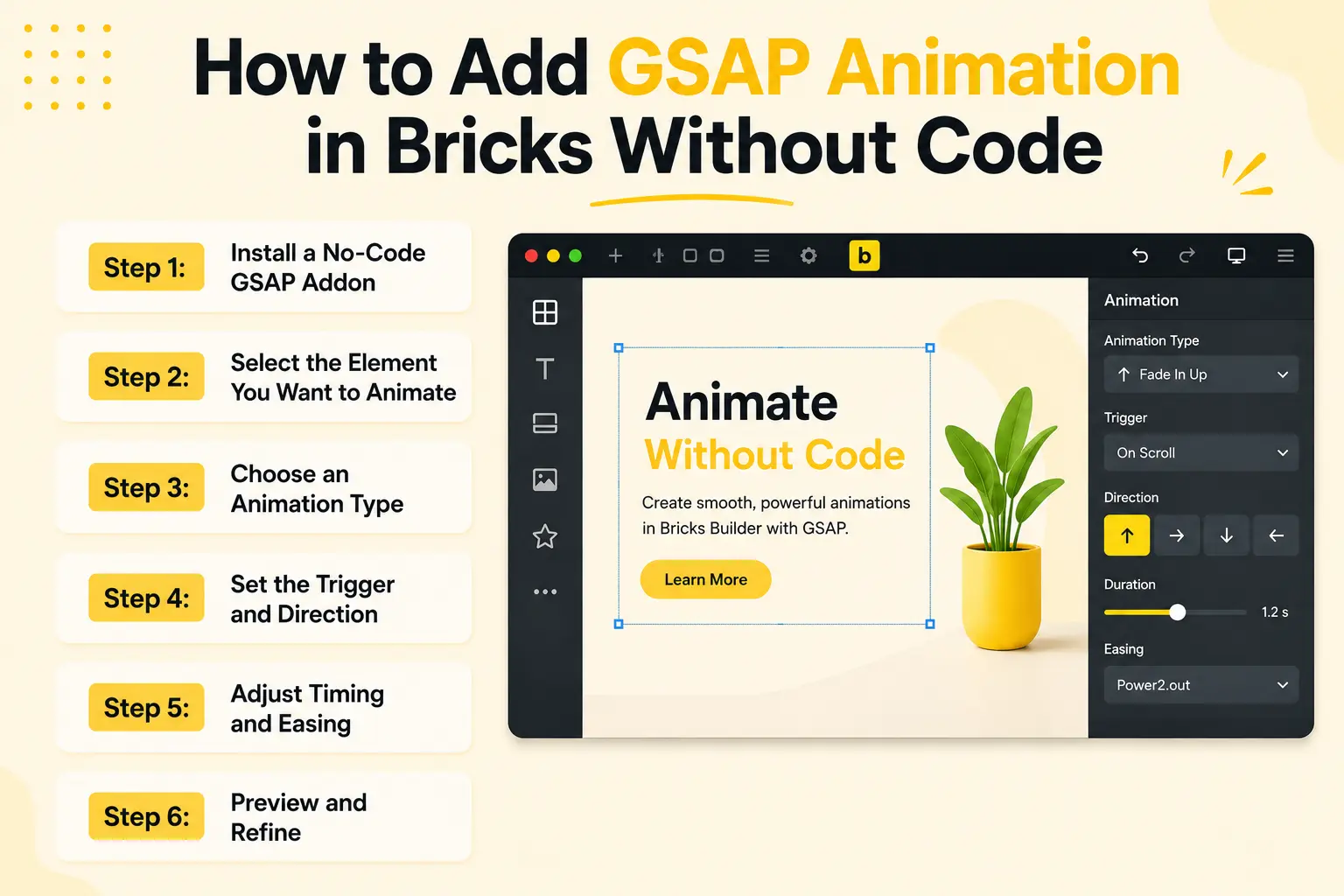
Step 1: Install a No-Code GSAP Addon
Install and activate a Bricks animation addon that includes the GSAP engine, such as BricksFly. This loads GSAP and ScrollTrigger for you, so you never enqueue libraries or touch code. Once active, animation controls appear in the Bricks editor.
Step 2: Select the Element You Want to Animate
In the Bricks editor, click the Element you want to animate, a heading, an image, a section, or a container. Animation in Bricks is applied per Element, so choose the specific one you want to move.
Step 3: Choose an Animation Type
Open the animation controls and pick the effect: scroll reveal, split text, parallax, horizontal scroll, sticky/pin, image animation, or a button hover effect. Each type exposes only the settings relevant to it, so you’re not hunting through irrelevant options.
Step 4: Set the Trigger and Direction
For scroll-based effects, set when the animation starts, typically when the Element enters the viewport. Choose the direction (fade up, slide from left, scale in) and, for ScrollTrigger effects, where on the screen the trigger fires. This replaces the hand-coded start and trigger values.
Step 5: Adjust Timing and Easing
Tune the duration (how long the animation runs), the delay (when it begins relative to the trigger), and the easing (how the motion accelerates and settles). For split text, set the stagger so characters animate one after another. This is where you make motion feel polished rather than mechanical.
Step 6: Preview and Refine
Preview the page and watch the animation in context. Scroll-based effects only make sense on a real scrolling page, so check the actual front end, not just the editor. Adjust timing until it feels natural, then test on mobile and confirm reduced-motion behavior. Repeat for the next Element.
That’s the entire workflow. No libraries to enqueue, no selectors to manage, no scripts to maintain, just visual controls producing real GSAP animation.
Examples and Use Cases
Here’s how these animations come together on real Bricks projects.
Agency landing page: Apply scroll reveal to each feature block so they slide in as the user scrolls, add split text to the hero headline for impact, and pin the case-study section while supporting stats scroll past. The page feels premium and the whole thing is configured visually.
Freelancer portfolio: Use horizontal scroll for the project gallery so work slides sideways as visitors scroll, then add image animation so each thumbnail reveals cleanly. A standout portfolio without a line of JavaScript.
SaaS product story: Pin a product screenshot while feature descriptions animate in beside it, walking the visitor through the product step by step. Add smooth scrolling site-wide so the whole experience feels considered.
Designer refreshing an existing site: No rebuild needed. Add parallax to the hero background, animate a stats counter on scroll, and apply subtle text animation to subheadings to lift an older Bricks site.
Each of these maps directly to the animation types above, and each once required a developer. With no-code GSAP for Bricks, designers and freelancers can now build and publish these effects directly.
Benefits of No-Code GSAP Animation
The shift to visual GSAP animation changes what you can deliver and how fast.
You build faster because applying an effect is a few clicks, not a coding session. You reduce custom code entirely, which removes the maintenance risk of hand-written scripts breaking when you rename a class. You improve design quality because premium motion is now within reach on every project, not just ones with a developer attached. And you raise your earning ceiling: animated, premium sites command higher rates, and now you can produce them yourself.
For designers, it means motion becomes part of your toolkit instead of something you outsource. For freelancers and agencies, it means faster delivery and more polished results, which translate directly into more projects and better margins.
Common Mistakes to Avoid
No-code makes animation easy, which makes it easy to overdo. Watch for these.
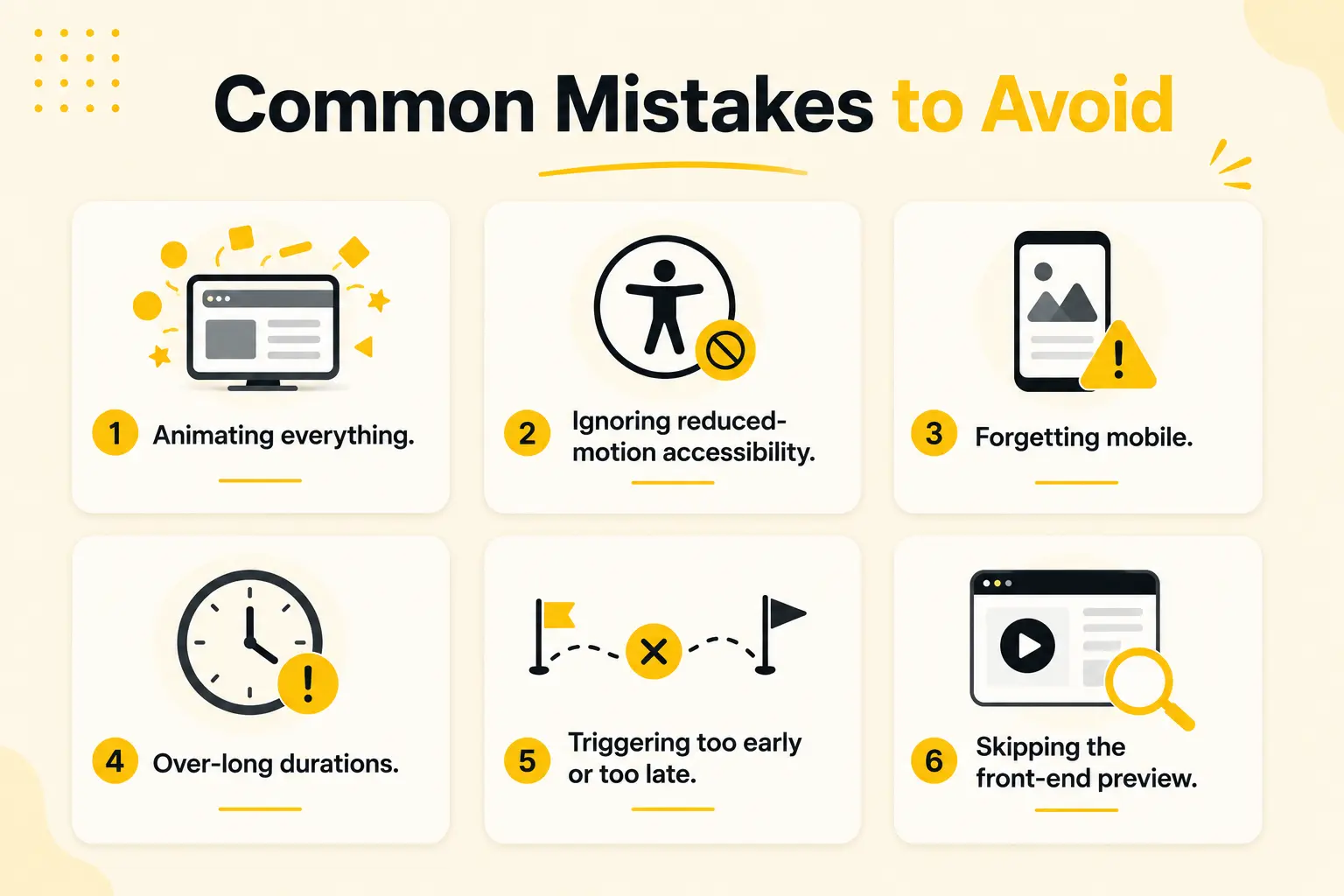
- Animating everything. When every element moves, nothing stands out and the site feels cheap. Use motion to guide attention to what matters.
- Ignoring reduced-motion accessibility. Some users disable motion for comfort or medical reasons. Respect the reduced-motion setting so your site stays usable for everyone.
- Forgetting mobile. A horizontal-scroll showcase that works on desktop can feel broken on a phone. Test every animation on mobile and adjust or disable per device.
- Over-long durations. Animations that take too long make a site feel slow. Keep most reveals snappy, often under a second.
- Triggering too early or too late. If a scroll reveal fires before the element is visible, users miss it. Set the trigger so the animation plays as the element comes into view.
- Skipping the front-end preview. Scroll effects don’t show properly in the editor. Always check the live page before publishing.
How BricksFly Helps
BricksFly is built to make GSAP animation for Bricks a no-code experience. It includes a no-code GSAP animation engine alongside full website templates, 500+ sections, and extra Elements, so animation is part of building the whole site rather than a separate plugin.
With BricksFly’s animation features you can create ScrollTrigger scroll reveals, split text animation, horizontal scroll, sticky/pin elements, parallax, image animation, text animation, advanced button animation, and smooth scrolling, all through visual controls inside the Bricks editor. Instead of enqueuing GSAP, registering plugins, and writing selectors, you select an Element, pick an effect, and tune the timing.
Because the animation engine lives in the same toolkit as your templates and sections, you can import a complete website, drop in prebuilt sections, and layer on GSAP motion without leaving your workflow or adding another vendor to manage. For designers and freelancers who want premium animation without code, that’s the whole job in one place.
Conclusion
GSAP animation for Bricks Builder used to mean choosing between premium motion and avoiding code. That trade-off is gone. The animation engine is the same whether you write the JavaScript by hand or configure it visually, and a no-code workflow gives you the same scroll reveals, split text, parallax, and pinned sections without the coding and maintenance burden.
The practical path is simple: install a no-code GSAP addon, select an Element, choose an effect, and tune the timing. Start with scroll reveals, add a split-text hero, and build from there, testing on mobile and respecting reduced-motion as you go.
FAQs
Yes. With a no-code animation addon like BricksFly, you can create GSAP-powered effects in Bricks Builder without writing JavaScript. You select an Element, choose an animation type such as scroll reveal, split text, parallax, or sticky/pin, and adjust the settings visually. The addon handles the GSAP and ScrollTrigger code for you.
GSAP is the most popular JavaScript animation library on the web. It powers smooth, high-performance motion that basic CSS can’t easily do, such as scroll-triggered reveals, pinned sections, and split text. In Bricks, GSAP is the standard for advanced, scroll-based animation.
CSS animation handles simple effects like hover states and basic transitions. GSAP handles complex, sequenced, and scroll-linked motion, including ScrollTrigger effects, pinning, and split text. For premium animated sites, GSAP is far more capable, which is why most advanced Bricks animation relies on it.
No. While hand-coding GSAP requires JavaScript, no-code addons let you apply the same animations through visual controls. You set the trigger, direction, duration, and easing in a settings panel, and the tool writes the GSAP for you, so designers and non-developers can create advanced motion.
GSAP itself is highly optimized and performs well. Performance issues usually come from animating too many elements or loading heavy scripts unnecessarily. A well-built addon loads only what’s needed. Keep durations reasonable, avoid over-animating, and your site stays fast.
Start with scroll reveal (ScrollTrigger) for sections, since it has the biggest impact for the least effort. Then add split text to your hero heading and parallax to a background image. These three cover most of what makes a site feel premium before you move on to pinned sections and horizontal scroll.




One response to “How to Add GSAP Animation in Bricks Builder Without Writing Code”
[…] (30+ complete sites with inner pages), 500+ prebuilt sections, extra Elements, Extensions, and no-code GSAP animation. So rather than installing a template library, a section library, an Element pack, and an animation […]