

A Bricks website can look perfectly smooth on your desktop and still feel frustratingly slow on a phone.
You click into the page and the hero text appears late. You scroll and the section seems to drag behind your finger. Cards jump into place instead of gliding in. A beautiful animation suddenly makes the website feel less polished.
The problem is usually not animation itself.
Slow Bricks animations are more often caused by heavy images, layout-changing CSS properties, too many effects running simultaneously, expensive JavaScript, excessive scroll-triggered effects, or a page that is already doing too much work.
The good news is that most of these problems are fixable.
Quick Answer
Bricks animations often slow down because of heavy images, too many effects, layout-triggering properties, and demanding JavaScript.
Optimize images, use `transform` and `opacity`, reduce simultaneous effects, and test on real mobile devices.
GSAP can handle complex animations efficiently, but performance still depends on how the animation is built.
Key Takeaways
- Slow animation is often a symptom of a heavier page rather than the animation alone.
- Transform and opacity are generally the safest properties for smooth animation.
- Large images and videos can make an animated page feel slow before the animation even starts.
- Too many scroll-triggered effects can increase JavaScript and rendering work.
- Mobile devices reveal performance problems that desktop testing can hide.
- Layout shifts can hurt visual stability even when the animation itself is smooth.
- Use Chrome DevTools to measure the problem before changing your animation setup.
- Respect
prefers-reduced-motionso visitors who request less motion get a calmer experience.
Why Do Bricks Animations Slow Down?
Every animation requires the browser to repeatedly update what appears on the screen.
At around 60 frames per second, the browser has roughly 16.7 milliseconds to prepare each frame. If rendering takes longer, frames can be dropped and the animation may appear to stutter or freeze.
The important question is therefore not simply:
“How many animations are on my page?”
A better question is:
“What does each animation make the browser do?”
When an animation changes layout, the browser may need to recalculate the position and size of other elements. When it triggers expensive painting, additional pixels may need to be redrawn.
By contrast, animations based primarily on transform and opacity can often be handled more efficiently by the browser’s rendering pipeline.
That is why two animations that look almost identical can have very different performance characteristics.
8 Common Causes of Slow Bricks Animations
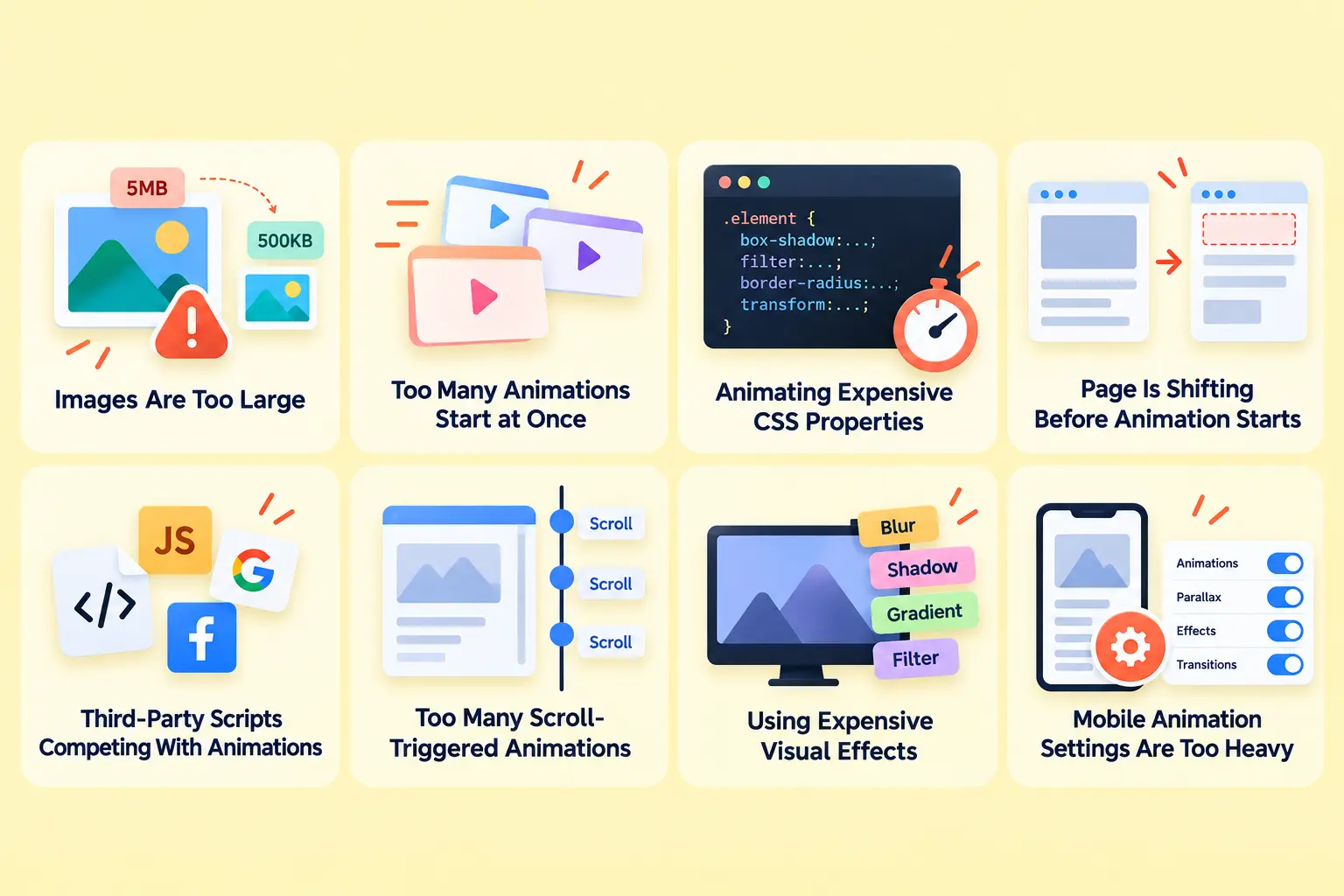
1. Images Are Too Large
An animation can be perfectly optimized and still feel slow if the content underneath it is unnecessarily heavy.
Imagine a hero section using a 4 MB background image. The browser first has to download and decode that resource before the visitor can experience the page as intended.
Large portfolio images, background images, videos, and animation assets can create the same problem.
How to fix it
- Convert suitable images to modern formats such as WebP or AVIF.
- Resize images to the dimensions they actually need.
- Use responsive image sizes.
- Avoid uploading a 2500px image for a 500px card.
- Lazy-load non-critical images.
- Give important images explicit dimensions.
Image optimization should happen before you start tuning the animation itself.
2. Too Many Animations Start at Once
Suppose your hero contains:
- a heading animation
- a paragraph reveal
- a button animation
- three image animations
- a background effect
- several card animations
If everything starts simultaneously, the browser suddenly has a lot of work to process.
The result can be a page where every element moves, but nothing feels smooth.
Use staggered animation instead
Rather than animating six cards at exactly the same time, introduce a small delay between them.
The effect becomes more controlled:
Card 1 → Card 2 → Card 3 → Card 4
The page can feel more responsive even though the total amount of animation has not changed dramatically.
The important principle is simple:
Don’t animate everything just because you can.
3. Animating Expensive CSS Properties
One of the most common animation-performance mistakes is changing properties that force layout recalculation.
For example:
- width
- height
- top
- left
- margin
These properties can affect the layout of surrounding content.
For movement, use transform where possible.
Instead of:
left: 100px;
consider:
transform: translateX(100px);
Instead of changing width to create a growing effect, consider using:
transform: scale();
For fades, use:
opacity
Modern browser guidance specifically recommends using transform and opacity for high-performance animation where possible.
4. The Page Is Shifting Before the Animation Starts
Sometimes what looks like a bad animation is actually a layout-shift problem.
An image loads without reserved dimensions. A font changes after loading. A dynamic element appears. The content below moves.
The visitor experiences a jump.
That contributes to Cumulative Layout Shift (CLS), one of Google’s Core Web Vitals.
How to prevent it
Reserve space for content before it loads. For images, use appropriate dimensions or aspect-ratio rules. For animated containers, make sure the animation does not unexpectedly change the document flow.
A smooth animation on an unstable layout is still a poor experience.
5. Third-Party Scripts Are Competing With Your Animations
Your animation is not the only thing using the browser.
A typical WordPress website might also load:
- analytics
- chat widgets
- tracking scripts
- cookie tools
- social embeds
- forms
- video players
- marketing tools
- other plugins
JavaScript running at the wrong time can consume main-thread resources while your animation is trying to update the screen.
What to do
Audit your scripts.
Ask:
- Does this script need to load on every page?
- Can it be delayed?
- Can it load only when needed?
- Is the plugin still necessary?
- Is the embed below the fold?
Removing unnecessary work can improve animation smoothness without changing the animation at all.
6. You Have Too Many Scroll-Triggered Animations
Scroll animation is powerful because it connects motion to user interaction.
But every scroll-triggered effect adds complexity.
A page containing dozens of independent triggers, parallax effects, pinned sections, text animations, image effects, and hover interactions can become much harder for the browser to manage.
The answer isn’t to avoid scroll animation.
It’s to use it selectively. Reserve the most complex effects for sections where motion actually improves storytelling or hierarchy.
7. You’re Using Expensive Visual Effects
Not every visual effect has the same performance cost.
Large blur effects, complex filters, heavy shadows, large animated areas, and effects that require frequent repainting can become expensive, especially on weaker hardware.
This is one reason an effect that looks perfect on a modern desktop can struggle on a budget smartphone. If an animation feels slow, simplify the visual treatment before simply reducing the animation duration.
8. Your Mobile Animation Settings Are Too Heavy
Desktop hardware can hide performance problems.
A three-year-old smartphone cannot necessarily process the same workload as a modern desktop computer.
That is why responsive animation should mean more than changing the viewport size.
For mobile, consider:
- fewer simultaneous effects
- shorter animation sequences
- less parallax
- fewer pinned sections
- simpler cursor effects
- smaller image assets
- reduced decorative motion
The goal is not to make mobile boring. It is to make mobile feel intentional.
How to Diagnose Slow Bricks Animations
Don’t start changing random settings. Measure first.
Step 1: Open Chrome DevTools
Open the page in Chrome and launch DevTools.
Go to:
Performance → Record
Then scroll through the part of the page where the animation feels slow. Stop the recording and inspect what happened.
Chrome DevTools can help identify rendering and scripting work associated with slow animation.
Step 2: Look for Long Frames
A smooth animation needs frames to be produced quickly enough for the display.
If individual frames take too long, you may see visible stuttering. Don’t assume the animation is the culprit immediately. Check whether the time is being spent on:
- JavaScript
- layout
- rendering
- painting
- image decoding
- other third-party scripts
Step 3: Disable Effects One at a Time
If you have several animations in one section, disable them individually. For example:
- Disable parallax.
- Test again.
- Disable text animation.
- Test again.
- Disable image reveal.
- Test again.
This isolates the expensive effect much faster than rebuilding the entire section.
How to Fix Slow Bricks Animations
Once you’ve identified the bottleneck, work through these fixes one at a time. This makes it easier to see which change actually improves your page’s animation performance.
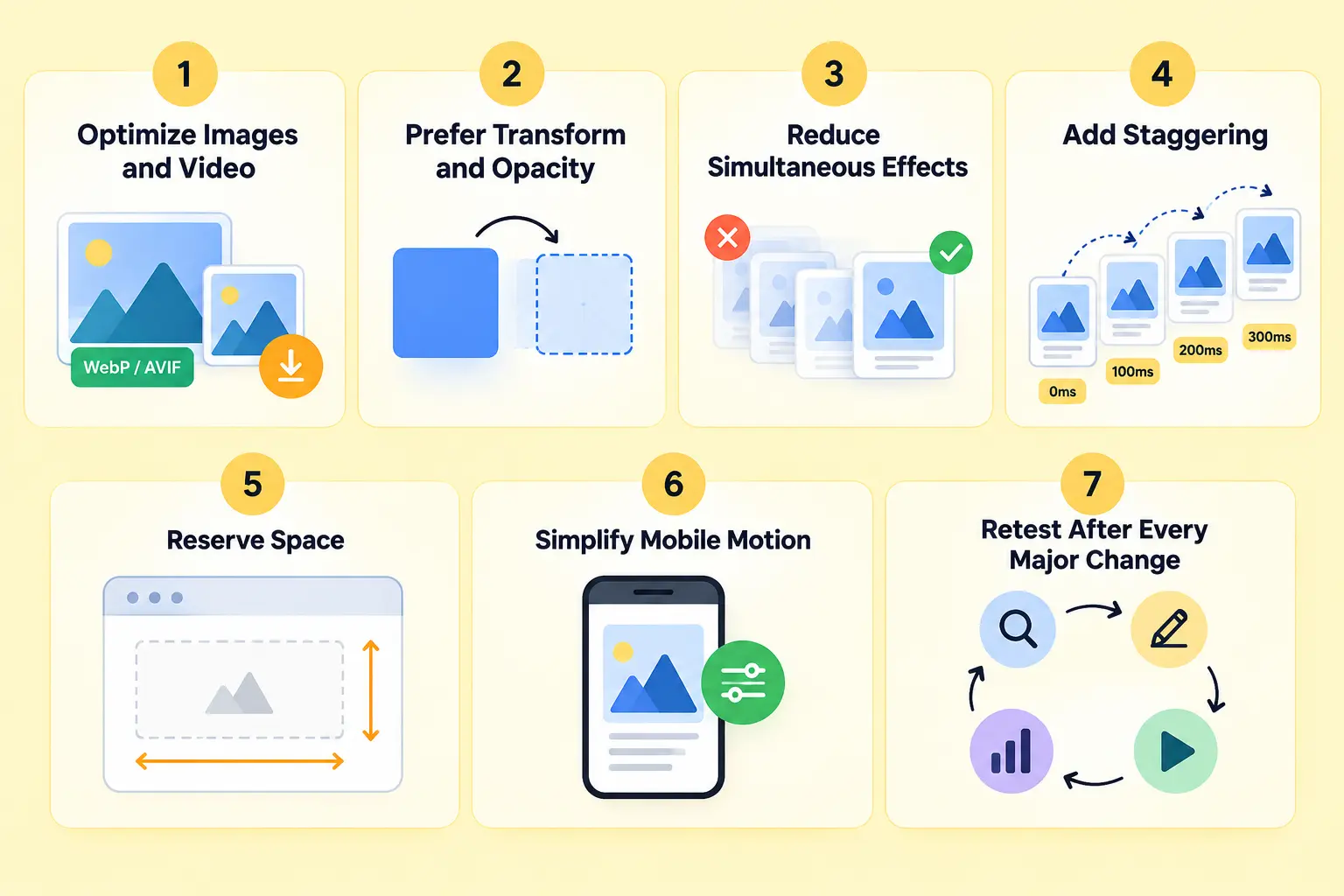
1. Optimize Images and Video
Reduce image dimensions and file sizes before tuning your animations. Large images and videos can consume bandwidth, increase loading time, and make an otherwise lightweight animation feel slow.
Use modern formats such as WebP or AVIF where appropriate, resize media to its actual display dimensions, and avoid loading unnecessarily large background images.
2. Prefer Transform and Opacity
Use transform for movement, scaling, and rotation whenever possible, and use opacity for simple fade effects. These properties can generally be animated more efficiently than properties that trigger layout changes.
Avoid continuously animating properties such as width, height, margin, or top unless the effect genuinely requires them. Rebuilding the same visual effect with transform can often reduce rendering work.
3. Reduce Simultaneous Effects
If ten things animate at once, ask whether all ten really need to move. Multiple animations starting together can create a sudden burst of rendering and JavaScript work.
Focus motion on elements that communicate hierarchy or guide attention. Removing unnecessary effects can make the page feel both faster and more visually polished.
4. Add Staggering
For repeated elements such as cards, features, testimonials, or portfolio items, use staggered timing instead of triggering every animation simultaneously.
A small delay between elements spreads the visual workload and creates a more natural entrance sequence. It can also make the animation feel more intentional without adding complex effects.
5. Reserve Space
Make sure images, videos, embeds, and dynamic components have predictable dimensions before they load. Without reserved space, late-loading content can push other elements around and create noticeable layout shifts.
Set appropriate width and height values or use aspect-ratio containers where needed. This keeps the layout stable while your animations run.
6. Simplify Mobile Motion
Use responsive animation settings instead of forcing the full desktop experience onto every device. Complex parallax, large transforms, multiple scroll effects, and long animation sequences can be especially demanding on mobile hardware.
Consider reducing the number of effects, shortening animation sequences, or replacing complex effects with simpler fades and reveals on smaller screens.
7. Retest After Every Major Change
Performance optimization works best as a simple loop:
Measure → Change → Test → Compare → Repeat
Don’t make ten changes at once and then try to guess which one helped. Test each major optimization with Chrome DevTools and, whenever possible, on a real mobile device so you can identify what actually improves the experience.
Do Bricks Animations Affect Core Web Vitals?
They can, but the relationship is more nuanced than “animation = bad Core Web Vitals.”
Core Web Vitals currently focus on:
- LCP — loading performance
- INP — responsiveness
- CLS — visual stability
Google’s current “good” thresholds are 2.5 seconds or less for LCP, 200 milliseconds or less for INP, and 0.1 or less for CLS at the 75th percentile.
Animations can contribute to performance problems when they:
- delay important content
- consume significant JavaScript resources
- block the main thread
- trigger layout work
- cause unexpected movement
- depend on heavy images or videos
A simple transform-based reveal does not automatically create a Core Web Vitals problem. The page needs to be measured as a whole.
GSAP vs CSS Animation in Bricks: Which Is Faster?
There isn’t a universal answer. For a simple fade or hover transition, CSS can be an excellent choice.
For more complex interactions, such as:
- scroll-linked animation
- timelines
- staggered sequences
- pinned sections
- SplitText effects
- coordinated multi-element motion
A dedicated animation engine can make the workflow much easier to manage.
GSAP is designed for sophisticated animation control, but using GSAP does not automatically guarantee better performance. The browser still has to render whatever you ask it to render. The most important optimization remains the same:
Animate efficiently, minimize unnecessary work, and measure the result.
Should You Disable Bricks Animations on Mobile?
Not necessarily. The better approach is to make mobile animation lighter and more purposeful. For example, a desktop page might use:
- SplitText
- parallax
- pinned sections
- horizontal scrolling
- image movement
On mobile, you might keep:
- a simple heading reveal
- a subtle image fade
- a short card stagger
The visitor still gets motion, but the page doesn’t spend resources reproducing every desktop effect.
Don’t Forget Reduced Motion
Some visitors explicitly request reduced motion through their operating system or browser settings. Your website should respect that preference.
A reduced-motion experience might:
- disable decorative parallax
- reduce large movement
- shorten transitions
- replace complex motion with simple fades
- remove unnecessary continuous animation
This is both an accessibility consideration and a good UX practice.
How BricksFly Helps You Build Animated Bricks Websites
BricksFly brings templates, sections, Elements, Extensions, and visual GSAP animation into one Bricks Builder workflow.
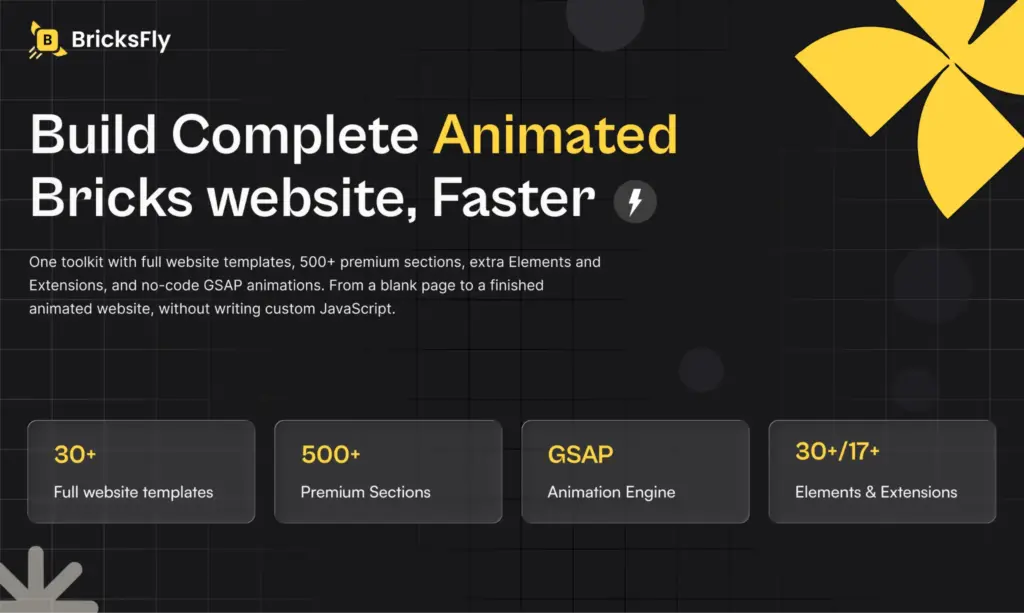
The current BricksFly toolkit includes 30+ full website templates, 500+ sections, 30+ Elements, 17+ Extensions, and a no-code GSAP animation engine.
Its animation workflow includes effects such as:
- ScrollTrigger
- Split Text
- Sticky and Pin
- Horizontal Scroll
- Image Animation
- Image Reveal
- Parallax
- Cursor Effects
- Smooth Scrolling
These features are configured visually inside the Bricks workflow rather than requiring you to write every GSAP animation manually.
But a visual animation tool does not remove the need for performance optimization.
You still need to:
- optimize your images
- avoid unnecessary animation
- test on mobile
- keep effects purposeful
- monitor page performance
- respect reduced-motion preferences
The goal is not to make every part of the website move. The goal is to make the right parts move well.
Final Thoughts
Fast animation isn’t about removing motion from your Bricks website. It’s about giving the browser less unnecessary work while keeping the motion that actually improves the experience.
Start with the page itself. Optimize the images. Remove unnecessary scripts. Check for layout shifts. Then inspect the animations and move expensive effects toward more efficient properties such as transform and opacity.
After that, test on mobile. A premium animated website isn’t the one with the most effects.
It’s the one where every effect feels intentional, responsive, and effortless.
Want to create advanced GSAP animations in Bricks without writing custom JavaScript?
BricksFly combines visual GSAP animation with 30+ website templates, 500+ ready-made sections, Elements, and Extensions so you can build and animate Bricks websites inside one workflow.
Explore BricksFly →FAQs
Mobile devices generally have fewer resources available for demanding rendering and JavaScript workloads. Heavy images, too many simultaneous effects, layout-triggering animations, and complex scroll effects can expose those limitations. Start by optimizing images, reducing simultaneous effects, simplifying mobile animation, and testing on a real device.
For many common effects, transform and opacity are preferred because they can often be handled efficiently during the compositing stage. For example, use transform: translate() for movement and transform: scale() for resizing rather than repeatedly changing layout properties.
They can, but animation itself is not automatically harmful. Problems occur when animations contribute to layout shifts, heavy JavaScript execution, expensive rendering, delayed content, or poor responsiveness. Measure the page rather than assuming the animation is responsible.
Not automatically. CSS and JavaScript animations can both perform well when implemented efficiently. GSAP is particularly useful for complex timelines, sequencing, scroll interactions, and advanced animation control. For a simple fade or transition, CSS may be all you need.
There is no universal number. The better question is whether the animations improve the experience without creating unnecessary rendering or JavaScript work. If every element moves, nothing feels important.
Use Chrome DevTools’ Performance panel and record the page while the animation is running. Look for long frames, JavaScript activity, rendering work, painting, and layout calculations. Then disable individual effects and test again to isolate the bottleneck.
Not necessarily. Instead, use lighter effects on smaller devices. A simple reveal or fade can preserve the visual experience without reproducing every complex desktop interaction.





Leave a Reply
You must be logged in to post a comment.