




























Portfolio overviews
Show many projects in one pinned section without a long grid.
Black Friday + Cyber MondayBiggest sale of the year. Up to 50% off.
Claim The DealGeneral element · Pro
Pin a project section and slide two rows of images in opposite directions as visitors scroll, with a circle that shows how far they are.
Live examples
Three real-world examples, each built with one Gallery Progress element and no custom code. The tags under every example list the exact settings used, so you can rebuild it in Bricks in a few minutes.
Example 01
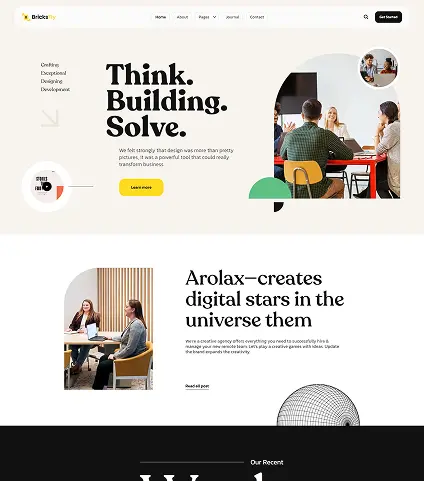
The section pins while you scroll: Gallery Slider One moves left, Gallery Slider Two moves right, and the circle counts scroll progress from 0 to 100%.
Example 02
The same element styled light, with website thumbnails and a smaller image height. Good for template shops and theme demos.
Example 03
Portrait items with short captions for a careers or About page. Item padding and the hover background frame each photo.
Gallery Progress is a BricksFly Pro element that pins a section in Bricks Builder and moves two gallery rows in opposite directions while the visitor scrolls. A circular progress indicator shows the scroll depth. Each gallery item can be an image or a video with a title, text and link.
Key facts
Use cases
Show many projects in one pinned section without a long grid.
Move two rows of products or categories past the visitor.
Mix image and video items for a lively recap.
Settings
Every option below is a control in the Gallery Progress element’s panel in Bricks. Responsive values can be set per breakpoint.
How to
Install the free “BricksFly Elements and Templates for Bricks” plugin from WordPress.org, then install and activate BricksFly Pro with your license.
In WordPress, open BricksFly → Elements, find Gallery Progress under General and switch it on.
Edit a page with Bricks, click + (Add element), search for “Gallery Progress” and drag it into your layout.
Fill in the Content settings, then adjust the Style tab. Preview on desktop, tablet and mobile and save.
FAQ
No. Bricks does not include a scroll-driven gallery element like this. BricksFly adds the Gallery Progress element to the Bricks editor as part of BricksFly Pro, with no custom code.
Yes. Gallery Progress is a Pro element. It needs the free BricksFly plugin plus BricksFly Pro.
The section is pinned with GSAP ScrollTrigger. Slider One moves left and Slider Two moves right while a circle fills to show scroll progress.
Yes. Each item can be an image or a video.
No. Its CSS and JavaScript load only on pages where the element is used, and you can switch the element off in BricksFly → Elements if you don’t need it.
Related
Combine them to build complete, animated sections — every one is configured visually in Bricks.
More from BricksFly
Full websites that already use BricksFly elements and animation.
Copy-paste heroes, pricing, testimonials and more.
Scroll, split text, pin and horizontal scroll effects.
Everything the BricksFly addon adds, free vs Pro.
Pro includes all 30 Elements, 22 Extensions, the GSAP engine, 70+ templates and 1000+ sections, with a 15-day money-back guarantee.