
01 / 04
Discover
We learn your goals, audience and content, then pick the starter site that fits best.

Black Friday + Cyber MondayBiggest sale of the year. Up to 50% off.
Claim The DealAnimation element · Pro
Tell a story one card at a time. Cards slide over each other as visitors scroll, with eight transition effects and a step counter.
Live examples
Four real-world examples, each built with one Stacking Cards element and no custom code. The tags under every example list the exact settings used, so you can rebuild it in Bricks in a few minutes.
Example 01
Pinning Mode: Sticky Cards. Each card sticks below the header while the next one slides over it, and the previous card scales down with a deeper shadow. A step counter pill shows where you are.
We learn your goals, audience and content, then pick the starter site that fits best.
Sections are adapted to your brand with global colors, fonts and spacing in Bricks.

Scroll reveals, split text and hover effects are added visually with BricksFly.

We test speed, SEO and every breakpoint, then go live — usually within two weeks.

Example 02
Pinning Mode: Pin Section holds the whole block in place. Each new card rises from below while the one behind tilts back in 3D, like a deck of slides.
Scroll, hover and text animation from the Bricks panel.
Heroes, features, pricing and footers, ready to paste.
Import a complete website and make it yours.
Scripts load only where an element is used.
Example 03
Cards enter from the right and cover the previous one, which shrinks slightly. Works well for three or four case studies in a small space.
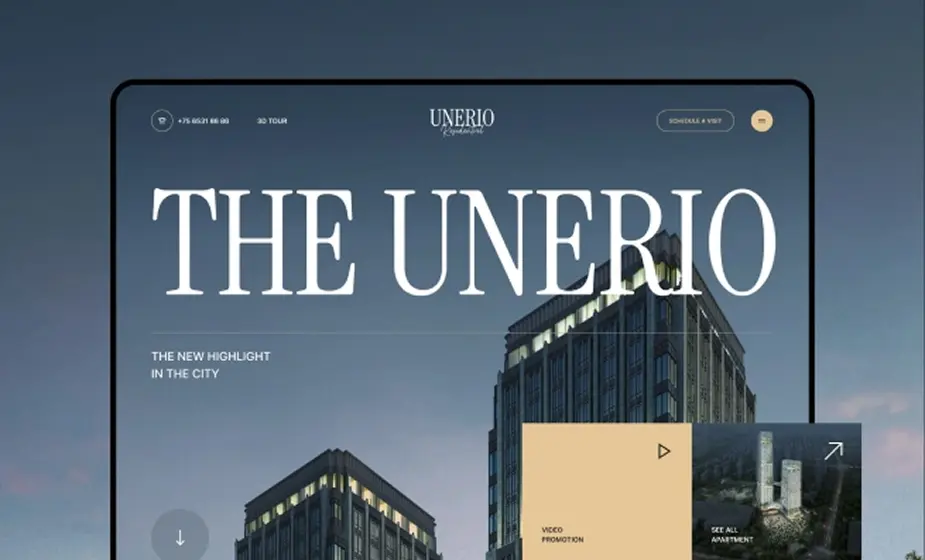
Real estate
A property site with pinned galleries and fast search.
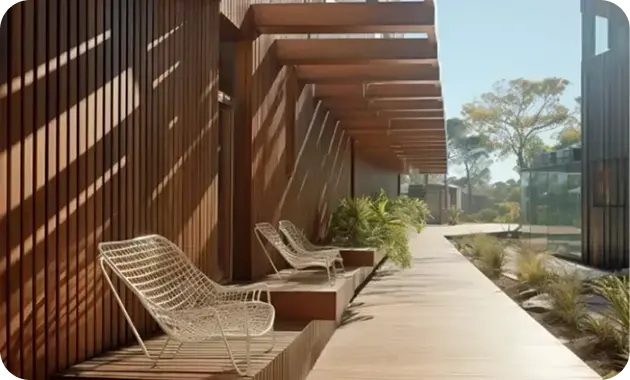
Architecture
Calm project pages with image reveals and smooth scroll.

Product brand
A launch page with split text and a sticky product story.
Example 04
Cards start as one pile and fan out like a hand of cards while the section is pinned. A playful way to show reviews or pricing tiers.
Our new site went live in nine days. The scroll animations got more compliments from clients than anything we have launched before.
Maya CollinsFounder, Northside Studio
We replaced four separate add-ons with one toolkit. Pages load faster and the team finally builds in one consistent way.
Daniel ReyesLead Developer, Pixel & Co
The starter sites gave us a strong base, and the visual animation controls meant no custom JavaScript for once.
Priya NairMarketing Manager, Brightlane
Clear docs, quick replies from support and elements that just work inside Bricks. Exactly what a small agency needs.
Lucas MartinOwner, Martin Web
I rebuilt our studio site over a weekend. The sticky sections and split text look custom, but it was all done in the Bricks panel.
Sofia LindDesigner, Lind Studio
Sample reviews for demonstration.
Stacking Cards is a nestable BricksFly Pro element for Bricks Builder. You add cards and drop any Bricks elements inside them; as the visitor scrolls, the cards stack on top of each other as a pinned deck or as sticky cards. It has 8 transition effects, deepening shadows and an optional step counter such as “01 / 03”.
Key facts
Use cases
One step per card, revealed in order.
Give each key feature a full card with an image.
Stack project cards for a scroll-driven portfolio.
Settings
Every option below is a control in the Stacking Cards element’s panel in Bricks. Responsive values can be set per breakpoint.
How to
Install the free “BricksFly Elements and Templates for Bricks” plugin from WordPress.org, then install and activate BricksFly Pro with your license.
In WordPress, open BricksFly → Elements, find Stacking Cards under Animation and switch it on.
Edit a page with Bricks, click + (Add element), search for “Stacking Cards” and drag it into your layout.
Fill in the Content settings, then adjust the Style tab. Preview on desktop, tablet and mobile and save.
FAQ
No. Bricks does not include a stacking cards element. BricksFly adds the Stacking Cards element to the Bricks editor as part of BricksFly Pro, with no custom code.
Yes. Stacking Cards is a Pro element. A matching Stacking Cards extension can also turn a native Bricks container into a card deck.
Yes. The element is nestable, so each card can hold any Bricks elements.
Yes. Enable Disable on Mobile (<768px) to show normal cards on small screens.
No. Its CSS and JavaScript load only on pages where the element is used, and you can switch the element off in BricksFly → Elements if you don’t need it.
Related
Combine them to build complete, animated sections — every one is configured visually in Bricks.
More from BricksFly
Full websites that already use BricksFly elements and animation.
Copy-paste heroes, pricing, testimonials and more.
Scroll, split text, pin and horizontal scroll effects.
Everything the BricksFly addon adds, free vs Pro.
Pro includes all 30 Elements, 22 Extensions, the GSAP engine, 70+ templates and 1000+ sections, with a 15-day money-back guarantee.