
Knowing how to use copy-paste sections in Bricks Builder is one of the simplest skills that pays off on every project. Instead of designing a hero, pricing block, or footer from scratch, you copy a prebuilt section and paste it straight into your page, fully designed and ready to customize.
The reason it matters is repetition. Most pages reuse the same building blocks, and copy-paste lets you drop in polished versions in seconds rather than rebuilding them each time. But there’s more to it than a single shortcut.
This guide covers the complete copy-paste section workflow in Bricks. You’ll learn how live copy-paste works step by step, how a section library like BricksFly with 500+ sections and live copy-paste built in, makes this workflow fast and reliable.
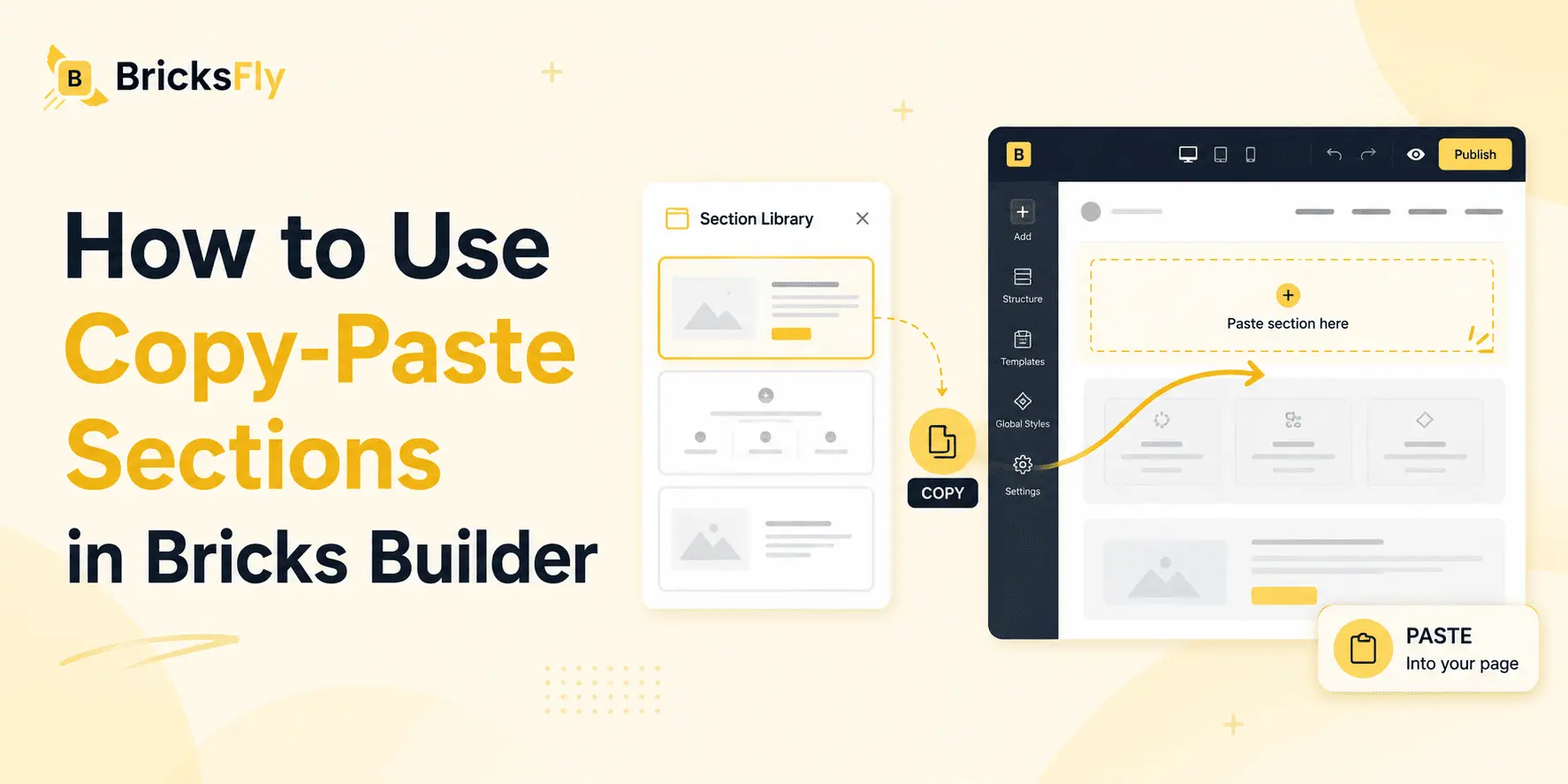
Quick Answer: To copy and paste sections in Bricks Builder, find a prebuilt section in your library, click the live copy option, and paste it into your page through the Bricks structure panel. The section keeps its original design and is ready to customize. Libraries like BricksFly also support JSON and direct imports, helping you add sections in seconds.
Why Copy-Paste Sections Speed Up Page Building
Before the steps, here’s why this workflow is worth mastering.
Every page you build reuses familiar parts: a hero at the top, a features or services grid, social proof, a pricing block, a call to action, a footer. Designing each of these from scratch is repetitive work you’ve likely done dozens of times. Copy-paste sections remove that repetition, you grab a polished, prebuilt version and paste it in, then spend your time on the content and branding that actually differ.
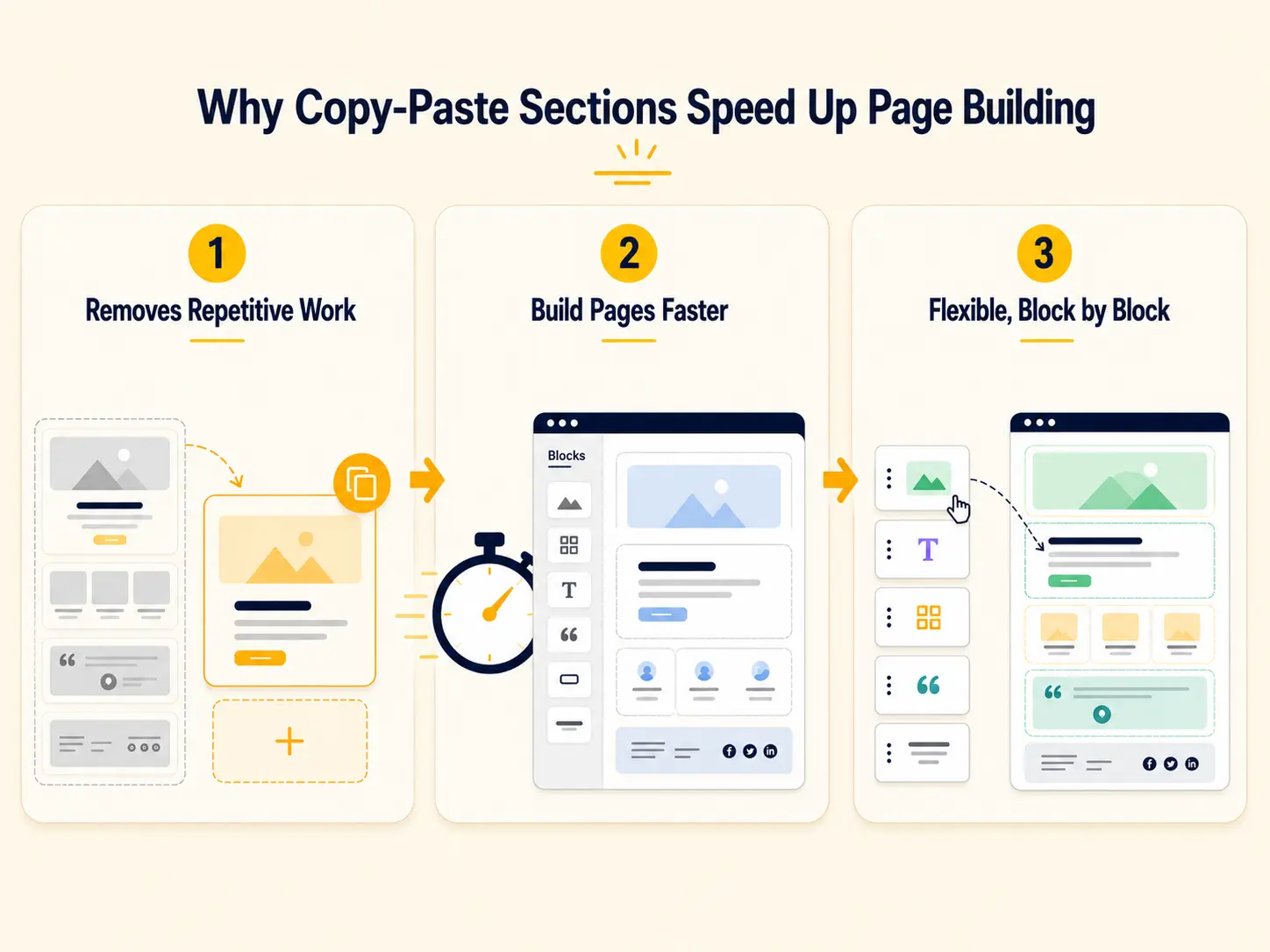
The speed comes from skipping the slow part. With a blank canvas, you decide layout, spacing, typography, and styling for every block. You can also use extra elements for your website according to your choice. With copy-paste, those decisions are already made by the section’s design, so you go straight to customizing. A page that might take hours to build comes together in minutes.
There’s also a flexibility advantage over full templates. A template gives you a fixed structure; copy-paste sections let you assemble exactly the layout you want, block by block, in any order. You get the speed of prebuilt design with full control over the page, which is ideal for custom pages and one-off layouts that no template matches perfectly.
The Three Ways to Add Sections in Bricks
Copy-paste is the headline method, but section libraries usually offer three ways to bring a block in. Knowing all three lets you pick the fastest for each situation.
| Method | How It Works | Best For | Download Needed |
| Live copy-paste | Copy from library, paste in editor | Fast, in-the-moment building | No |
| JSON import | Download a file, import it | Sharing or saving sections as files | Yes |
| Direct import | Insert from inside the editor | Browsing and adding without leaving Bricks | No |
Live Copy-Paste
The fastest in-the-moment method. You copy a section from the library and paste it directly into your Bricks page, no file to download. This is the go-to for building pages quickly while you work.
JSON Download and Import
You download the section as a .json file, then import it into Bricks. This is useful when you want to save a section as a file, share it with someone, or keep a library of your own reusable blocks.
Direct Import
Some libraries let you browse and insert sections from inside the Bricks editor itself, no copying or downloading, you pick a section and it’s added to your page. This keeps everything in one place while you build.
Each method ends with the same result: a designed section on your page, ready to customize. The difference is just how you bring it in.
How to Use Live Copy-Paste Sections in BricksFly (Step by Step)
Here’s the core workflow, the fastest way to add a prebuilt section while you’re building in BricksFly.
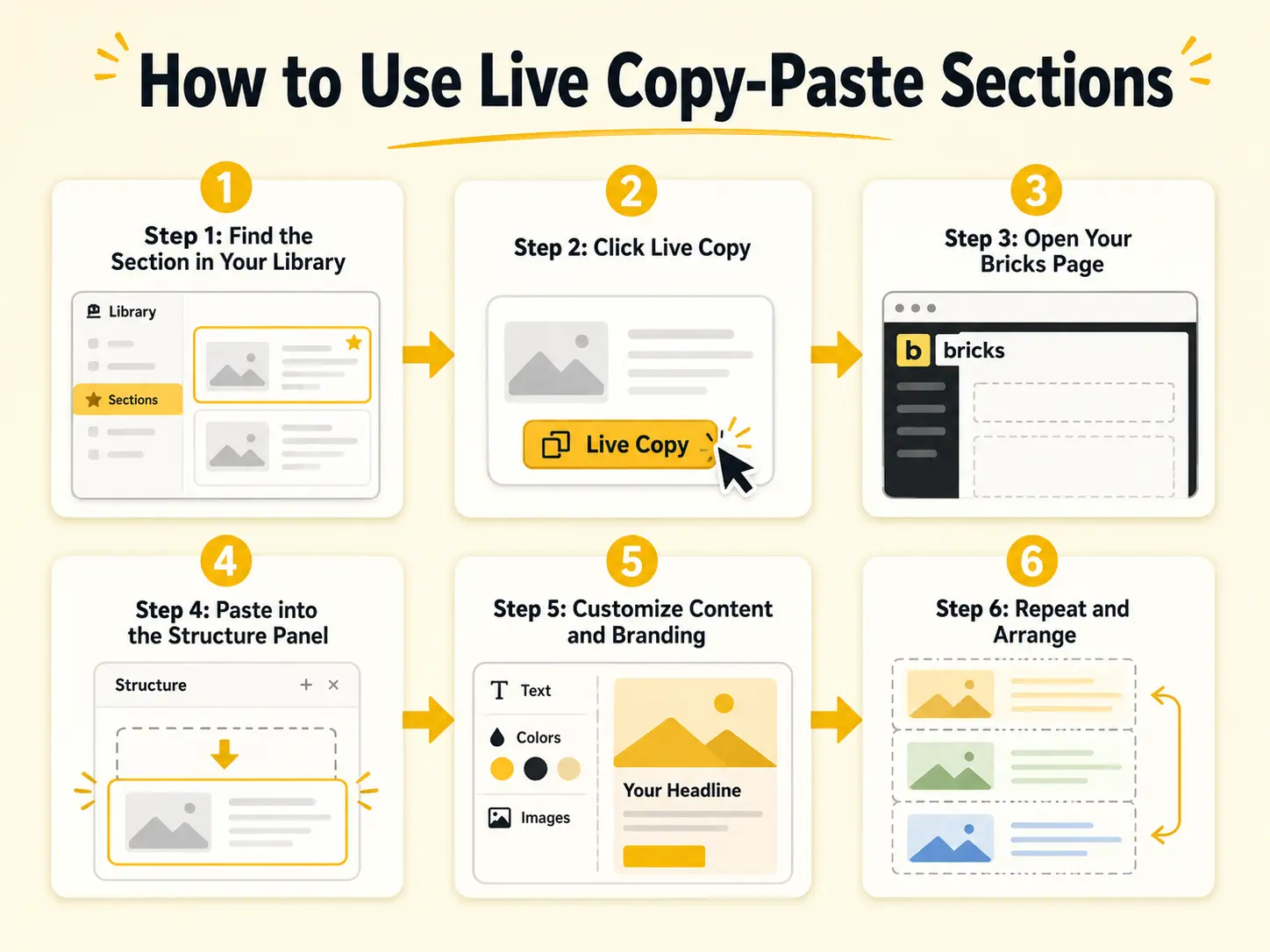
Step 1: Find the Section in Your Library
Browse your section library and find the block you want, a hero, pricing table, testimonial row, or footer. Good libraries let you filter by category so you find the right section quickly.
Step 2: Click Live Copy
Click the section’s live copy option. This copies the section’s structure and styling to your clipboard, no file download required. The whole block, layout and design, is now ready to paste.
Step 3: Open Your Bricks Page
In the Bricks editor, open the page where you want the section and find the structure panel, which shows your page’s layout hierarchy.
Step 4: Paste into the Structure Panel
Right-click in the structure panel at the spot where you want the section, then choose paste. The section drops in with its design intact, placed exactly where you put it in the page order.
Step 5: Customize Content and Branding
Replace the placeholder text with your own copy, swap in your images, and adjust the colors to match the brand. The design is done, so this step is quick, you’re personalizing, not building.
Step 6: Repeat and Arrange
Add more sections the same way, building your page block by block. Rearrange them in the structure panel as needed until the page is complete.
That’s the entire live copy-paste workflow. Find, copy, paste, customize, and a polished section is on your page in under a minute.
When to Use JSON Import or Direct Import Instead
Live copy-paste is fastest for most building, but the other methods have their moments.
Use JSON import when you want to save or share a section as a file. If you’re building a personal library of reusable blocks, handing a section to a teammate, or moving a block between sites that aren’t linked, downloading the JSON gives you a portable file. You then import it into Bricks the same way you’d import any template file.
Use direct import when your library supports inserting sections from inside the Bricks editor. This keeps you in one place, you browse and add without copying to the clipboard or downloading anything. It’s handy when you’re adding several sections in a row and want a smooth, uninterrupted flow.
In practice, many builders use live copy-paste as their default and reach for JSON when they need a portable file. The point is that having all three available means you’re never stuck, whatever the situation, there’s a quick way to get the section onto your page.
Reusing Your Own Sections Across Projects
Copy-paste isn’t only for library sections, it’s also how you reuse your own work, which is a major time-saver for agencies and freelancers.
Once you’ve built or customized a section you like, a branded footer, a particular hero layout, a pricing block that converts well, you can copy it and reuse it on other pages or projects. This keeps your work consistent and saves you from rebuilding favorites.
For sections you reuse often, saving them as JSON files gives you a portable personal library. You can keep a folder of go-to blocks and import them into any project. Agencies sometimes standardize a set of these, a consistent footer, header, and contact section, so every client site shares the same quality baseline and the team isn’t reinventing common blocks.
Combining a large prebuilt library with your own reusable sections makes section-based building more efficient over time. With every project, your collection of trusted blocks grows, helping you create future pages faster while maintaining consistent design and quality.
Examples and Use Cases
Here’s how copy-paste sections work on real projects.
Freelancer assembling a custom landing page: They live-copy a hero, a benefits grid, a testimonial row, and a CTA from the library, paste them in order, and customize, a bespoke-looking page built in well under an hour.
Agency adding a page to a client site: They paste in a services section and a contact section, then match the styling to the existing site, no need to import a whole template for one page.
Designer testing two layouts: They paste two different hero sections onto a staging page to compare them side by side, fast iteration that hand-building wouldn’t allow.
Agency standardizing a footer: They keep a branded footer as a JSON file and import it into every project, ensuring consistency and saving setup time on each build.
Each case shows the same benefit, speed and flexibility together, whether using library sections or reusing your own.
Common Mistakes to Avoid
Copy-paste is easy, which makes a few mistakes common.
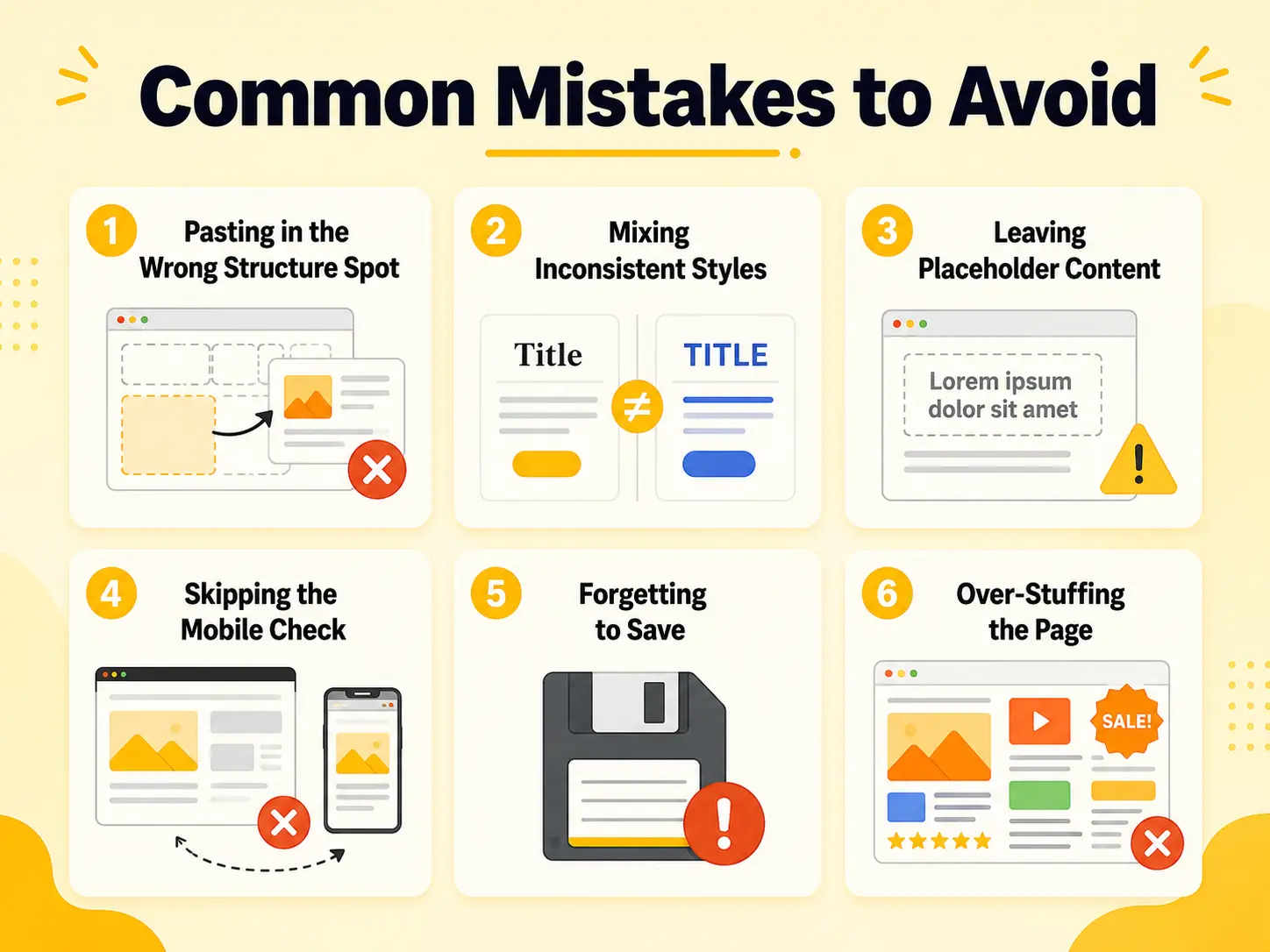
Pasting in the Wrong Structure Spot
Check the structure panel so the section lands where you intend, not nested inside another element by accident. A misplaced section can inherit unexpected styling or spacing from its parent container. Always confirm the hierarchy before continuing so your page remains clean and easy to manage.
Mixing Inconsistent Styles
Pulling sections from very different design languages creates a disjointed page. Keep a consistent system as you assemble. Use matching typography, spacing, colors, and button styles across the entire site. A consistent visual language makes the website look more professional and improves the overall user experience.
Leaving Placeholder Content
Sections come with dummy text and images, replace all of them before publishing so nothing demo-related goes live. Double-check every heading, paragraph, image animation, and button link before launch. Even a single placeholder can make an otherwise polished website look unfinished.
Skipping the Mobile Check
Even responsive sections need a review after you add your content, longer headlines and bigger images change the layout. Test your page on tablet and mobile breakpoints before publishing. Small adjustments to spacing or typography can make a significant difference on smaller screens.
Forgetting to Save
Save after pasting and customizing, then preview the live page to confirm everything looks right. Frequent saves reduce the risk of losing work because of accidental browser crashes or refreshes. A final preview also helps you catch layout or content issues before visitors do.
Over-Stuffing the Page
More sections isn’t better. Each block should earn its place; too many dilutes the message. Remove anything that doesn’t support your primary goal or guide visitors toward the next step. A focused page is easier to scan, loads faster, and generally converts better.
How BricksFly Helps
If you build a lot of custom pages, BricksFly’s section workflow is designed for speed. BricksFly is a complete Bricks Builder toolkit that includes 30+ full website templates, 500+ premium sections, hero, services, pricing, testimonials, portfolio, CTA, header, and footer, all available through live copy-paste, JSON import, and direct import. If you are building one website or managing multiple client projects, the BricksFly pricing page helps you find the right plan for faster Bricks website creation.
Live copy-paste lets you drop a section straight into your page in seconds. JSON import gives you portable files for saving or sharing blocks. Direct import keeps you inside the editor while you build. Whichever fits the moment, the result is a polished, responsive section ready to customize. And because the sections are animation-ready, you can layer on no-code scroll reveals or hover effects without leaving your workflow.
The bigger advantage is having everything in one toolkit. Alongside the section library, BricksFly includes templates for complete builds, extra Elements, and no-code GSAP animation. So you can import a full site, assemble custom pages from sections, reuse your own blocks, and add motion, all in one place.
Conclusion
Learning how to use copy-paste sections in Bricks Builder is one of the fastest ways to speed up page building. Live copy-paste lets you drop polished, prebuilt blocks into your page in seconds, while JSON import and direct import cover situations where you want a portable file or prefer to work inside the editor. Together, they make adding and reusing sections quick and flexible.
The workflow is simple, find a section, copy it, paste it into the structure panel, and customize, and it gets faster the more you build, especially as you grow a library of your own reusable blocks. Just avoid the common pitfalls, like pasting in the wrong spot or leaving placeholder content, and check mobile before publishing.
FAQs
Find the section in your library and click its live copy option, which copies the design to your clipboard. Then open your Bricks page, right-click in the structure panel where you want the section, and choose paste. The section appears with its styling intact, ready for you to customize the content and branding.
Live copy-paste copies a section to your clipboard so you can paste it directly into a page, with no file involved, fastest for in-the-moment building. JSON import means downloading the section as a file and importing it into Bricks, which is useful for saving, sharing, or moving sections between unrelated sites.
Yes. Once you’ve built or customized a section, copy it and paste it into other pages, or save it as a JSON file to import into any project. This lets you build a personal library of go-to blocks, like a branded footer or favorite hero, and reuse them, keeping your work consistent and saving time.
The most common cause is pasting into the wrong spot in the structure panel, the section may be nested inside another element. Check the structure hierarchy and paste at the right level. Also confirm your global styles align with the section, and replace placeholder content. Test on staging if you’re working on a live site.
Quality sections are responsive out of the box, designed to adapt to mobile and tablet. After pasting and adding your own content, always review the section on smaller screens, since longer headlines or larger images can change how it behaves. Adjust spacing as needed before publishing. BricksFly’s sections are built to be responsive.
There’s no hard limit, but more isn’t better. Each section should serve a purpose, too many makes a page feel cluttered and dilutes your message. Most effective pages use a focused set of well-chosen sections. Keep image sizes optimized too, since many heavy sections can slow a page.