

Importing Bricks templates is one of the easiest ways to build professional WordPress websites faster. Instead of creating every page from scratch, you can import a complete website template with essential inner pages, consistent navigation, and a ready-made design structure. This gives a strong starting point while reducing repetitive setup work.
In this step-by-step guide, you will learn how to import a full website template in Bricks Builder using BricksFly Starter Templates. We will cover how to import full website template step by step process. The entire workflow happens inside WordPress, requires no coding, and can turn a multi-day website build into a much faster, more efficient process.
To import a full website template in Bricks Builder with BricksFly, go to your WordPress dashboard and open BricksFly → Starter Templates.
Browse or search for a template, click Preview to review it, then select Import. Follow the on-screen steps, click Continue to Next, and wait for the success message.
Once the import is complete, open the page in Bricks Builder and start customizing the layout, content, colors, and animations.
Why Importing Templates Saves So Much Time
Every website shares repetitive structure. A homepage, an about page, a services or features page, a contact page, headers, and footers exist on almost every project. Building them from scratch each time means redoing the same layout and styling work that’s similar across sites.
Importing a template hands you that structure complete, so you skip straight to the part that’s actually unique: your content and branding.
The time savings compound with full website templates. You’re not just importing one page, you’re importing an entire site’s worth of structure in a single action. What might take a day or more to build manually appears in minutes, ready to customize.
There’s also a consistency benefit. Imported full website templates keep styling, spacing, and typography consistent across pages automatically, which is harder to maintain when you build each page by hand.
Before You Start: Requirements
BricksFly’s Starter Templates need a quick setup before you import. Make sure you have:
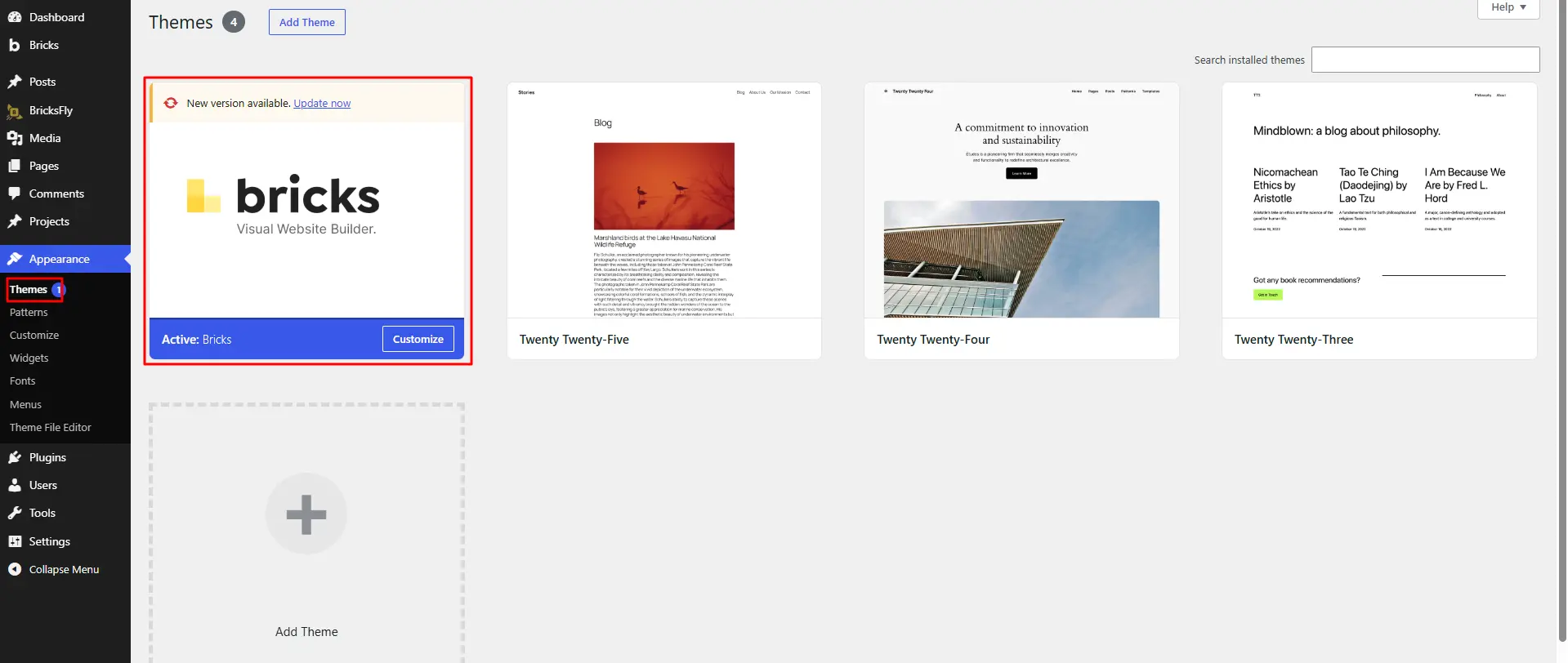
- The Bricks theme installed and activated
- The BricksFly Pro plugin installed and activated
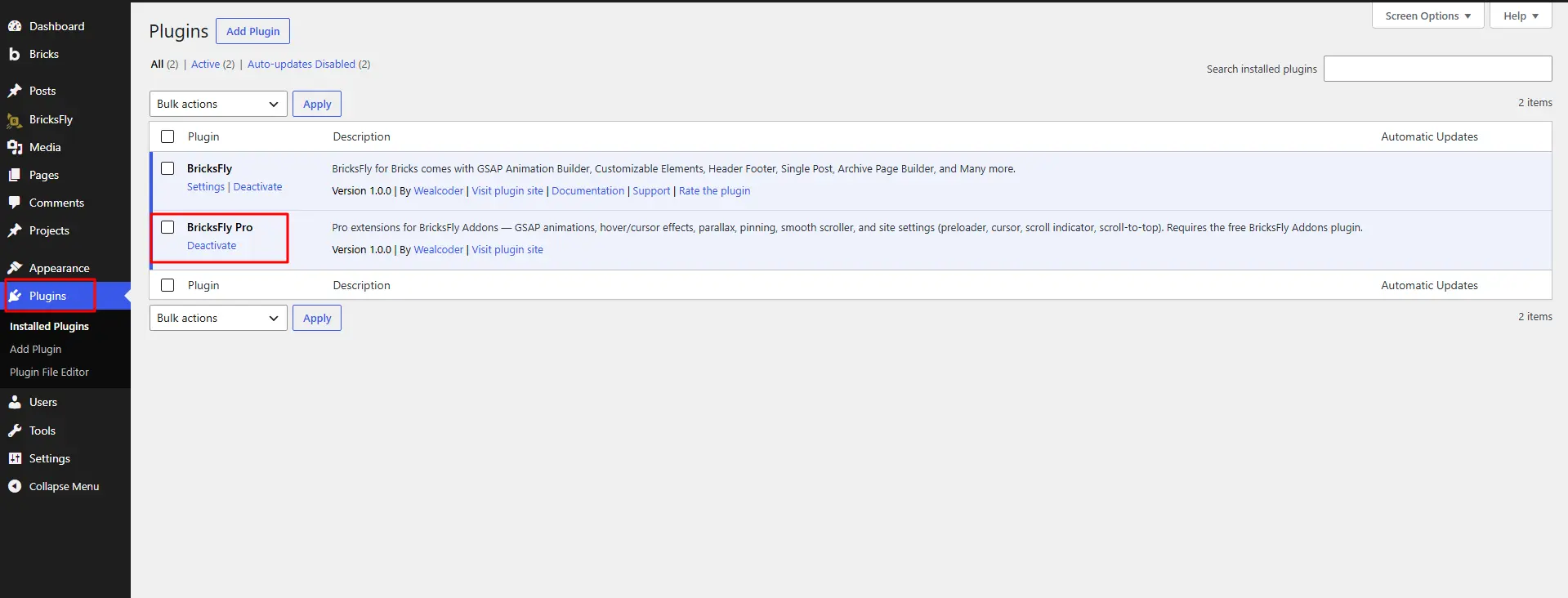
The Bricks theme is required for BricksFly to work properly, and the Starter Templates import is part of BricksFly Pro. With both installed and activated, you’re ready to import a complete website.
You must have the Bricks Theme installed to use BricksFly properly.
How to Import a Full Website Template with BricksFly (Step by Step)
Here’s the complete Starter Templates workflow, from opening the library to a finished import.
Step 1: Open BricksFly Starter Templates
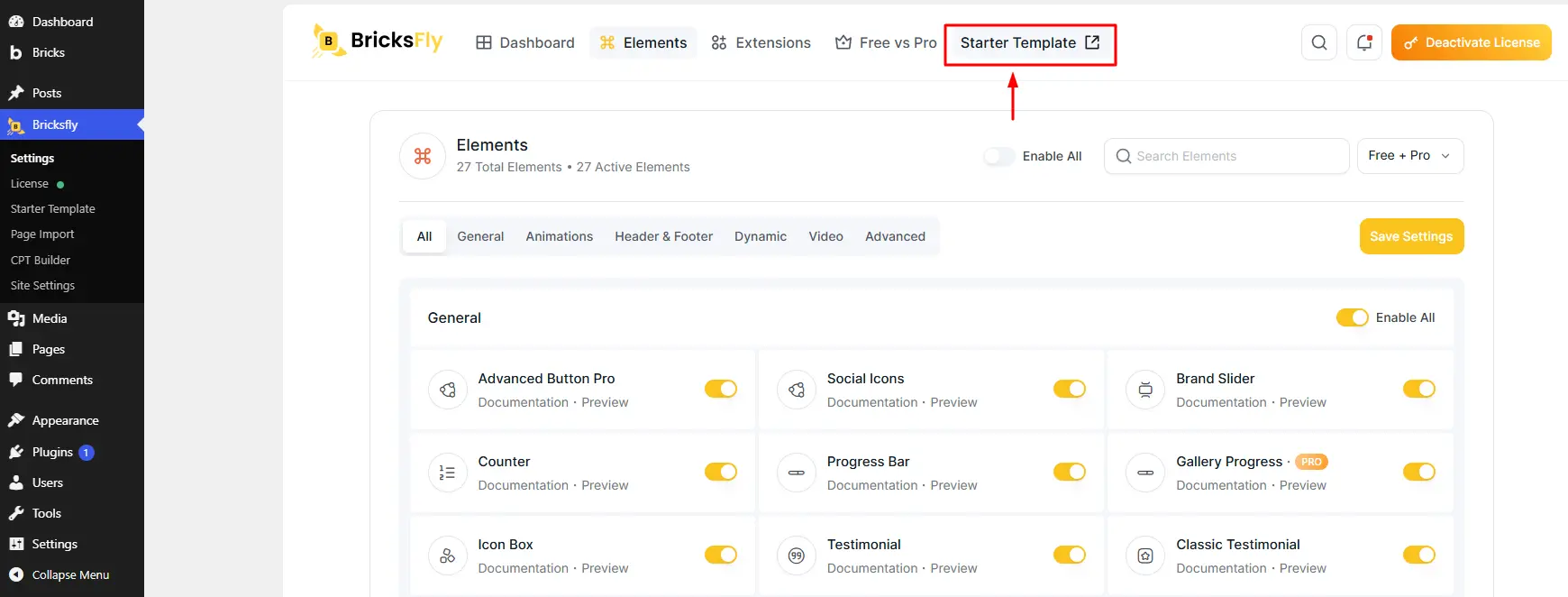
Log in to your WordPress admin dashboard. From the left sidebar, go to BricksFly, then Starter Templates. This opens the Starter Templates library where all available full website templates are shown.
Step 2: Find a Starter Template
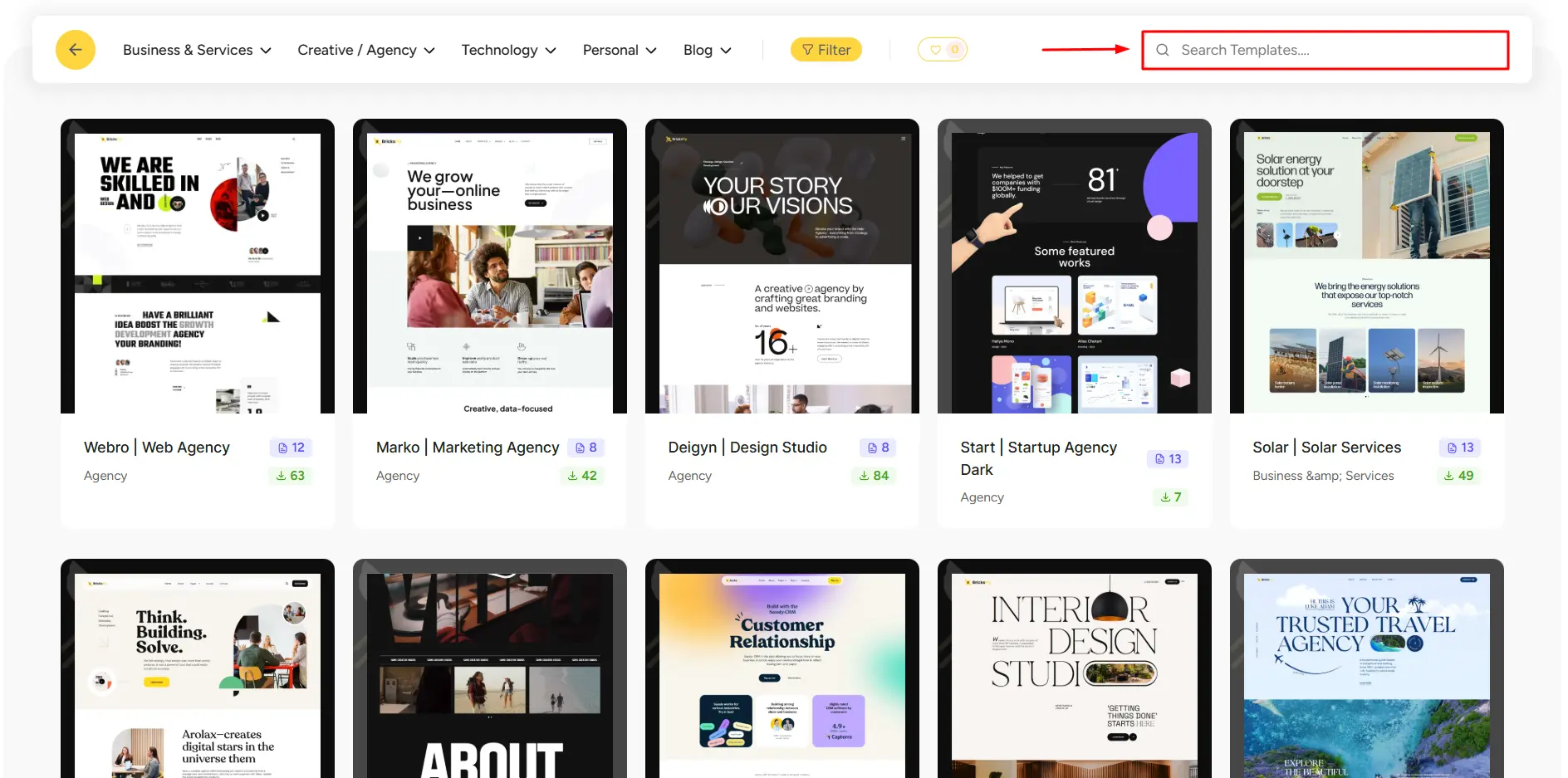
Inside the Starter Templates page, browse the available templates. You can filter by category, Business & Services, Creative / Agency, Technology, Personal, and Blog, or use the search box to find a template by niche, industry, or website type.
For example, you can search for agency, portfolio, business, SaaS, or landing page. Choosing a template close to your project means less customization later.
Step 3: Preview the Template
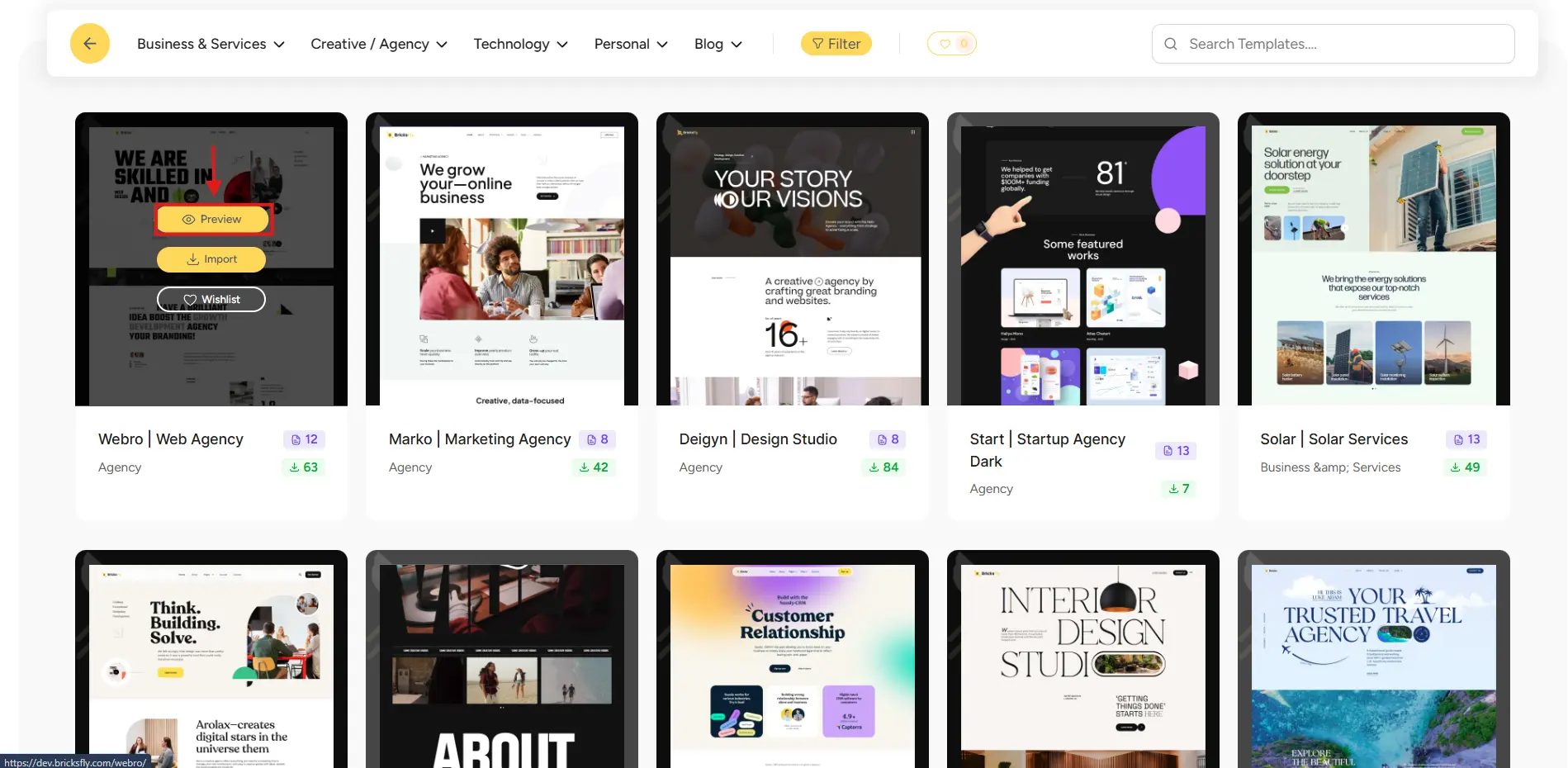
Before importing, click Preview on a template to see how the design looks. This lets you check the layout, sections, animations, and overall design before adding it to your website, so you can be confident it’s the right starting point.
There’s also a Wishlist option if you want to save a template for later.
Step 4: Import the Template
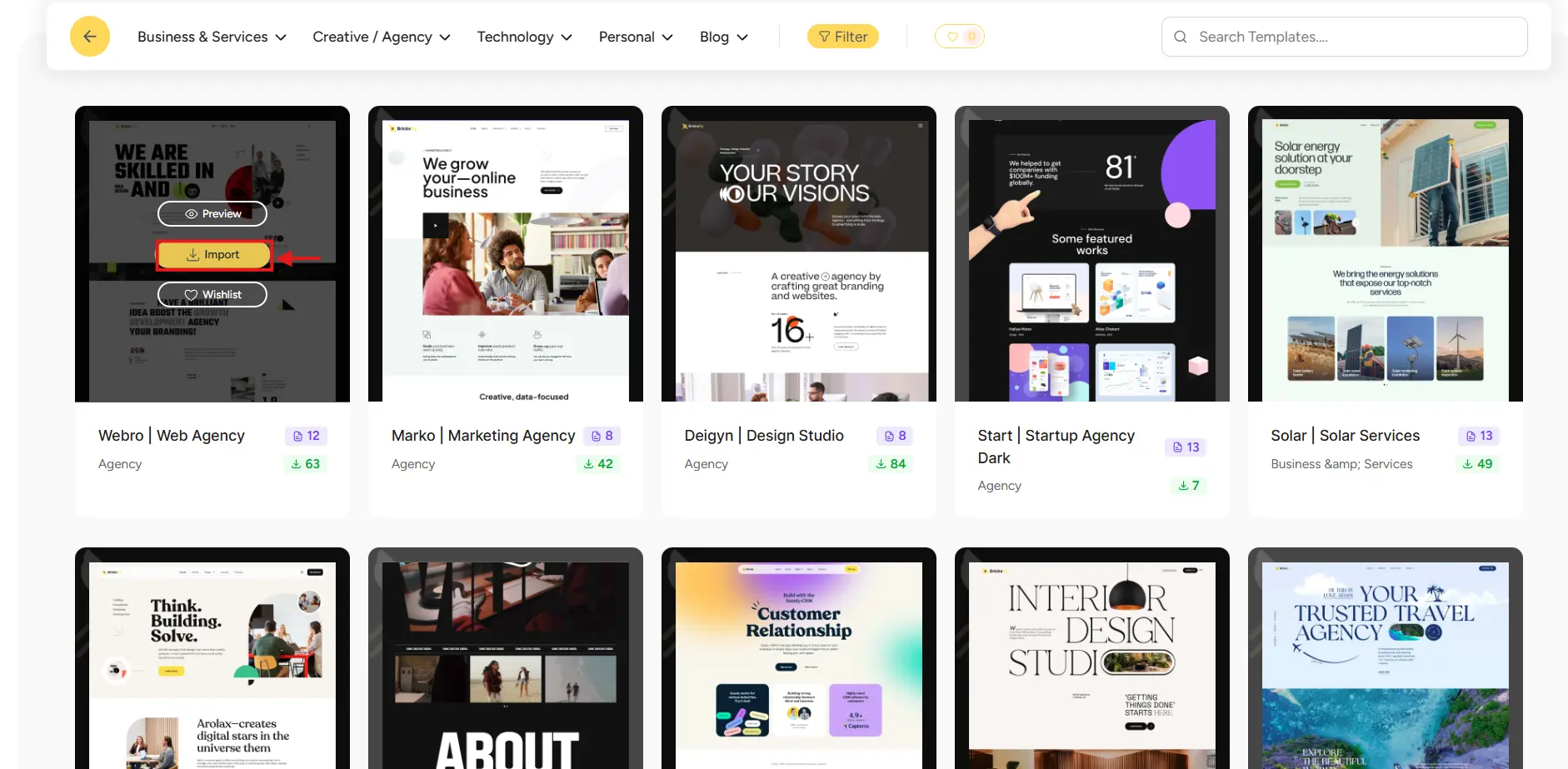
Once you have found the template you want, click the Import button. BricksFly begins importing the selected Starter Template to your website, the full site, not just a single page.
Step 5: Complete the Import Process
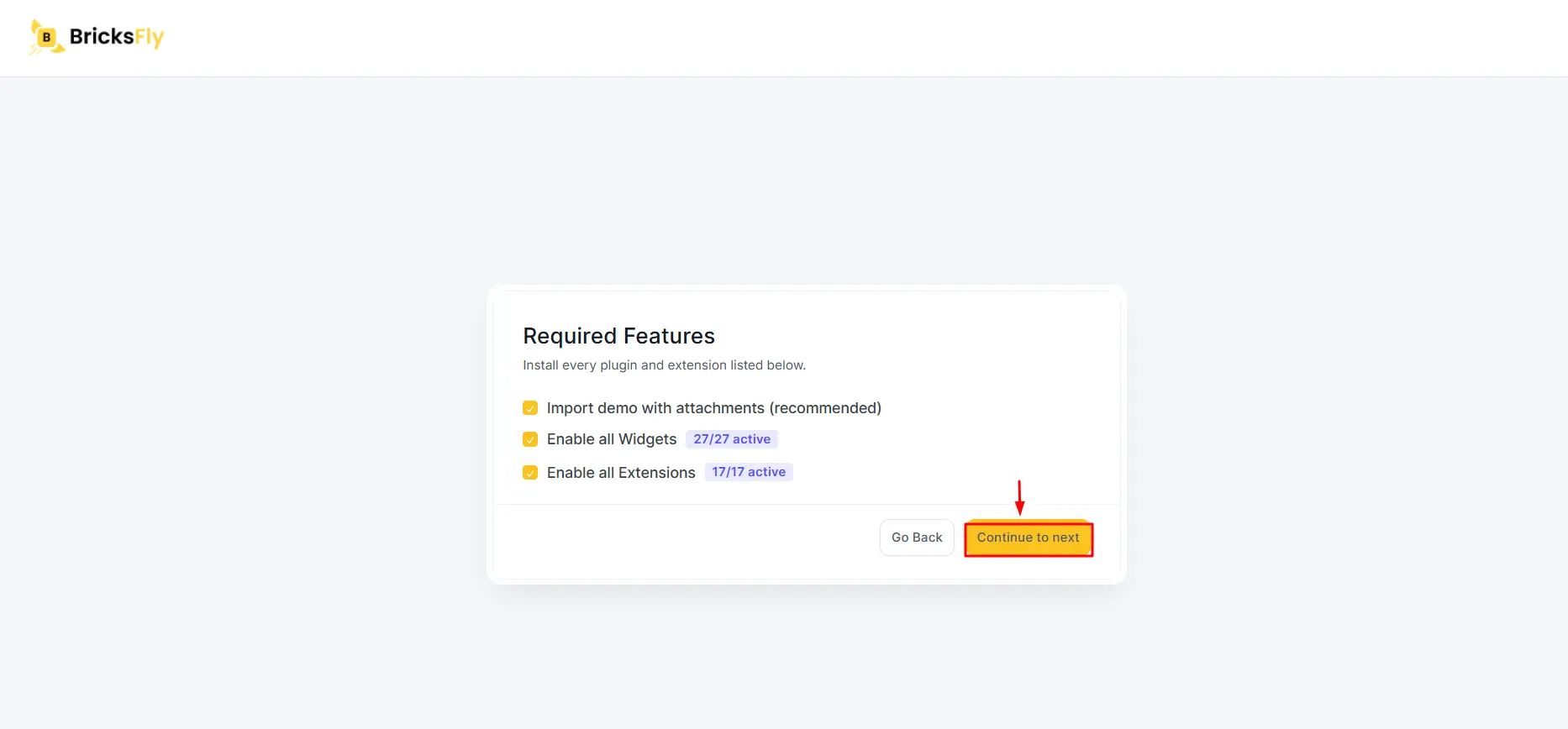
After you click Import, a Required Features screen appears so the template imports correctly. It confirms options such as importing the demo with attachments (recommended), enabling all Elements, and enabling all Extensions.
Follow the on-screen steps and click Continue to Next when prompted. The import may take a few moments depending on your server speed and the template size.
Step 6: Finish and Customize

When the import finishes, you’ll see a success message confirming your website is imported and ready to use, with options to visit your site or go to the dashboard.
From there, open the imported page with Bricks Builder and customize it: replace the content and images, adjust colors and typography, refine the layout, and use BricksFly Elements as needed. The structure is done, so you’re personalizing a finished site rather than building one.
That’s the entire process, a complete website imported and ready to make your own without any code.
Other Ways to Add Templates and Sections
The Starter Templates flow above is the fastest way to import a complete website. Depending on what you’re adding, two other methods are worth knowing.
Live copy-paste (for sections)
When you need a single block rather than a whole site, a hero, pricing table, or footer, you can copy a section from the section library and paste it directly into your Bricks page. This is ideal for building or extending custom pages quickly.
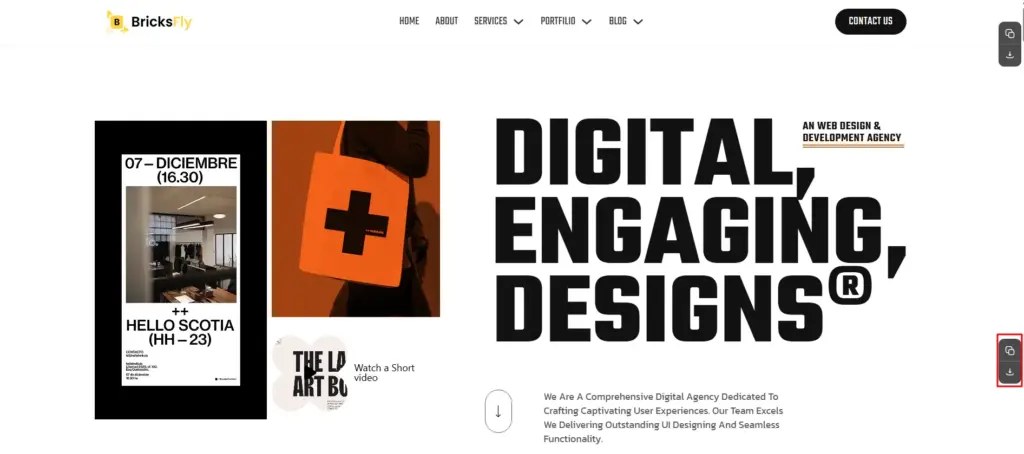
For the full section workflow, see our guide to copy-paste sections in Bricks.
JSON import (for shared files)
Templates and sections are sometimes shared as JSON files. In that case you download the file and import it into Bricks. This is useful for saving or sharing blocks, or moving them between sites.
For building a complete site, though, the Starter Templates one-click import is the method that saves the most time, since it brings in the entire website structure at once instead of page by page.
Examples and Use Cases
Here’s how importing templates fits real projects.
A freelancer building a client business site – Freelancers open BricksFly Starter Templates, search for a business template, preview it, and import the complete site, home, about, services, and contact pages, then customize the content. A full site ready to brand in minutes.
An agency onboarding a new client – They filter the library by Creative / Agency, import a full agency website, and rebrand it, turning a week-long build into a day.
A beginner launching a first website – They browse the categories, preview a few options, import the one that fits, and customize it in Bricks Builder, a professional site without building structure from scratch.
A designer adding a specific section – For a one-off custom page, they use live copy-paste to drop in a section rather than importing a whole template, the right tool for a smaller job.
The pattern: a complete site means Starter Templates import; individual blocks mean copy-paste; a shared file means JSON.
Common Mistakes to Avoid
Template imports usually go smoothly, but these mistakes cause most issues.
Skipping the requirements. Make sure the Bricks theme and BricksFly Pro are both installed and activated before importing, the Starter Templates library depends on them.
Not previewing first. Use Preview to check the layout, sections, and design before importing, so you start from the right template.
Skipping “Import demo with attachments.” For the template to look like its preview, the recommended import options (including demo content) matter. Follow the on-screen steps.
Testing on a live site. For client work, run the import on a staging site first so you can check everything safely before touching a live site.
Leaving placeholder content. Imported templates include text and image animations. Replace all of them before publishing.
Forgetting the mobile check. After adding your own content, review each page on mobile, longer text and larger images can change the layout.
How BricksFly Helps
BricksFly is built around fast, complete-website importing. BricksFly is a complete Bricks Builder toolkit with 30+ premium full website templates, each a complete multi-page site with inner pages, available through the Starter Templates library.
Instead of building structure page by page, you open BricksFly, Starter Templates, browse or search by category, preview a template, and import the entire site in a guided flow, complete with consistent headers, footers, and styling. When the import finishes, you open the page in Bricks Builder and customize the content, images, colors, typography, and BricksFly Elements to make it yours.
When you need individual blocks instead of a whole site, the same toolkit includes 500+ sections you can add via live copy-paste or import, so you have the right method for any job. And because BricksFly also includes extra Elements and no-code GSAP animation, you can import a site, build custom pages from sections, add motion, and publish, all in one workflow. For beginners, agencies, and freelancers, that’s what makes Bricks builds genuinely fast from the first click.
Conclusion
Knowing how to import Bricks templates is a core skill for building faster, and with BricksFly’s Starter Templates it takes just a few steps. You open BricksFly, Starter Templates, find a template by category or search, preview it, import it, follow the guided steps, and land on a complete, ready-to-customize website, all without code.
Whatever template you choose, the basics stay the same: confirm the requirements, preview before importing, follow the on-screen steps (including the recommended demo import), then customize the content and branding and check mobile before publishing. Avoid the common pitfalls, like skipping the preview or leaving placeholder content, and your imports will go smoothly every time.
FAQs
With BricksFly, go to your WordPress dashboard, open BricksFly, Starter Templates, then browse or search for a template. Click Preview to check it, then Import. Follow the on-screen Required Features steps, click Continue to Next, and wait for the success message. Then open the imported page in Bricks Builder to customize it.
You need the Bricks theme installed and activated, and the BricksFly Pro plugin installed and activated. The Bricks theme is required for BricksFly to work properly, and the Starter Templates import is part of BricksFly Pro. With both in place, you can open BricksFly, Starter Templates and import a complete website.
Inside the BricksFly Starter Templates library, filter by category, Business & Services, Creative / Agency, Technology, Personal, or Blog, or use the search box to find a template by niche or industry. You can search for terms like agency, portfolio, business, SaaS, or landing page. Preview any template before importing to confirm it fits.
After you click Import, a Required Features screen appears with recommended options such as importing the demo with attachments and enabling all Elements and Extensions. You follow the on-screen steps and click Continue to Next. The import takes a few moments depending on your server and the template size, then shows a success message when your site is ready.
Yes. If you only need a single block, like a hero, pricing table, or footer, use live copy-paste to add a section to your page, or JSON import for a shared file, rather than importing a full site. BricksFly’s 500+ section library supports this, so you can build or extend custom pages without importing a whole template.
Yes. Imported templates come with demo content and images that you should replace with your own before publishing. Open the imported page in Bricks Builder and customize the content, images, colors, typography, layout, and BricksFly Elements. The structure and styling are done, so this step is quick, you’re personalizing a finished site rather than building one.





Leave a Reply
You must be logged in to post a comment.