

A video popup keeps a page clean. Instead of placing a large player in the middle of a hero section, you show a play button or a thumbnail, and the video opens in an overlay only when the visitor clicks. The visitor watches, closes the popup, and stays exactly where they were on the page.
This guide shows three ways to build a Bricks video popup:
- Method 1: the native Bricks Lightbox Video link, the quickest option for a simple play link.
- Method 2: a Bricks Popup Builder template with a Video element, for full control over the popup layout.
- Method 3: the BricksFly Video Popup Element, a ready-made animated play button with ripple and spinner image effects.
After the three methods, you will find the URL parameters that control autoplay, mute and start time, the settings that matter on phones, and a troubleshooting table for the most common problems.
To add a video popup in Bricks Builder, set any button or link to the Lightbox Video link type and paste a YouTube, Vimeo, or video file URL.
For a custom layout, build a Popup template with a Video element and open it with a Click interaction.
For an animated play button without code, use the BricksFly Video Popup Element and add your link in its Video Link field.
What Is a Video Popup and When Should You Use One?
A video popup, also called a video lightbox or video modal, is a player that opens in an overlay above the page after a click. The page behind it stays loaded and in place.
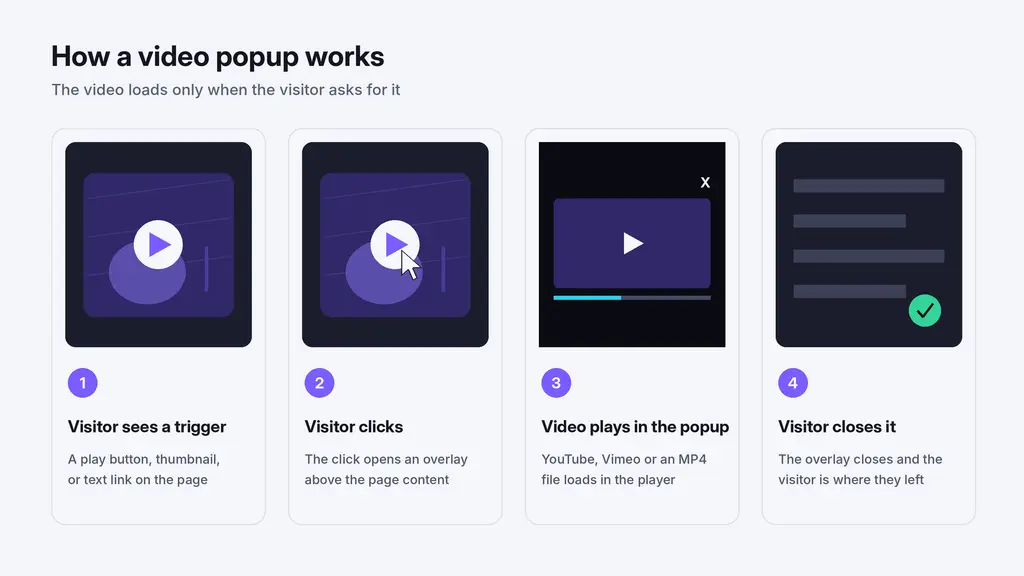
The four stages of a video popup
| Use case | Why a popup works better than an inline player |
| Agency or studio showreel in a hero | The hero keeps its design; the reel opens full size on demand |
| SaaS product demo | A “Watch demo” button sits next to the main call to action without pushing it down |
| Customer testimonial videos | Several testimonial cards can each open their own video without loading every player |
| Course or webinar previews | Visitors preview a lesson without leaving the sales page |
| Real estate or venue tours | A tour video opens large on desktop and full width on phones |
Before You Start
| Requirement | Method 1 (Lightbox link) | Method 2 (Popup template) | Method 3 (BricksFly) |
| Bricks theme active | Yes | Yes | Yes |
| Plugin | None | None | Free BricksFly plugin plus BricksFly Pro |
| Video source | YouTube, Vimeo or file URL | YouTube, Vimeo, Media Library, file URL or dynamic data | YouTube, Vimeo or a direct video file URL (MP4 recommended) |
| Skill level | Beginner | Intermediate | Beginner |
Upload self-hosted videos as MP4 files and keep them compressed. For long or high-resolution videos, YouTube or Vimeo hosting saves your server bandwidth.
Method 1: Native Bricks Lightbox Video Link
Bricks includes a Lightbox Video option in the Link control, which is available on Elements that can act as a link, such as the Button, Text Link, and a Div or Block set to a link tag. This is the fastest way to open a video in a lightbox without a plugin.
- Add a Button Element where you want the trigger, for example “Watch the reel”.
- In the Button’s Link settings, choose Lightbox Video as the link type.
- Paste the YouTube, Vimeo or video file URL into the URL field that appears.
- Save the page and test the button on the front end.
Image triggers: On the Image Element, the Link To Lightbox option opens the image itself, not a video.
To use a thumbnail as the trigger, wrap the image in a Div or Block, set that wrapper to a link, and choose Lightbox Video as the link type.
This workaround comes from the Bricks community forum , where users asking the same question were pointed to the Link control.
Limits of Method 1: the lightbox has a fixed design, and you cannot add your own layout, text or a call to action inside it. If popup needs a heading, a form, or a button below the video, use Method 2.
Method 2: Bricks Popup Builder With a Video Element
In Bricks, a popup is a template with the template type Popup. You design it like any page, place a Video Element inside, and open it with an interaction.
Step 1: Create the Popup Template
- Go to Bricks > Templates, add a new template, and choose the Popup template type.
- Edit it with Bricks, and open Settings > Template Settings > Conditions to choose the pages where the popup is available. If the popup is not rendered on a page, an interaction on that page cannot open it.
- Style the overlay and popup box under Settings > Template Settings > Popup. Set the popup content width (for example 960px) so the video has room on desktop.
Step 2: Add the Video Element
Add a Video Element to the popup. Its source can be YouTube, Vimeo, a Media Library file, a file URL, or dynamic data.
Set Preview image to custom and upload a thumbnail. With a preview image, Bricks loads the video iframe only after the preview image is clicked, which keeps the popup light until the visitor presses play.
Step 3: Open the Popup With a Click Interaction
- Select the trigger, such as a Button on the page.
- Open Interactions and add an interaction.
- Set Trigger to Click, Action to Show element, Target to Popup, and select your popup template.
- Remove any link from the trigger button so the click only opens the popup.
Step 4: Stop the Video When the Popup Closes
Closing a popup hides it, but an embedded YouTube or Vimeo player inside can keep playing audio. The script below resets every iframe and pauses every video file inside a popup when it closes. Add it under Bricks > Settings > Custom code > Body (footer) scripts:
<script>

document.addEventListener("bricks/popup/close", function (e) {

  var popup = e.detail && e.detail.popupElement;

  if (!popup) return;

  popup.querySelectorAll("iframe").forEach(function (frame) {

    var src = frame.src; frame.src = ""; frame.src = src;   /* stops YouTube and Vimeo */

  });

  popup.querySelectorAll("video").forEach(function (video) {

    video.pause();                                            /* stops MP4 files */

  });

});

</script>
Test this on a staging site first, and confirm that your Bricks version fires the popup close event used above.
Method 3: Add a Video Popup With the BricksFly Video Popup Element
BricksFly is a complete Bricks Builder toolkit that helps users build modern animated websites faster with full website templates, 500+ sections, extra Elements, Extensions, and no-code GSAP animations. Its Video Popup Element adds an interactive video button to a Bricks page. When clicked, the video opens in a popup, and you control the button’s look and animation effects from the Element settings.
Video Popup is a Pro Element, so it requires the Bricks theme and BricksFly Pro.
Step 1: Enable the Video Popup Element
- Go to your WordPress Dashboard.
- Click BricksFly.
- Open the Elements tab.
- Under Video, toggle on Video Popup, then click Save Settings.
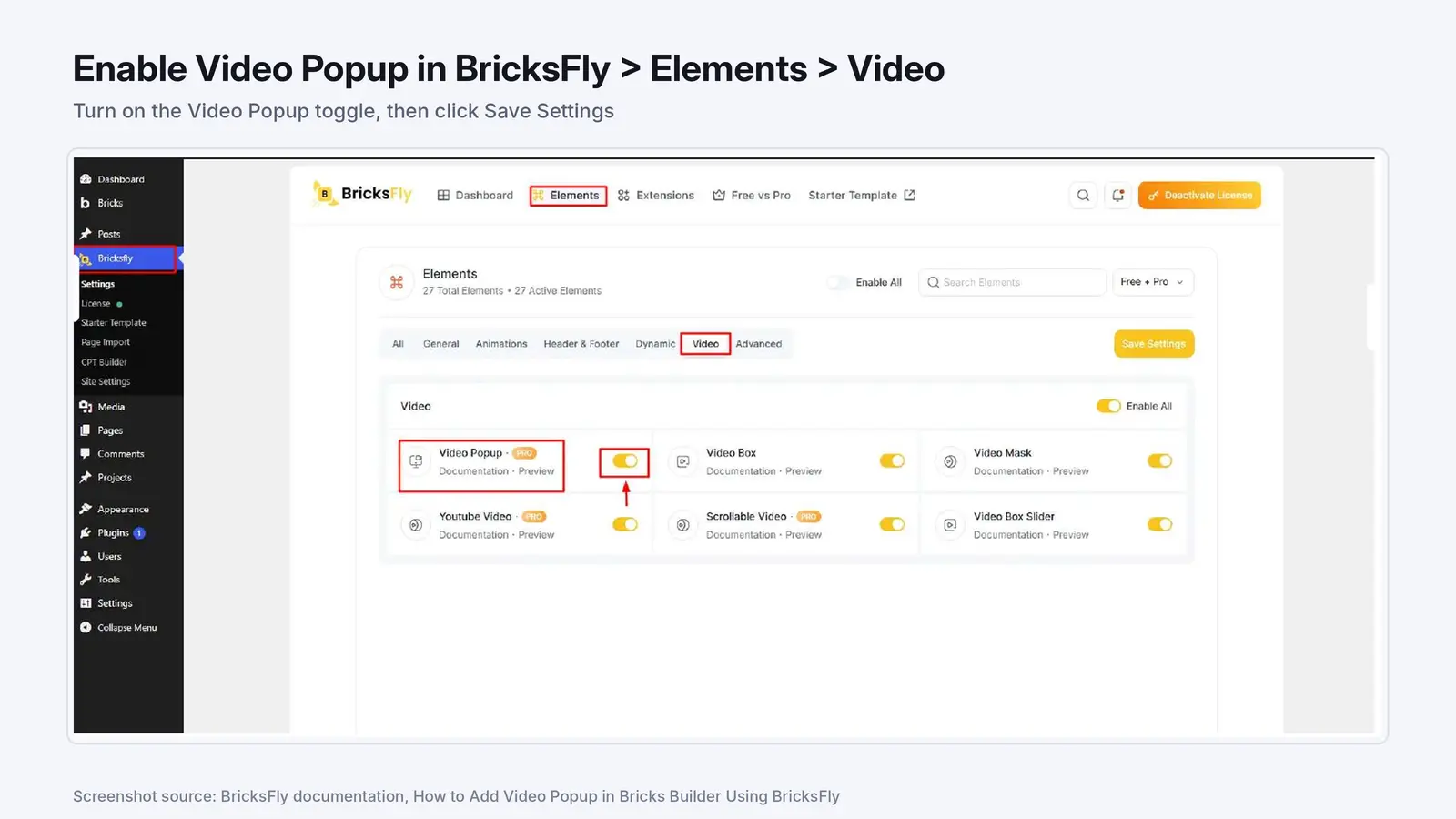
BricksFly > Elements > Video, with Video Popup switched on
The Video category also lists Video Box, Video Mask, YouTube Video, Scrollable Video and Video Box Slider. Turn on only the Elements you plan to use.
Step 2: Add the Element and Customize the Button
In the Bricks editor, add the Video Popup Element from the BricksFly group, then open the Button settings group:
| Setting | What it does | Docs example |
| Text | Text shown on the button, such as Play Video or Watch Now | Left empty (icon only) |
| Icon | Icon shown inside or beside the button text | Play icon |
| Icon Size | Width and height of the icon | 32 |
| Icon Spacing | Space between the icon and the button text | Normal |
| Active Ripple | Turns the animated ripple around the button on or off | Off |
| Active Spinner | Turns a rotating animation around the button on or off | On |
| Spinner Image | Image used for the rotating spinner effect | A custom image URL |
| Alignment | Horizontal position of the button: left, center or right | Center |
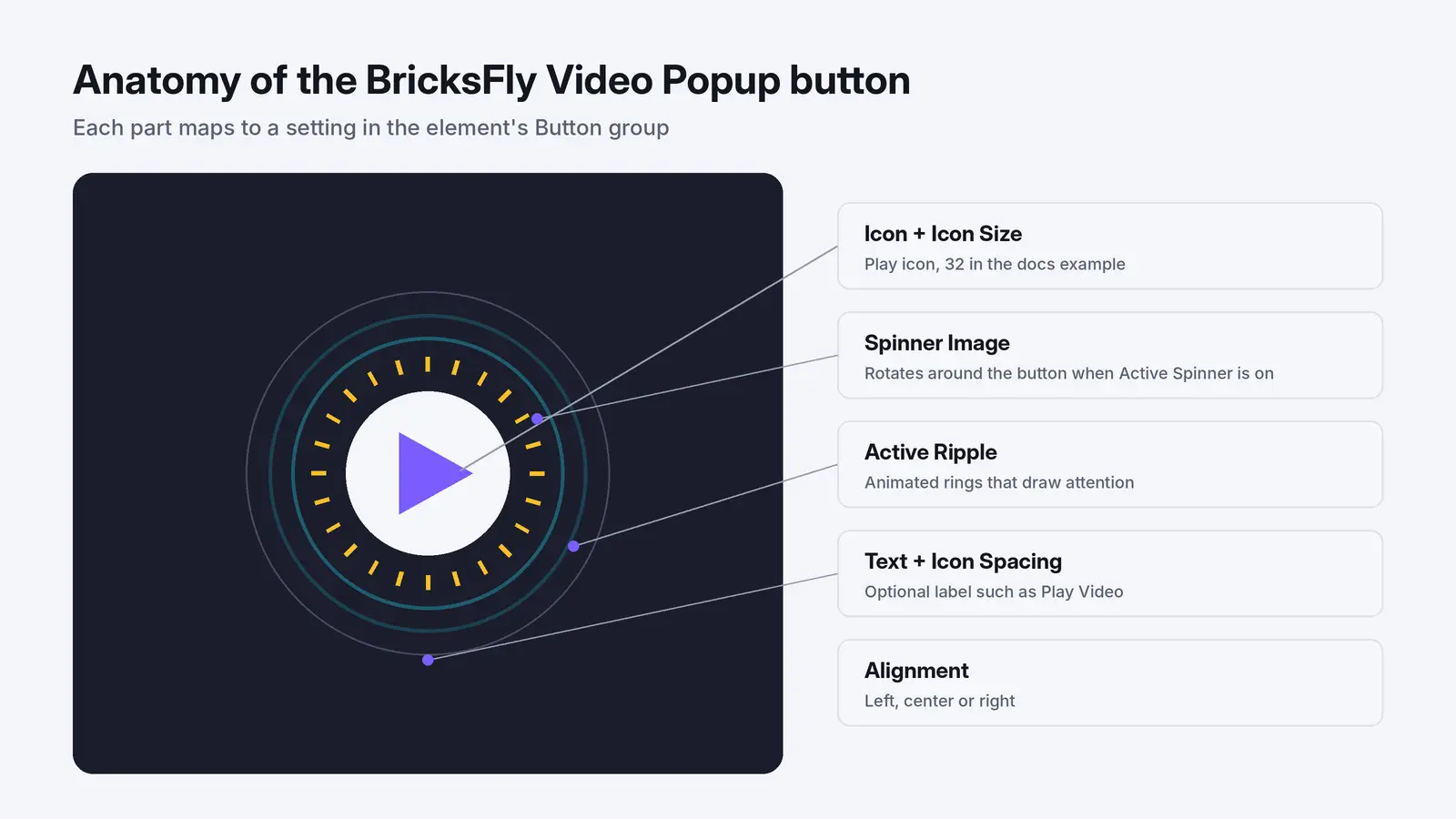
How each Button setting appears on the page
Step 3: Add the Video Link
Open the Video settings group and paste your URL into Video Link. The field accepts a YouTube or Vimeo link, or a direct video file URL, with MP4 recommended.
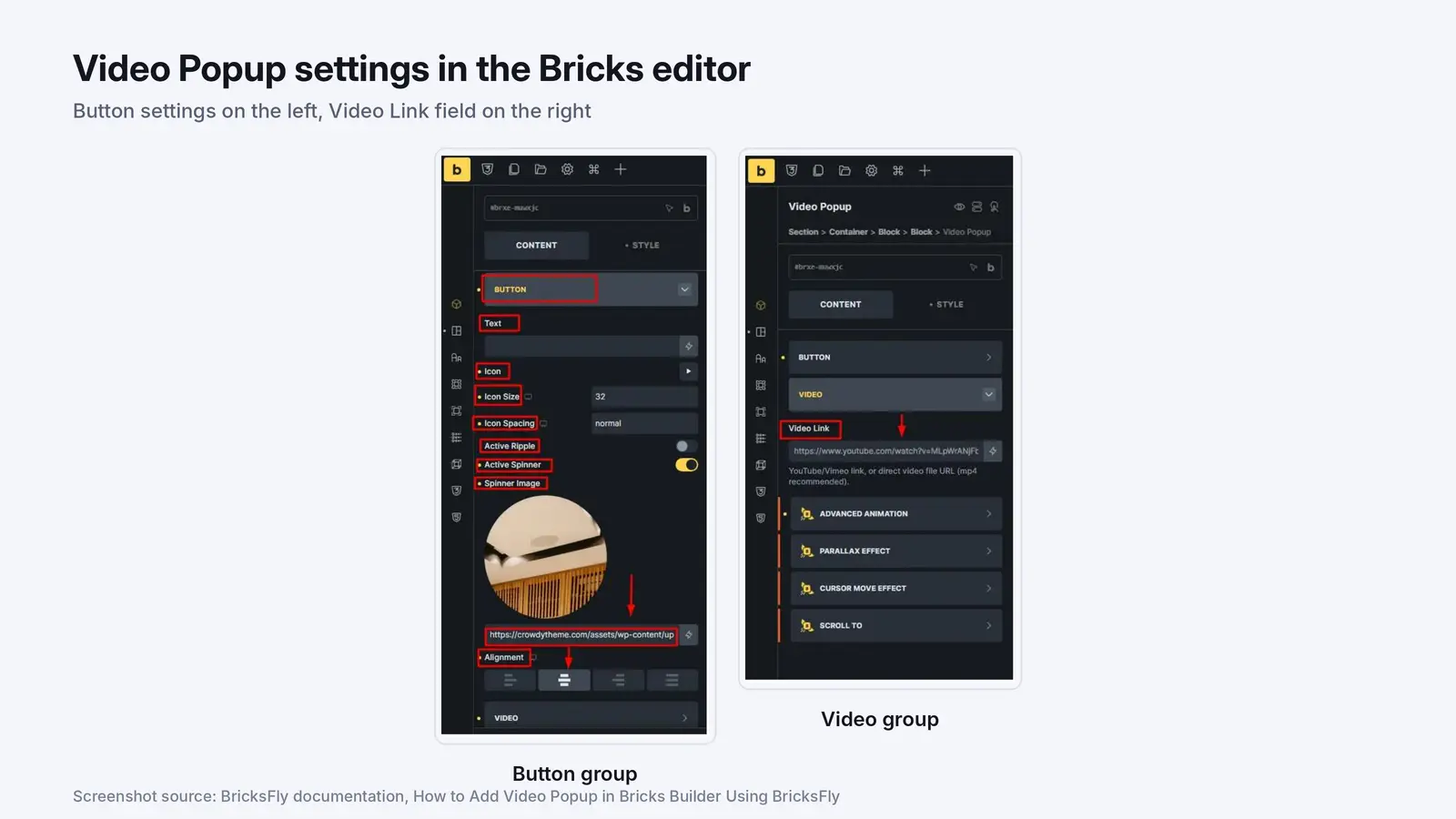
Button group and Video group in the Bricks editor (from the BricksFly docs)
Step 4: Add Motion With BricksFly Extensions (Optional)
Below the Video group, the Element shows panels for the BricksFly Extensions you have enabled, such as Advanced Animation, Parallax Effect, Cursor Move Effect and Scroll To. For example, you can fade the play button in on scroll with Advanced Animation, or let it drift slightly with the cursor using Cursor Move Effect.
Example: Video Agency Hero
The BricksFly documentation shows the Element in the hero of a creative video production agency. The play button sits on a round team photo, with Active Spinner turned on and a custom Spinner Image rotating around it, next to the heading “We are a family of creative video production agency”. The button stays small and on brand, and the full showreel opens only when a visitor clicks.
Want an Animated Play Button Without Code?
The Video Popup Element is part of BricksFly Pro, along with the full GSAP animation engine, 30+ starter templates, and 500+ sections.
See BricksFly Plans →Which Video Popup Method Should You Use?
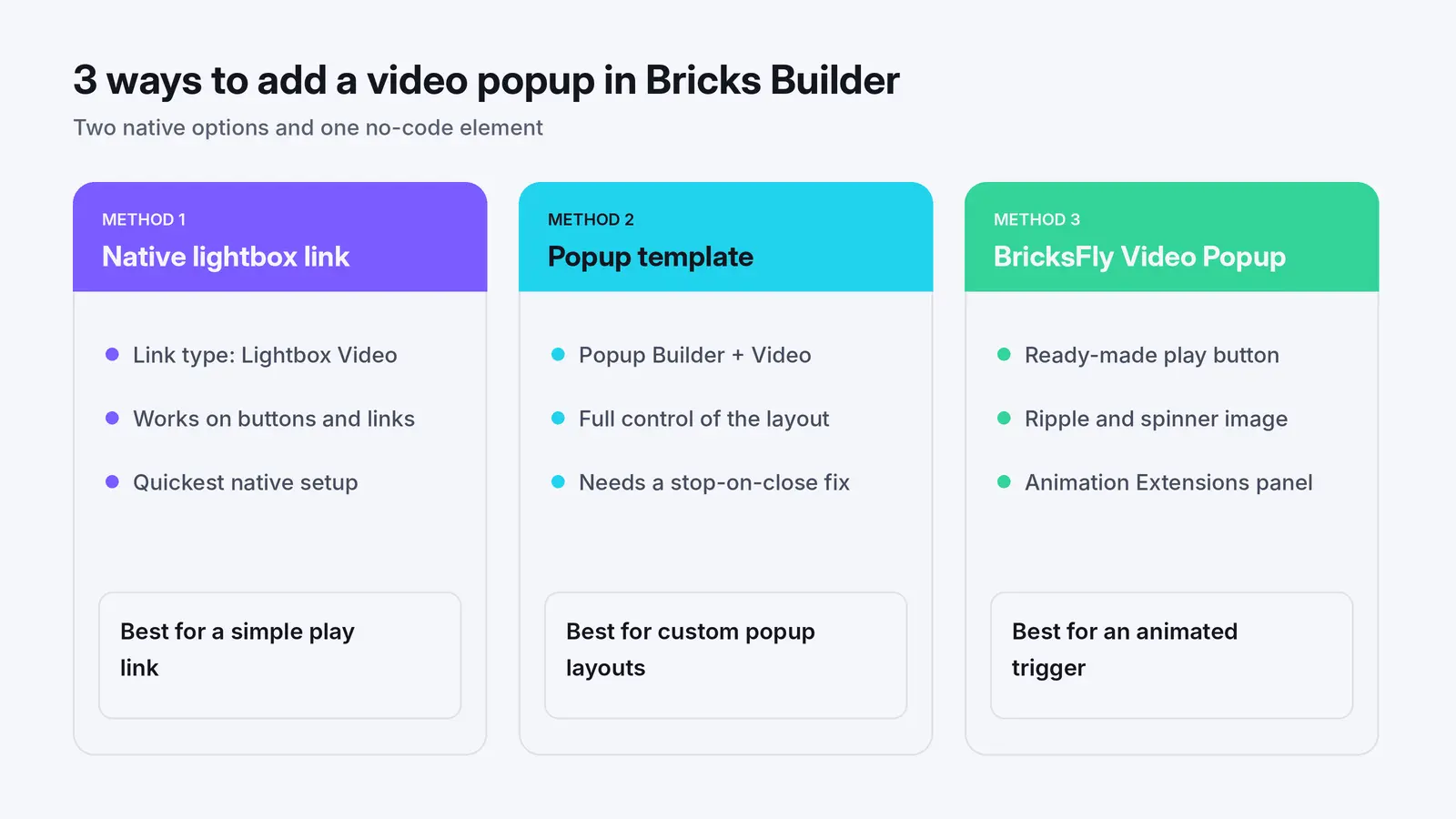
Compare the three methods
| Lightbox link | Popup template | BricksFly Video Popup | |
| Setup time | Fastest | Longest | Fast |
| Plugin needed | No | No | BricksFly Pro |
| Custom content inside the popup | No | Yes (headings, forms, buttons) | Video only |
| Animated play button | Build it yourself | Build it yourself | Built in (ripple, spinner image) |
| Stops video on close | Handled by the lightbox | Needs the script in Method 2, Step 4 | Test on your site |
| Animation Extensions on the trigger | No | Bricks Interactions | Yes (Advanced Animation, Parallax, Cursor Move, Scroll To) |
Use the Lightbox link for a quick play link. Use a Popup template when the popup needs more than the video. Use the BricksFly Video Popup when the play button itself is part of the design.
Autoplay Settings for Video Popups
Browsers limit autoplay to protect visitors from unexpected sound. In Chrome, muted autoplay is always allowed, and autoplay with sound is allowed after the visitor has interacted with the site, for example by clicking. A click on your play button counts as that interaction, but behavior can still differ by browser and by how the player is embedded. Test in Chrome, Safari and Firefox.
You can control playback with URL parameters on the video link:
| Platform | Parameter | What it does |
| YouTube | autoplay=1 | Starts playback when the player loads |
| YouTube | mute=1 | Starts muted, which browsers allow for autoplay |
| YouTube | start=30 | Starts the video at second 30 |
| YouTube | rel=0 | Limits related videos at the end to the same channel |
| YouTube | playsinline=1 | Plays inline instead of fullscreen on iOS |
| Vimeo | autoplay=1 | Starts playback when the player loads |
| Vimeo | muted=1 | Starts muted |
Tip: Customize YouTube Video URLs
Add parameters after a question mark (?), joined with ampersands (&), to customize video playback.
https://www.youtube.com/watch?v=VIDEO_ID&start=30&rel=0
?autoplay=1&mute=1
For better privacy, YouTube’s privacy-enhanced mode uses the youtube-nocookie.com domain in embed URLs.
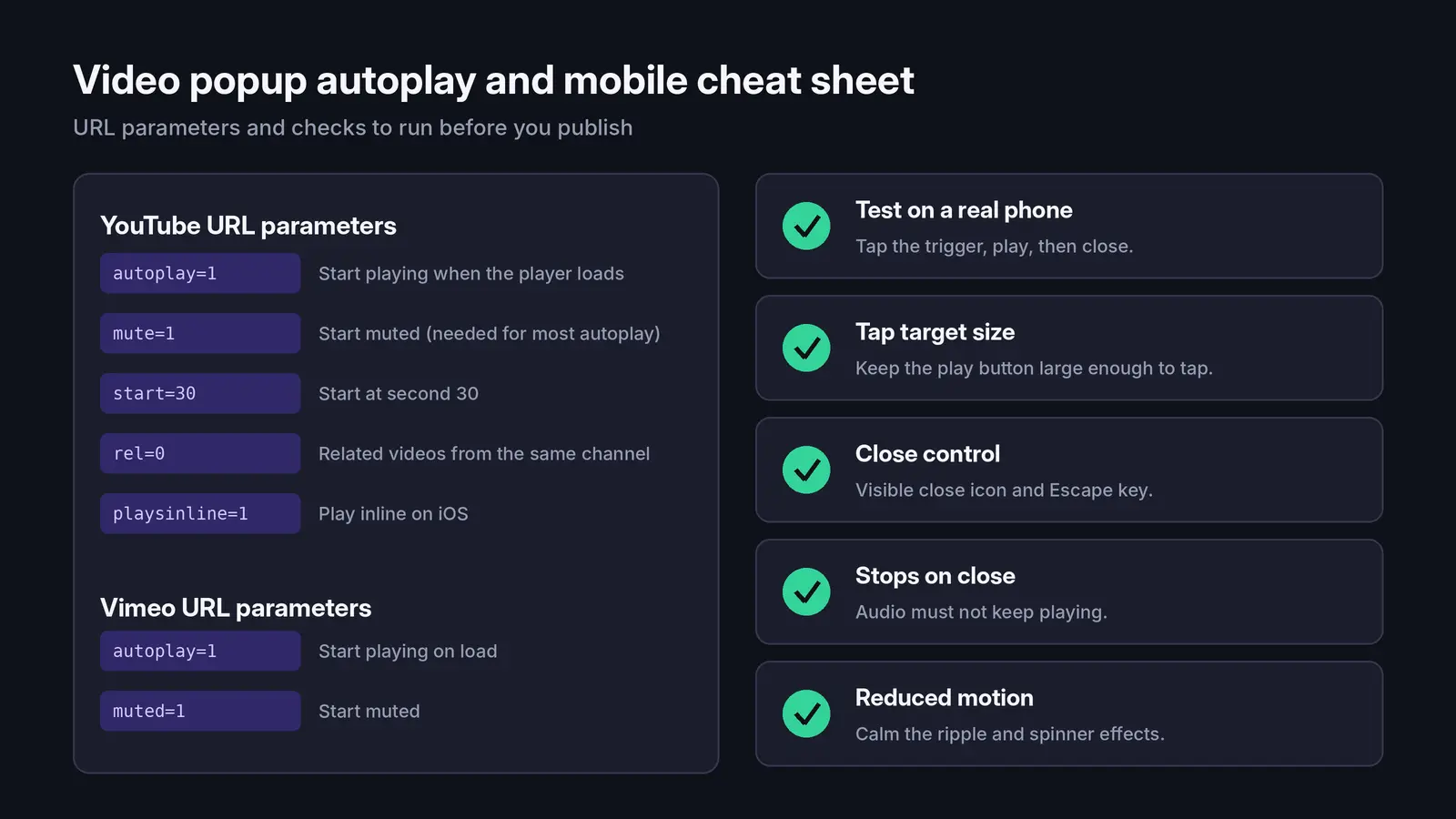
Autoplay parameters and pre-launch checks
Mobile Settings for Video Popups
- Full-width popup on phones: set the popup content width to 100% at the mobile breakpoint, and keep the video at a 16:9 aspect ratio (9:16 for vertical videos).
- Large tap target: keep the play button at least 44 x 44 px, the minimum touch size Apple recommends in its design guidelines.
- Easy close: make sure the close icon is visible and not covered by the browser’s top bar on small screens.
- Inline playback on iOS: add playsinline=1 to YouTube links if you want the video to play inside the popup instead of switching to fullscreen.
- File size: for self-hosted MP4 files, export a compressed version for the web. A 30-second clip rarely needs more than 1080p.
- Calm the effects: ripple and spinner animations are useful on desktop. On small screens, test whether they distract from the content around the button.
Accessibility and Performance Tips
- Give icon-only buttons a name. If the button has no text, add an aria-label such as “Play the agency showreel” under Style > Attributes, so screen readers announce what the button does.
- Use captions. Turn on captions in YouTube or Vimeo, or add a caption track to self-hosted videos.
- Respect reduced motion. Visitors who set “reduce motion” in their operating system should not see constant ripple or spinner animation. Test the page with that setting turned on.
- Load the player on demand. Use a preview image (Method 2) or a popup trigger so the video player does not load with the rest of the page.
Troubleshooting Bricks Video Popups
| Problem | Likely cause | Fix |
| Popup does not open | Popup template conditions do not include this page | Set conditions in Settings > Template Settings > Conditions |
| Button opens a new page instead of the popup | The trigger still has a link | Remove the link, or use the Lightbox Video link type |
| Audio keeps playing after closing | The iframe stays loaded inside the hidden popup | Add the stop-on-close script from Method 2, Step 4 |
| Video does not autoplay | The browser blocks autoplay with sound | Add mute=1 (YouTube) or muted=1 (Vimeo), or let the visitor press play |
| Lightbox shows an error on product pages | A past Bricks bug with Lightbox Video on WooCommerce product pages | Update Bricks to the latest version and test again |
| Video Popup Element is missing in the editor | The Element is not enabled, or BricksFly Pro is not active | Enable it in BricksFly > Elements > Video and check the Pro license |
| Self-hosted video does not play | Unsupported format or wrong URL | Use an MP4 file and check the URL in a new browser tab |
Common Mistakes to Avoid When Adding Video Popups in Bricks Builder
Avoid these common mistakes to create a smooth, user-friendly video popup experience on your Bricks website.
Autoplaying Videos with Sound on Page Load
Avoid automatically playing videos with sound as soon as a visitor lands on your page. Most modern browsers block autoplay with sound, and unexpected audio can frustrate visitors. Instead, let users click the video trigger to start playback.
Using Icon-Only Buttons Without Labels
An icon-only button may not clearly communicate what happens when visitors click it. Add descriptive button text, such as “Watch Video,” or include an appropriate aria-label for accessibility. This helps visitors and screen reader users understand the button’s purpose.
Forgetting to Configure the Close Behavior
Always ensure visitors can easily close the video popup when they finish watching. Test that the video pauses and its audio stops immediately when the popup closes. This prevents unwanted background playback and improves the browsing experience.
Uploading Large, Uncompressed MP4 Files
Large video files can increase loading times and negatively affect your website’s performance. Compress self-hosted MP4 videos before uploading them to your WordPress media library. Alternatively, use platforms like YouTube or Vimeo to host and deliver your videos.
Assigning Multiple Popups to the Same Trigger
Connecting several video popups to the same trigger can create confusing interactions. Each trigger should open one specific video so visitors know exactly what to expect. Use clear trigger labels and test every popup before publishing your page.
Skipping Mobile Device Testing
A video popup that looks perfect on desktop may not work properly on smaller screens. Test the popup width, close icon placement, video responsiveness, and tap targets on actual mobile devices. Ensure visitors can comfortably watch and close videos across different screen sizes.
How BricksFly Helps
The Video Popup Element covers the most common case, a play button that opens a video, and lets you design that button with ripple, spinner image, icon and alignment settings inside Bricks. Because it is part of the BricksFly toolkit, you can also animate the button with the GSAP Extensions, and drop it into one of the starter templates or a section from the Bricks section library.
Other video Elements in the same toolkit include Video Box, Video Mask, YouTube Video, Scrollable Video and Video Box Slider. See them all on the BricksFly Elements page.
Add Animated Video Popups to Your Bricks Sites
Get the Video Popup Element, the full GSAP animation engine, 30+ starter templates and 500+ sections in BricksFly Pro. The Black Friday sale runs until December 10, 2026, with up to 50% off yearly and lifetime plans.
Get BricksFly Pro →Final Thoughts
A Bricks video popup lets you show a showreel, demo or testimonial without giving up page space. Use the native Lightbox Video link for a quick play link, a Popup template when the popup needs its own layout, and the BricksFly Video Popup Element when the play button should be animated and on brand.
Whichever method you choose, open videos on click, make sure audio stops on close, add a label to icon-only buttons, and test the popup on a real phone before launch.
FAQs
Can I add a video popup in Bricks Builder without a plugin?
Yes. Set a Button or link to the Lightbox Video link type and paste the video URL, or build a Popup template with a Video Element and open it with a Click interaction. A plugin such as BricksFly is useful when you want an animated play button with ripple and spinner effects without building it yourself.
Which video sources work in a Bricks video popup?
The native Bricks Video Element supports YouTube, Vimeo, Media Library files, file URLs and dynamic data. The BricksFly Video Popup Element accepts a YouTube or Vimeo link, or a direct video file URL, with MP4 recommended for self-hosted files.
How do I make a popup video autoplay?
Add autoplay parameters to the video URL, such as autoplay=1 and mute=1 for YouTube, or autoplay=1 and muted=1 for Vimeo. Browsers allow muted autoplay. Autoplay with sound usually works after the visitor clicks, but test it in Chrome, Safari and Firefox.
Why does my video keep playing after I close the popup?
Hiding a popup does not always unload the embedded player. Reset the iframe source or pause the video when the popup closes. Method 2 in this guide includes a short script that does this for YouTube, Vimeo and MP4 videos inside Bricks popups.
Is the BricksFly Video Popup Element free?
No. Video Popup is a Pro Element and requires BricksFly Pro along with the Bricks theme. The free BricksFly plugin includes other Elements, such as Video Box and Video Mask, plus Starter Animations and free templates.
How do I make a video popup work well on mobile?
Set the popup to full width at the mobile breakpoint, keep the video at 16:9 or 9:16, make the play button at least 44 x 44 px, and check that the close icon is easy to tap. For YouTube, add playsinline=1 if the video should stay inside the popup on iOS.


Leave a Reply
You must be logged in to post a comment.