

A preloader is the short animation a visitor sees before a page appears: a spinning ring, a logo that draws itself, a progress bar. On a studio site or a portfolio, it can set the tone before a heavy animated hero. On the wrong site, or built the wrong way, it adds seconds of waiting and makes the site feel slower than it is.
This guide shows how to add a Bricks preloader that looks good without hurting page speed. You will learn:
- when a preloader makes sense and when to skip it,
- why many preloaders hurt Largest Contentful Paint (LCP), and the rules that avoid it,
- how to build a lightweight preloader with CSS and a few lines of JavaScript in Bricks custom code,
- how to add a preloader without code using the BricksFly Preloader Extension,
- how to measure the result before and after.
opacity: 0 or display: none, and keep the loader to CSS or inline SVG.
Does Bricks Have a Built-In Preloader?
No. Bricks Builder does not include a front-end preloader for your visitors. The loading screen you see when you open the Bricks editor is the builder’s own loading screen, not something that appears on your live site.
To show a preloader on the front end, you have three options:
| Option | How it works | Best for |
| Custom code | A small overlay, CSS and script added in Bricks > Settings > Custom code | Builders who want full control and the lightest result |
| Bricks template plus a filter | Design the loader as a Bricks template and output it at the start of the body with a PHP filter | Developers who want to design the loader visually |
| BricksFly Preloader Extension | Enable the Extension and configure it in BricksFly Site Settings | Designers, freelancers and agencies who want no code |
Bricks popups are not a good fit for preloaders. Popups are hidden by default, while a preloader needs to be on screen from the first paint. Members of the Bricksforge community forum point out the same limitation.
Should Your Site Use a Preloader at All?
A preloader puts a moment between the visitor and your content. That moment has to earn its place.
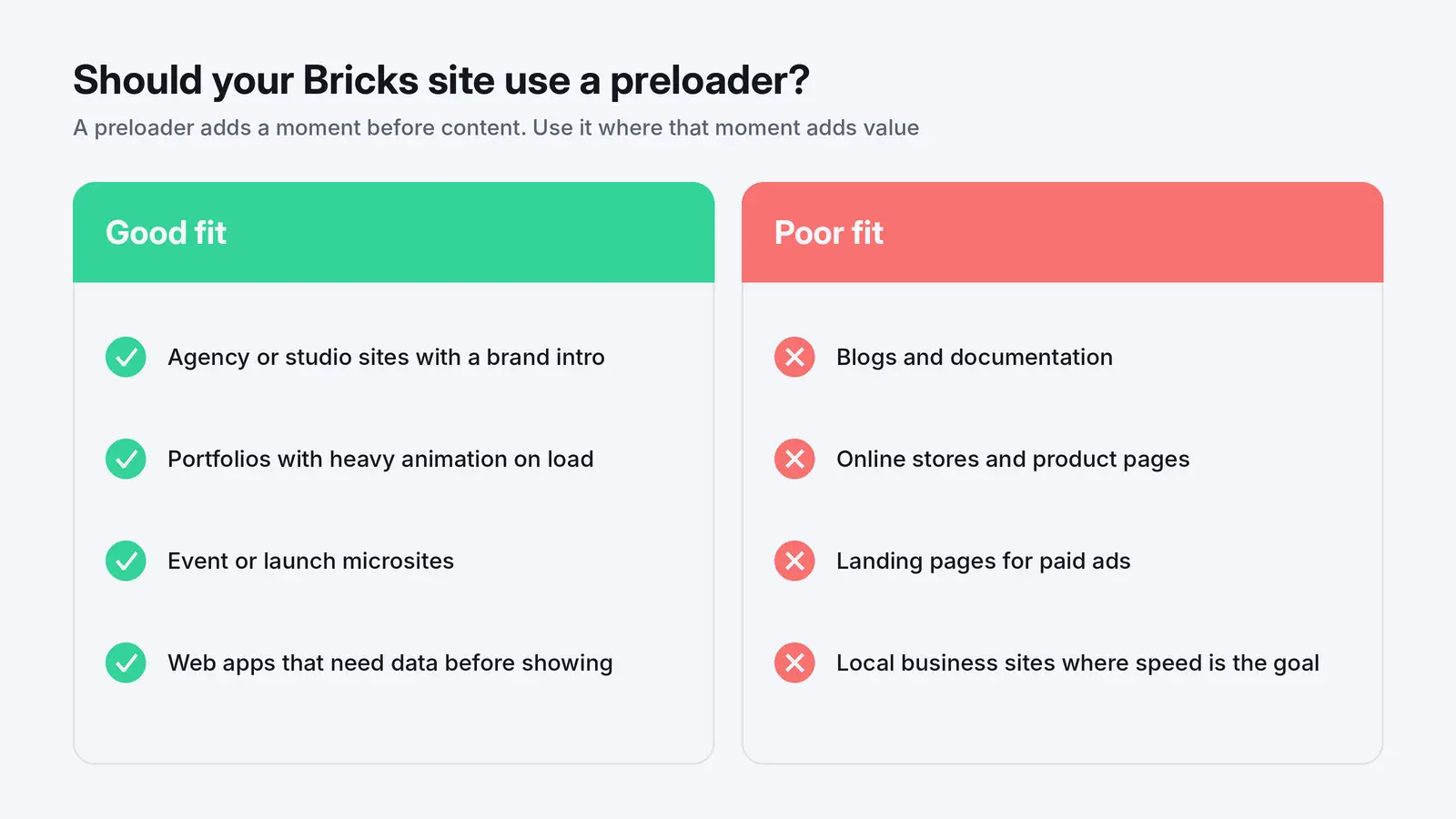
Where a preloader adds value, and where it costs you
- Good fit: agency and studio sites with a brand intro, portfolios that load heavy animation, event or launch microsites, and web apps that need data before showing anything useful.
- Poor fit: blogs, documentation, online stores, landing pages for paid ads, and local business sites. On these pages, visitors came for information or a purchase, and every extra moment counts.
If the reason for a preloader is “the page loads slowly”, fix the slow page first. A preloader does not make a page faster. It only changes what the visitor looks at while waiting.
Why Preloaders Can Hurt Page Speed and LCP
Largest Contentful Paint measures when the largest image, text block or video in the viewport is rendered. Google’s guidance is to reach an LCP of 2.5 seconds or less, and values above 4.0 seconds are rated poor.
Two details in how LCP works matter for preloaders:
- LCP heuristics in Chromium-based browsers exclude elements with an opacity of 0, because they are invisible to the user.
- They also exclude elements that cover the full viewport, because those are likely backgrounds rather than content. A full-screen preloader overlay is not counted as your main content.
So the common pattern of hiding the whole page with opacity: 0 until a script fades it in means your hero heading and image cannot count as the LCP element until that fade starts. If the script waits for the browser’s load event, which fires only after every image, font and third-party file has finished, the reveal can come long after the content was ready.
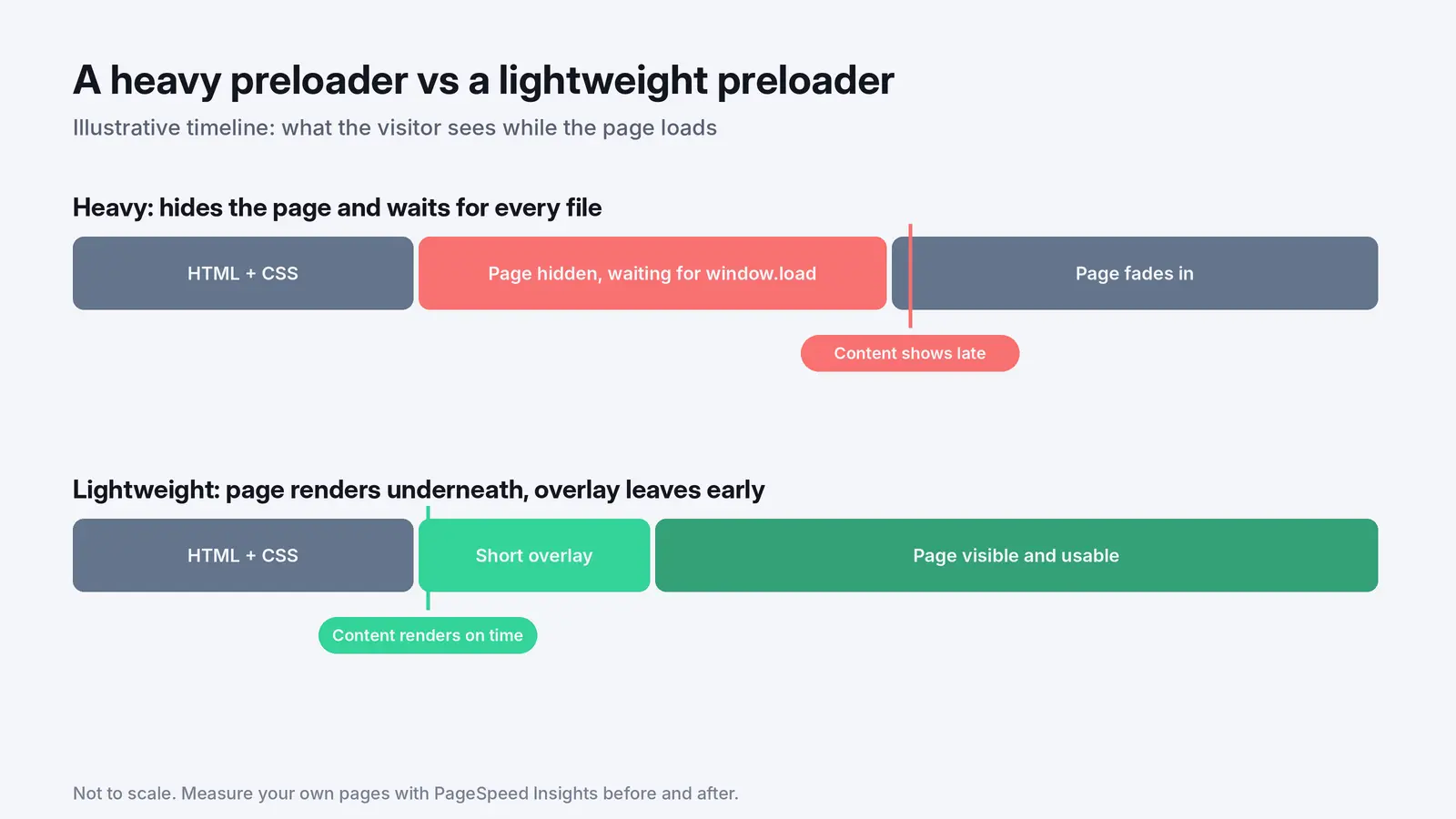
A heavy preloader vs a lightweight one (illustrative, not to scale)
A lightweight preloader works the other way around: the page renders normally underneath, the overlay sits on top for a short moment, and it leaves as soon as the page is parsed, with a hard time limit as a safety net.
Watch for a second hidden setting: Bricks has a Webfont loading method option that can hide site content until fonts have loaded to prevent a flash of unstyled text. If you use it together with a preloader, you stack two delays. Choose one, and prefer font preloading for self-hosted fonts.
The Rules of a Fast Preloader
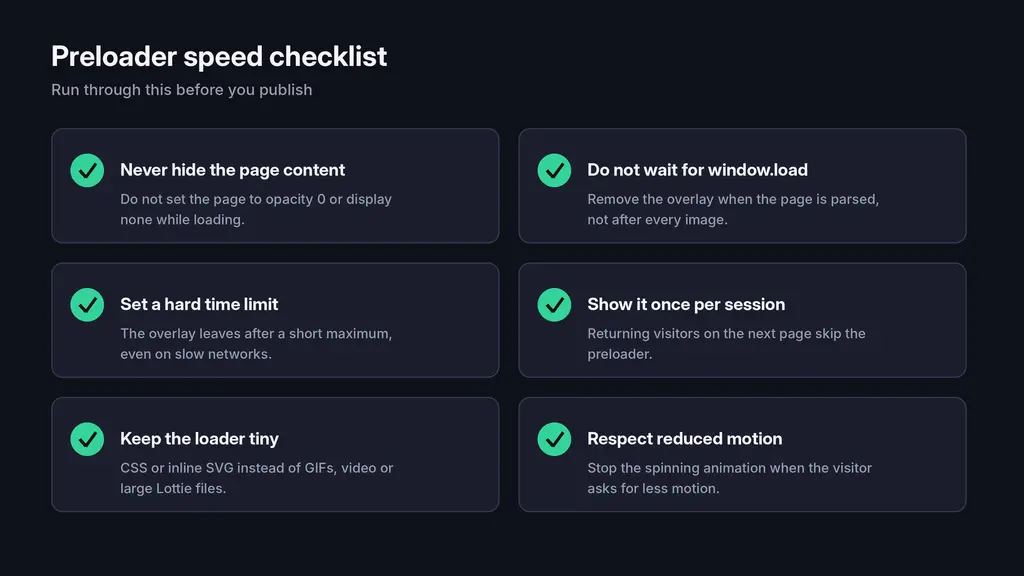
Six rules for a preloader that does not slow the site
| Rule | Why it matters |
| Never hide the page content | Hidden content cannot be counted as rendered, and visitors see nothing useful |
| Do not wait for window.load | The load event waits for every image and third-party file, which can take seconds |
| Set a hard time limit | On slow networks, the overlay still leaves after a short maximum |
| Show it once per session | Visitors moving to a second page do not watch the intro again |
| Keep the loader tiny | A loader that needs its own large file to download defeats its purpose |
| Respect reduced motion | Visitors who ask their system for less motion should not see a spinning animation |
Method 1: Build a Lightweight Preloader With Custom Code
This preloader uses three small pieces, all added under Bricks > Settings > Custom code. It needs no plugin, no image file and no animation library.
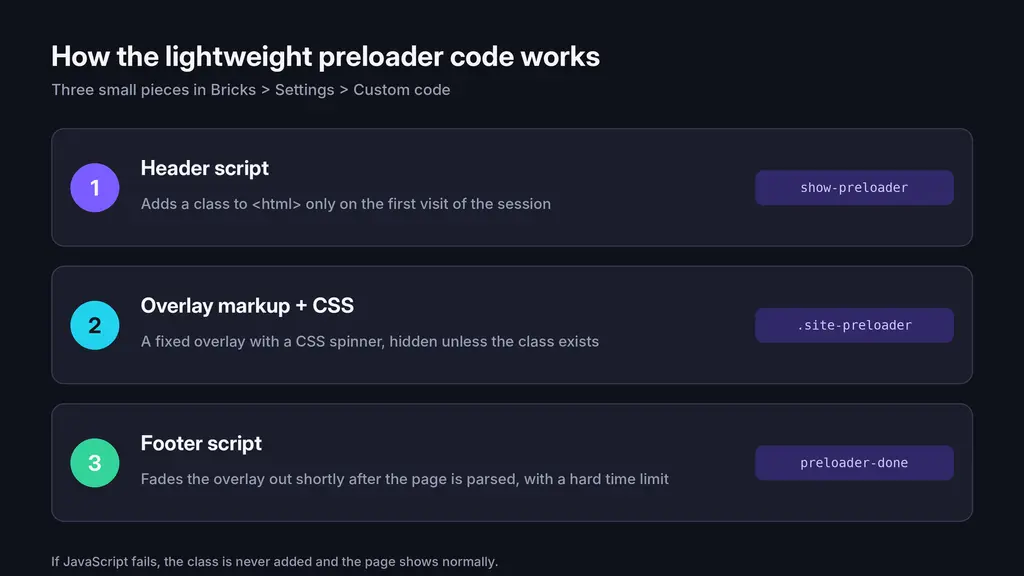
How the three pieces fit together
Step 1: Add the Header Script
Paste this into the Header scripts field. It runs before the page renders and adds a class to the <html> element only on the first page view of the browser session:
<script>

(function () {

  try {

    if (!sessionStorage.getItem("preloaderSeen")) {

      document.documentElement.classList.add("show-preloader");

      sessionStorage.setItem("preloaderSeen", "1");

    }

  } catch (e) { /* storage blocked: skip the preloader */ }

})();

</script>
Because the overlay only appears when this class exists, the page shows normally if JavaScript is blocked or fails.
Step 2: Add the CSS
Paste this into the Custom CSS field:
.site-preloader { display: none; }

.show-preloader .site-preloader {

  display: flex;

  position: fixed;

  inset: 0;

  z-index: 100000;

  align-items: center;

  justify-content: center;

  background: #111;

  transition: opacity .4s ease, visibility .4s ease;

}

.show-preloader.preloader-done .site-preloader {

  opacity: 0;

  visibility: hidden;

  pointer-events: none;

}

.preloader-mark {

  width: 48px; height: 48px;

  border: 3px solid rgba(255, 255, 255, .25);

  border-top-color: #fff;

  border-radius: 50%;

  animation: preloader-spin .8s linear infinite;

}

@keyframes preloader-spin { to { transform: rotate(360deg); } }

@media (prefers-reduced-motion: reduce) {

  .preloader-mark { animation: none; }

  .site-preloader { transition: none; }

}
Only the overlay is styled. The page content underneath keeps its normal styles, so it renders at its normal speed.
Step 3: Add the Overlay Markup
Paste this into the Body (header) scripts field, which outputs code right after the opening body tag, so the overlay is in place from the first paint:
<div class="site-preloader" role="status" aria-label="Loading">

  <div class="preloader-mark"></div>

</div>
Step 4: Add the Footer Script
Paste this into the Body (footer) scripts field. By the time it runs, the page has been parsed, so it fades the overlay out after a short pause. A second timer acts as the hard limit:
<script>

(function () {

  var root = document.documentElement;

  if (!root.classList.contains("show-preloader")) return;

  function done() { root.classList.add("preloader-done"); }

  setTimeout(done, 300);    /* short pause for the brand moment */

  setTimeout(done, 1500);   /* hard limit, in case something delays the first timer */

})();

</script>
Step 5: Brand It
- Change the background color to your brand’s dark color, or use a CSS variable from your palette.
- Replace the spinner with an inline SVG of your logo. Inline SVG ships inside the HTML, so there is no extra file to download.
- Keep the total time short. The 300 ms pause plus the 0.4 s fade is enough for a brand moment.
bricks/content/html_after_begin, as shared in the Bricksforge community forum.
Apply the same rules: the template must be small, shown only once per session, and removed early.
Method 2: Add a Preloader With BricksFly (No Code)
BricksFly is a complete Bricks Builder toolkit that helps users build modern animated websites faster with full website templates, 500+ sections, extra Elements, Extensions, and no-code GSAP animations. Its Preloader Extension displays custom preloader animations while your Bricks site loads. It belongs to the site-wide features in BricksFly Pro, alongside Cursor, Scroll Indicator and Scroll To Top.
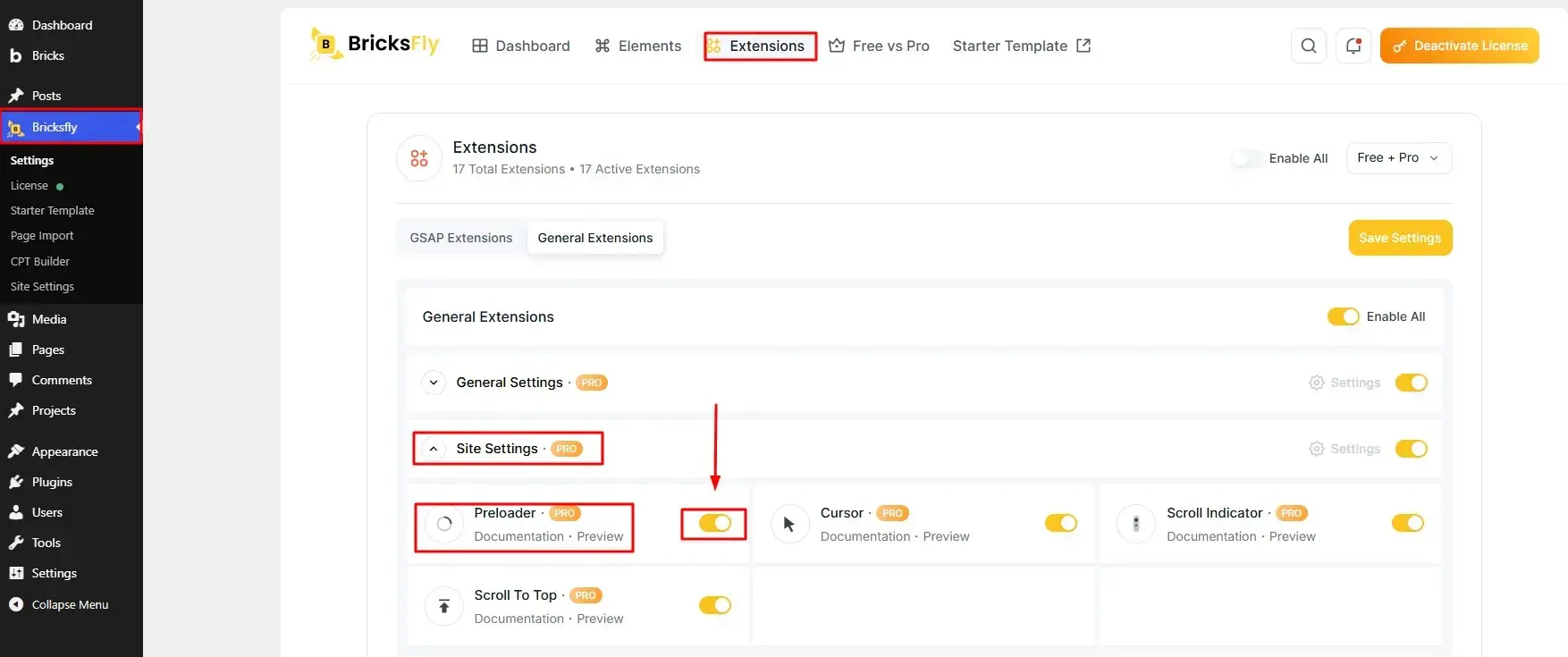
Step 1: Enable the Preloader Extension
- Go to your WordPress Dashboard and click BricksFly.
- Open the Extensions tab.
- Under General Extensions > Site Settings, toggle on Preloader.
- Save your settings.
Step 2: Configure It in Site Settings
Open BricksFly Site Settings and select Preloader. You can choose a layout from the available layouts such as whirlpool, floating circle, speeding wheel and many more.
You can customize the preloader’s appearance by changing its background and animation colors.
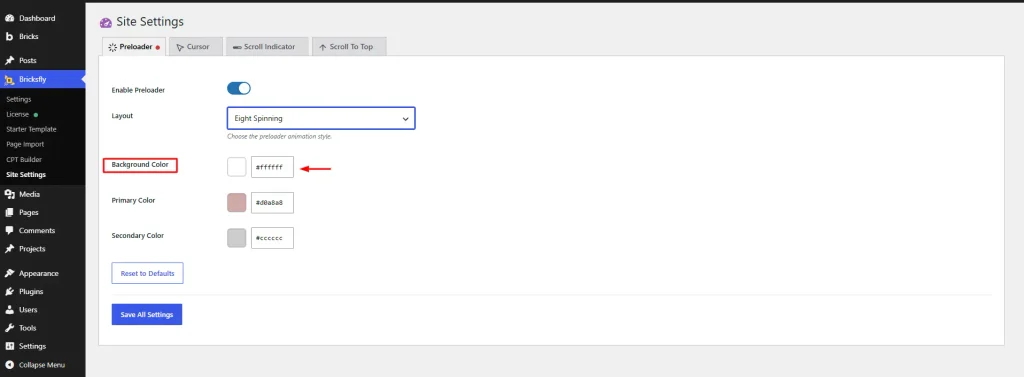
Choose the main color for your preloader animation. It controls the primary visual elements. Also, you can choose secondary color to complement the primary color and create a balanced appearance.
Full steps and every option are in the Preloader documentation.
Step 3: Apply the Speed Rules
Whichever settings you pick, apply the same rules as the custom code method: choose a light animation style over image or video loaders, keep the duration short, and test the page in PageSpeed Insights before and after enabling it.
The Preloader Extension is part of BricksFly Pro, together with Cursor, Scroll Indicator, Scroll To Top site features, and the full GSAP animation engine.
Explore BricksFly Pro →Lightweight vs Heavy Preloader Designs
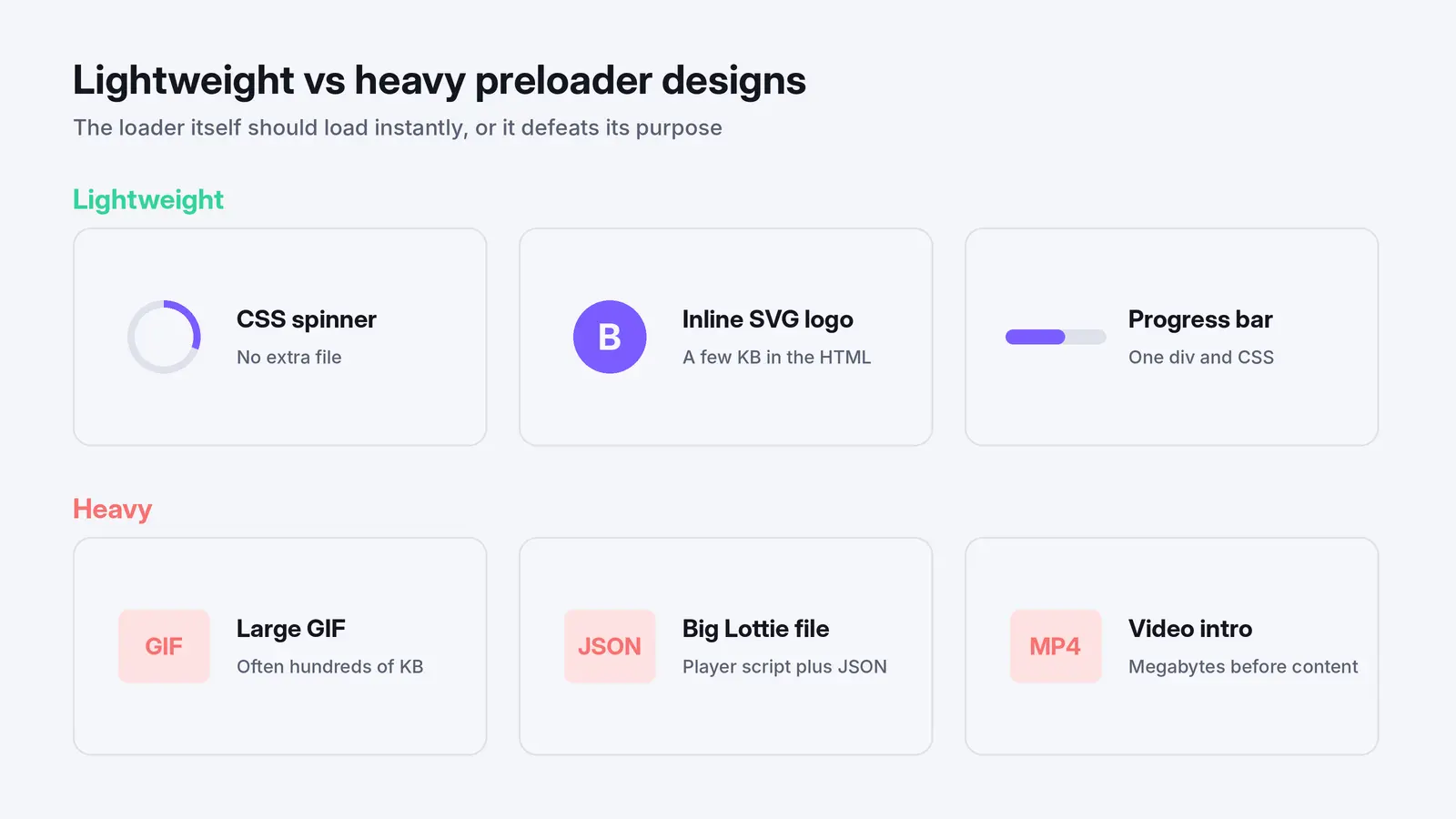
Choose a loader that loads instantly
| Design | Weight | Notes |
| CSS spinner or dots | No extra file | Fastest option; animate transform and opacity only |
| Inline SVG logo | A few KB inside the HTML | Good for brand intros; can be animated with CSS |
| CSS progress bar | One element and CSS | Clear and calm; avoid fake progress that stalls at 99% |
| Animated GIF | Often hundreds of KB | Must download before it shows; low quality on retina screens |
| Large Lottie animation | Player script plus JSON file | Can be heavier than the page content it introduces |
| Video intro | Megabytes | Delays content and drains mobile data; avoid |
How to Measure the Impact
- Run PageSpeed Insights on the page before adding the preloader and note LCP, Speed Index and Total Blocking Time for mobile.
- Add the preloader on a staging copy, clear caches, and run the same test again.
- Open Chrome DevTools, record a load in the Performance panel with network throttling, and check when the main content appears behind the overlay.
- After launch, watch the field data in PageSpeed Insights or Search Console’s Core Web Vitals report for real visitors.
If LCP rises noticeably after adding the preloader, check whether something is hiding the page content, whether the overlay waits for the load event, or whether the loader itself is a large file.
Troubleshooting of Preloader Extension
| Problem | Likely cause | Fix |
| Preloader shows on every page | No session check | Use the sessionStorage check from Step 1 |
| Page flashes before the preloader | Overlay markup loads too late | Place the markup in Body (header) scripts and the class script in Header scripts |
| Preloader never disappears | Script error or a JavaScript optimization setting delays scripts | Exclude the preloader scripts from delay or defer options in your optimization plugin |
| LCP got worse | Content hidden with opacity 0, or the overlay waits for window.load | Style only the overlay and remove it after parsing, with a hard limit |
| Preloader shows in the Bricks editor | Code runs inside the builder canvas | Test on the front end; add a check for the builder if needed |
| Spinner keeps spinning for reduced-motion visitors | Missing media query | Add the prefers-reduced-motion rule from Step 2 |
Common Mistakes to Avoid
- Using a preloader to cover a slow site. Fix images, scripts and hosting first.
- Fading in the whole body. Hiding all content delays what visitors can see and read.
- Waiting for every image. The load event can take seconds on image-heavy pages.
- Showing it on every page view. Once per session is enough for a brand moment.
- Using a heavy loader file. A large GIF, Lottie or video adds the delay it is meant to hide.
- Adding it to ad landing pages and stores. Every extra moment costs attention on pages built to convert.
How BricksFly Helps
For agency and portfolio sites, a short branded intro can be part of the experience. BricksFly gives you the Preloader Extension for that moment, and the rest of the toolkit for what comes after it: starter templates to begin from, sections from the Bricks section library, and the GSAP animation engine for text, image and scroll animation once the page is visible.
Get the Preloader Extension, Cursor, Scroll Indicator, and Scroll To Top site features, the full GSAP animation engine, 30+ starter templates, and 500+ sections in BricksFly Pro.
Black Friday Sale: Up to 50% OFF yearly and lifetime plans. Offer ends December 10, 2026!
Get BricksFly Pro →Final Thoughts
A Bricks preloader can add a polished first moment to an agency or portfolio site, as long as it does not stand between visitors and the content. Keep the page rendering underneath, use a tiny CSS or SVG loader, remove it as soon as the page is parsed, cap it with a hard limit, and show it once per session.
Then measure. If LCP and the visible load stay the same before and after, the preloader is doing its job: adding character without adding wait time.
FAQs
Does a preloader slow down my website?
A preloader does not have to slow down how fast the page loads, but it changes when visitors see content. If it hides the page or waits for every file to load, it delays the visible page and can hurt LCP. A small overlay that sits above normally rendering content and leaves early has very little impact.
Does Bricks Builder have a preloader setting?
Bricks does not include a front-end preloader for visitors. The loading screen in the Bricks editor belongs to the builder. You can add a preloader with custom code in Bricks > Settings > Custom code, with a Bricks template output through a filter, or with the BricksFly Preloader Extension.
How long should a preloader last?
As short as possible. A brief brand moment followed by a fade is enough on most sites. Remove the overlay as soon as the page is parsed and always set a hard maximum, so visitors on slow connections are not left looking at a spinner.
Is a preloader bad for SEO?
A preloader is not a ranking problem by itself, but page experience matters. If the preloader delays when the main content becomes visible, it can worsen LCP, which is one of the Core Web Vitals. Keep the content rendering underneath and remove the overlay early.
Should the preloader show on every page?
Usually not. Showing it once per browser session gives the brand moment on the first visit, and visitors moving between pages go straight to content. The custom code in this guide uses sessionStorage to do this.
Is the BricksFly Preloader free?
No. The Preloader Extension is part of BricksFly Pro, together with other site-wide features such as Cursor, Scroll Indicator and Scroll To Top. The free BricksFly plugin includes Elements, Starter Animations and free templates.




Leave a Reply
You must be logged in to post a comment.