

A horizontal scroll section is one of the most recognizable effects on modern agency and portfolio sites. The visitor scrolls down as usual, the section locks in place, and a row of project cards slides sideways across the screen. When the last card comes into view, the page releases and scrolling continues downward.
Bricks Builder does not include this effect natively. It needs two things working together: a GSAP ScrollTrigger pin that holds the section in place, and an animation that converts vertical scroll into horizontal movement. This guide shows how to build a Bricks horizontal scroll section two ways:
- Method 1, no code: The BricksFly Horizontal Scroll Extension, with the exact structure and settings from the official documentation.
- Method 2, custom code: GSAP and ScrollTrigger added through Bricks custom code, for builders who want full control.
You will also learn how the End value controls speed, which content suits a horizontal section, how to handle mobile, and how to fix the problems builders run into most often.
QUICK ANSWER
To create a horizontal scroll section in Bricks Builder without code, enable the BricksFly Horizontal Scroll Extension under BricksFly > Extensions > GSAP Extensions > ScrollTrigger. Build a Section with a full-width Container holding one Block per card, set Horizontal Scroll to Enable, keep Width at 100%, and set End to the vertical scroll distance in pixels, for example 3000.
How a Pinned Horizontal Scroll Works
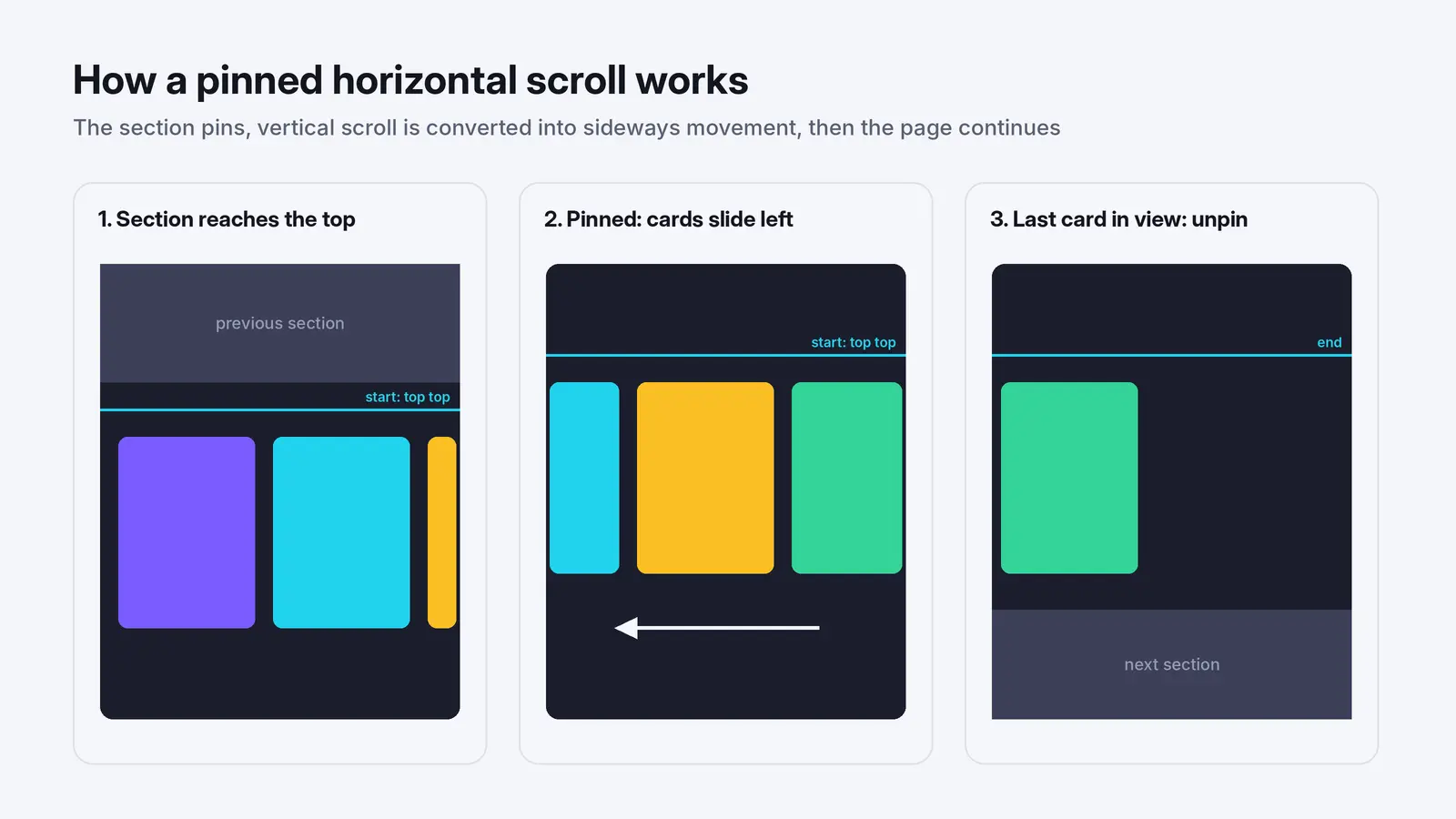
Three stages of a pinned horizontal scroll
- The section reaches the top of the screen. This is the start point, often written as top top in GSAP: the top of the section meets the top of the viewport.
- The section pins. ScrollTrigger holds it in place while the visitor keeps scrolling. Instead of the page moving up, the row of cards moves left, in sync with the scroll.
- The last card comes into view and the section unpins. The page continues scrolling vertically into the next section.
Because the effect is tied to the scrollbar (often called scrubbing), scrolling back up moves the cards back to the right. The visitor stays in control of the speed.
When to Use a Horizontal Scroll Section
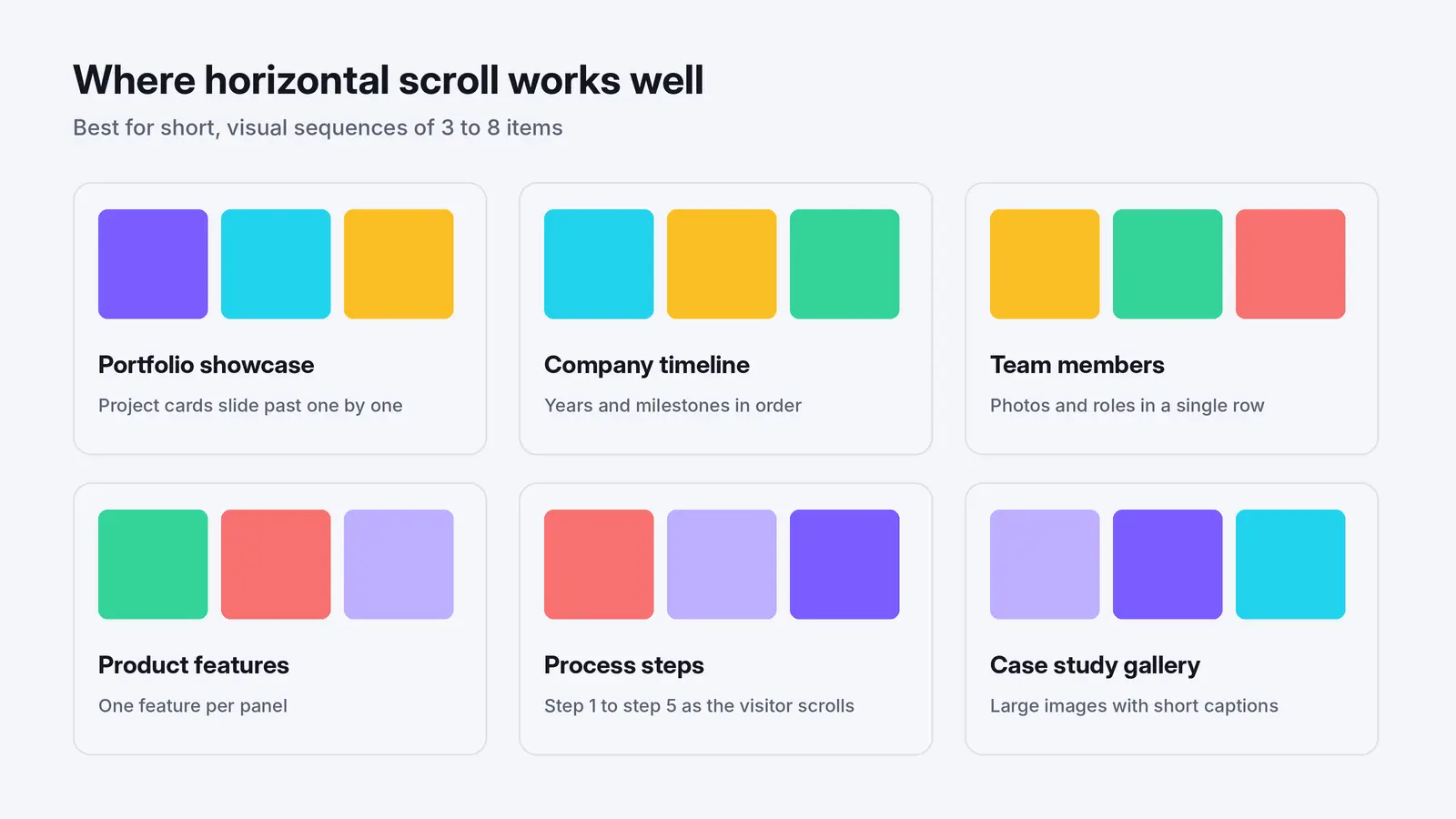
Where horizontal scroll works well
| Use case | Why it works horizontally |
| Portfolio showcase | Each project gets a full moment on screen, one after another |
| Company timeline | Years read naturally from left to right |
| Team members | A single row of faces feels lighter than a tall grid |
| Product features | One feature per panel keeps attention on one idea at a time |
| Process steps | Step 1 to step 5 maps directly to scroll progress |
Keep horizontal sections short: three to eight cards is a comfortable range. Long sequences pin the visitor for a long time, and important content inside a long strip is easy to skip.
Method 1: Create a Horizontal Scroll Section With BricksFly (No Code)
BricksFly is a complete Bricks Builder toolkit that helps users build modern animated websites faster with full website templates, 500+ sections, extra Elements, Extensions, and no-code GSAP animations. Its Horizontal Extension builds horizontal scroll animations with GSAP ScrollTrigger, so you configure the effect in the Bricks editor instead of writing JavaScript.
Requirements: the Bricks theme and BricksFly Pro.
Step 1: Activate Horizontal Scroll
- Go to your WordPress Dashboard.
- Click BricksFly.
- Open the Extension tab.
- Under GSAP Extensions > ScrollTrigger, toggle on Horizontal Scroll.
Step 2: Build the Section Structure
The Extension expects a simple structure: a Section, a Container inside it, and one Block (or Div) per card inside the Container.
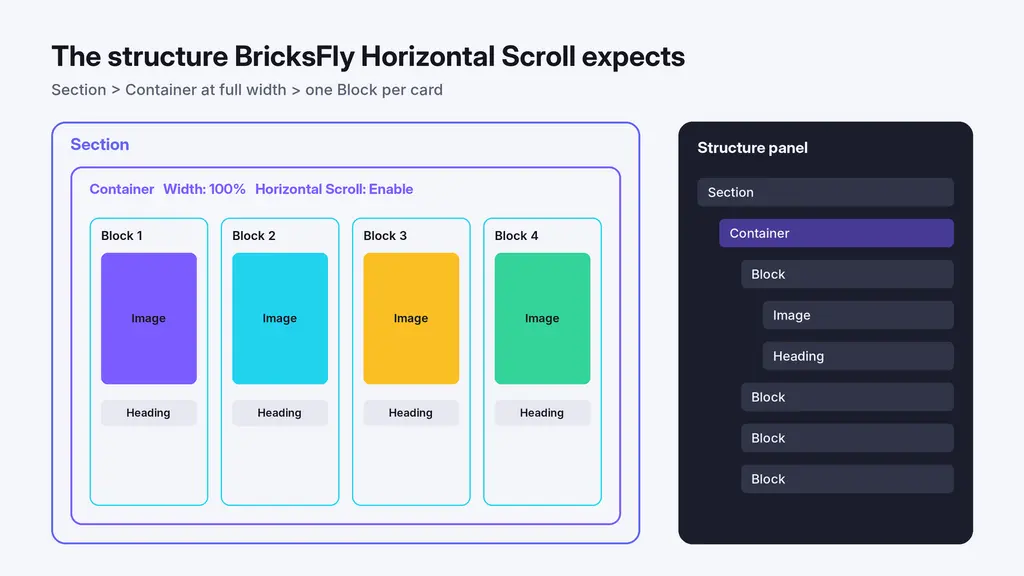
Section > Container > Blocks
- Click the + icon to add a Section. Bricks adds a Container inside it.
- Inside the Container, add a Block for the first card.
- Add the card content to the Block, such as an Image and a Heading. The documentation example uses an image and a heading per card.
- Duplicate the Block for each card. The documentation example uses three cards.
Step 3: Set the Container to Full Width
Select the main Container, open Style > Width, and set it to 100%. The documentation is clear on this point: if the Container is not full width, the horizontal animation will not work while scrolling.
Step 4: Enable and Configure Horizontal Scroll
Select the element that holds the cards in the Structure panel (in the documentation example it is named “The Team”), then open the Content tab on the left to find the Horizontal Scroll settings.
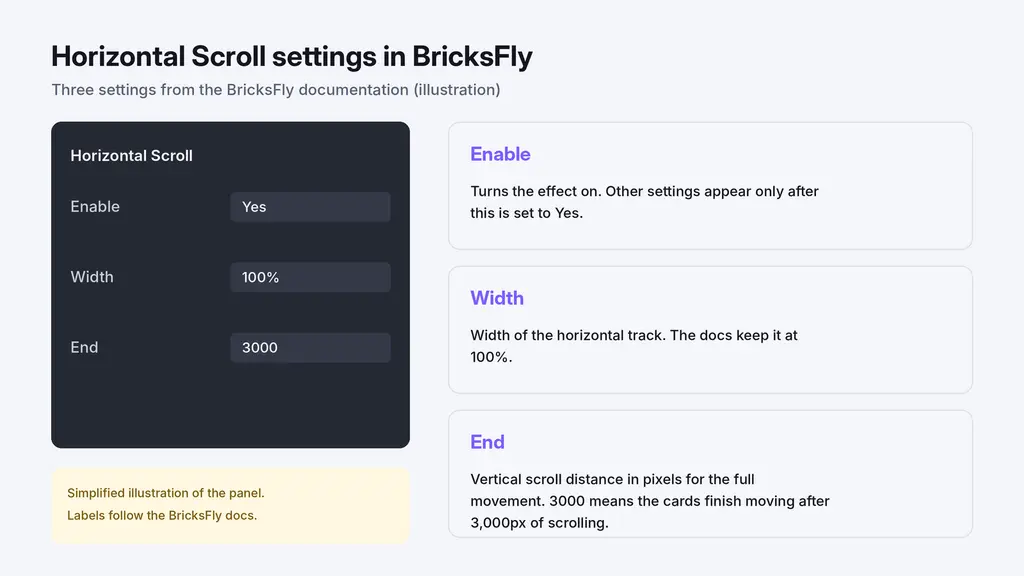
The three Horizontal Scroll settings (illustration)
| Setting | What it does | Docs example |
| Enable | Turns the effect on. The other settings only appear after you set it to Yes | Yes |
| Width | Width of the horizontal track | 100% |
| End | The vertical scroll distance over which the horizontal animation runs. 2000 completes it after 2,000px of scrolling; 800 after 800px | 3000 |
With End set to 3000, the animation begins when the top of the container reaches the viewport and completes after the visitor scrolls 3,000 pixels. Click Save and preview the page on the front end.
Want horizontal scroll without writing GSAP?
The Horizontal Scroll Extension is part of BricksFly Pro, along with Sticky/Pin Element, Parallax, Text Animation, and the full GSAP animation engine.
See BricksFly PlansHow to Choose the Right End Value
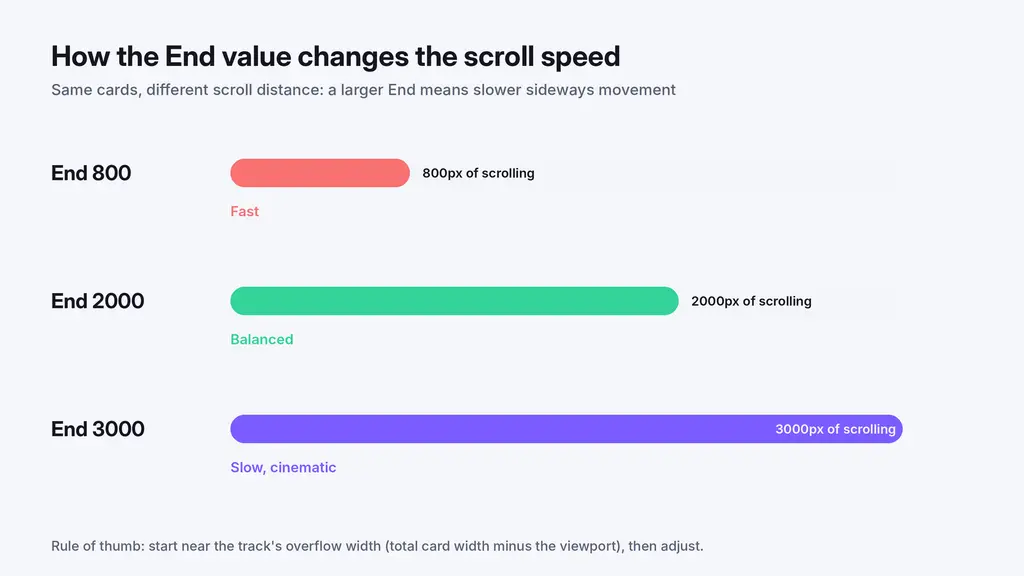
A larger End value means slower sideways movement
End controls how much vertical scrolling the visitor does while the cards move. The same row of cards feels fast with a small End value and slow with a large one.
| End value | Feel | Good for |
| 800 | Fast; cards rush past | Short strips of 3 small cards |
| 2000 | Balanced | Most portfolios and feature rows |
| 3000 and above | Slow and cinematic | Large images that deserve time on screen |
RULE OF THUMB
Start with an End value close to the row’s overflow width, meaning the total width of all cards and gaps minus the screen width. This helps one pixel of vertical scroll move the cards about one pixel sideways.
Example: Six 500px cards with 32px gaps make a 3,160px row. On a 1,440px wide screen, the overflow is 1,720px. So, start near 1700 to 2000 and adjust by feel.
Method 2: Build Horizontal Scroll With GSAP and Custom Code
If you prefer to write the animation yourself, GSAP’s ScrollTrigger plugin handles the pin and the scroll link. This version runs only on screens 768px and wider for visitors who have not asked for reduced motion. Everyone else, and anyone whose browser blocks the script, gets a swipeable row.
Step 1: Add Classes in Bricks
Give the Section the class hs-section, the Container that holds the cards the class hs-track, and each card Block the class hs-card.
Step 2: Add the CSS
Paste this into Bricks > Settings > Custom code > Custom CSS:
/* Default: a swipeable row (phones, reduced motion, or if JavaScript fails) */

.hs-section {

  overflow-x: auto;

  scroll-snap-type: x mandatory;

}

.hs-track {

  display: flex;

  flex-wrap: nowrap;        /* keep every card on one line */

  gap: 2rem;

  width: max-content;

}

.hs-card {

  flex: 0 0 min(80vw, 520px);

  scroll-snap-align: start;

}

/* Added by the script when the pinned animation runs */

.hs-section.hs-active {

  overflow: hidden;

  scroll-snap-type: none;

}
Step 3: Add GSAP and the Script
Paste this into the Body (footer) scripts field. It loads GSAP and ScrollTrigger from a CDN with a fixed version, then creates one horizontal scroll per .hs-section on the page:
<script src="https://cdn.jsdelivr.net/npm/[email protected]/dist/gsap.min.js"></script>

<script src="https://cdn.jsdelivr.net/npm/[email protected]/dist/ScrollTrigger.min.js"></script>

<script>

gsap.registerPlugin(ScrollTrigger);

var mm = gsap.matchMedia();

mm.add("(min-width: 768px) and (prefers-reduced-motion: no-preference)", function () {

  var sections = document.querySelectorAll(".hs-section");

  sections.forEach(function (section) {

    var track = section.querySelector(".hs-track");

    if (!track) return;

    section.classList.add("hs-active");

    var distance = function () { return track.scrollWidth - window.innerWidth; };

    gsap.to(track, {

      x: function () { return -distance(); },   /* move left by the overflow */

      ease: "none",                             /* linear, tied to the scrollbar */

      scrollTrigger: {

        trigger: section,

        start: "top top",                       /* pin when the section hits the top */

        end: function () { return "+=" + distance(); },

        pin: true,

        scrub: 1,                               /* smooth catch-up of 1 second */

        invalidateOnRefresh: true               /* recalculate on resize */

      }

    });

  });

  return function () {                          /* runs when the query stops matching */

    sections.forEach(function (sec) { sec.classList.remove("hs-active"); });

  };

});

</script>
How the Code Works
- pin: true holds the section in place while the animation runs.
- ease: “none” keeps the movement linear, so the cards move at the same rate as the scroll.
- end uses the overflow distance, which gives roughly one pixel of sideways movement per pixel of scroll.
- invalidateOnRefresh: true recalculates the distance when the window is resized.
- gsap.matchMedia() limits the effect to larger screens and to visitors who have not requested reduced motion. GSAP reverts the animation automatically when the media query stops matching, and the returned function removes the hs-active class so the swipeable row comes back.
Tip: If your site already loads GSAP through a plugin, do not load it a second time. Two copies of GSAP on one page can cause conflicts.
BricksFly vs Custom Code
| BricksFly Horizontal Scroll | Custom GSAP code | |
| Setup | Toggle an Extension and set Enable, Width and End | Add classes, CSS and a script |
| Code required | None | CSS and JavaScript |
| Speed control | End value in the editor | The end value and scrub in the script |
| Mobile behavior | Test and adjust per breakpoint | Written into the media queries |
| Maintenance | Handled by plugin updates | You maintain the script and the GSAP version |
| Combine with other effects | Other BricksFly Extensions on the same page | Anything GSAP supports, if you code it |
Mobile and Accessibility
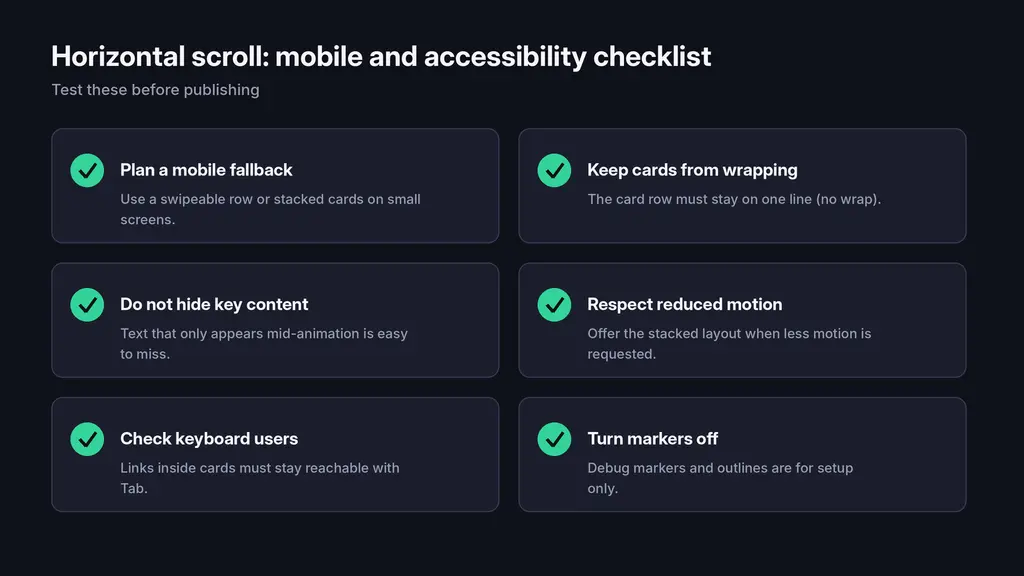
Checks to run before publishing
- Plan the phone layout – On small screens, a pinned horizontal section can feel cramped. A swipeable row with scroll snap, or simply stacked cards, is often the better experience.
- Keep the row on one line – If the cards wrap onto a second line, there is nothing to scroll sideways. A user on the Bricks community forum fixed their mobile horizontal scroll by changing the row to nowrap.
- Respect reduced motion – Visitors who ask their system for less motion should see a static layout. The custom code above does this with prefers-reduced-motion.
- Keep links reachable – Links inside cards must work with the keyboard. Test tabbing through the cards.
- Do not hide essential content – Information visible only mid-animation is easy to miss. Keep key details, such as prices or contact details, outside the horizontal strip.
Troubleshooting Horizontal Scroll in Bricks
| Problem | Likely cause | Fix |
| Nothing moves | Extension not enabled, or Enable not set to Yes | Toggle Horizontal Scroll in BricksFly > Extension and set Enable to Yes |
| Animation does not work while scrolling | Container is not full width | Set the Container width to 100% under Style > Width |
| Cards wrap onto a second line | Flex wrap is on | Set the card row to no wrap |
| Cards move too fast or too slow | End value does not match the row length | Increase End to slow it down, decrease to speed it up |
| Page jumps when the section pins | Layout shifts while images load | Set fixed image sizes or aspect ratios on card images |
| Section scrolls sideways on phones and feels stuck | Pinned effect on small screens | Use a swipeable or stacked layout on mobile |
| Effect breaks next to other scroll effects | Two animation systems control the same element | Use one animation system per section |
Common Mistakes to Avoid
- Too many cards – Long strips pin visitors for too long. Keep it to three to eight cards.
- Skipping the full-width Container – It is the most common reason the effect does not run.
- Text-heavy cards – Visitors scroll past quickly. Use images and short headings.
- No mobile plan – Decide what phones should see before publishing.
- Placing two horizontal sections back to back – Separate them with normal content so the page does not feel locked.
- Loading GSAP twice – If a plugin already loads it, reuse that copy.
Combine Horizontal Scroll With Other Effects
A horizontal section works well with a few lighter effects around it. Animate the section heading with split text animation, reveal the card images with image animation, or pin a product visual elsewhere on the page with sticky and pin elements. Keep one main effect per section so each one has room.
How BricksFly Helps
Horizontal scroll is a good example of an effect that is simple to describe and slow to code. With BricksFly, the setup is a structure you already know from Bricks plus three settings. Start from one of the starter templates, add a portfolio row from the Bricks section library, and turn it into a pinned horizontal scroll with the Horizontal Scroll Extension. See the full GSAP animation engine for the other scroll effects.
Build Horizontal Scroll Sections Without Code
Get the Horizontal Scroll Extension, Sticky/Pin Element, Parallax, Text Animation and the full GSAP animation engine in BricksFly Pro, plus 30+ starter templates and 500+ sections.
Black Friday Sale: Runs until December 10, 2026, with up to 50% OFF yearly and lifetime plans.
Get BricksFly Pro →Final Thoughts
A Bricks horizontal scroll section turns a row of cards into a guided, scroll-driven sequence. The no-code route takes a Section, a full-width Container, one Block per card, and three settings: Enable, Width and End. The custom code route gives you full control with GSAP ScrollTrigger and a pinned section.
Whichever method you choose, keep the strip short, pick an End value that matches the row length, plan the phone layout, and test with reduced motion turned on.
FAQs
Can I create a horizontal scroll section in Bricks without code?
Yes. The BricksFly Horizontal Scroll Extension creates the effect with GSAP ScrollTrigger and visual settings. Enable it under BricksFly > Extension > GSAP Extensions > ScrollTrigger, build a Section with a full-width Container and one Block per card, set Enable to Yes, keep Width at 100%, and choose an End value.
Does Bricks Builder have a native horizontal scroll feature?
Bricks does not include a pinned horizontal scroll effect. You can make a row scroll sideways with CSS overflow and scroll snap, but converting vertical scroll into sideways movement while the section is pinned needs GSAP ScrollTrigger, through custom code or an add-on such as BricksFly.
What does the End setting do?
End sets how many pixels of vertical scrolling the horizontal animation takes. With End at 3000, the animation starts when the container’s top reaches the viewport and finishes after 3,000 pixels of scrolling. A larger End value makes the cards move more slowly.
Why is my horizontal scroll not working?
The most common cause is a Container that is not full width; set it to 100% under Style > Width. Also check that the Extension is enabled, that Enable is set to Yes, and that the cards are not wrapping onto a second line.
How do I make horizontal scroll work on mobile?
Test it on a real phone first. If the pinned effect feels cramped, show a swipeable row with scroll snap or stacked cards on small screens instead. In custom code, gsap.matchMedia() lets you run the pinned animation only on larger screens.
Is the BricksFly Horizontal Scroll Extension free?
No. Horizontal Scroll is part of BricksFly Pro, together with the other GSAP Extensions such as Sticky/Pin Element, Parallax and Text Animation. The free BricksFly plugin includes Elements, Starter Animations and free templates.



Leave a Reply
You must be logged in to post a comment.