

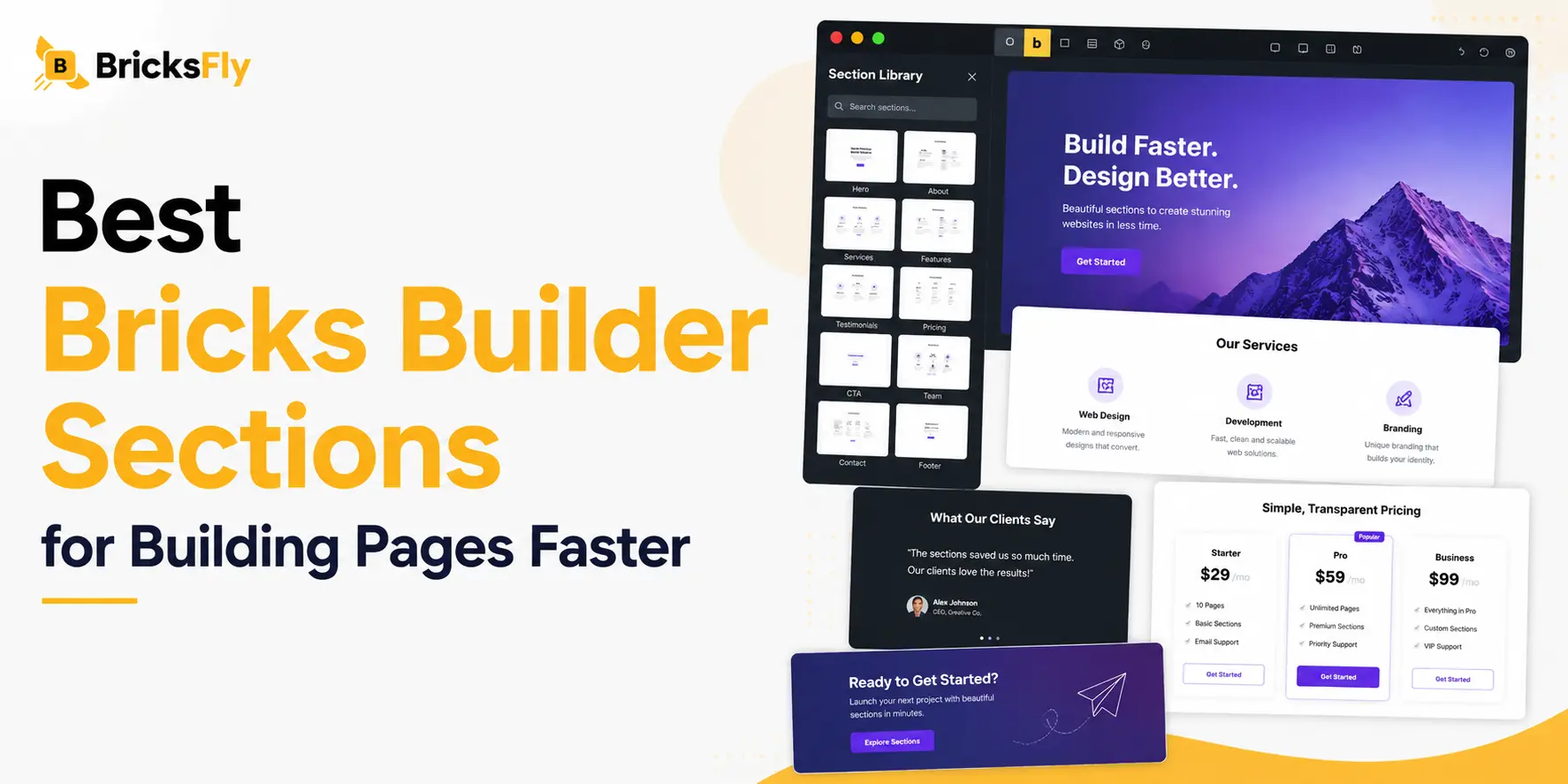
The fastest way to build a custom page in Bricks isn’t designing every block from scratch, it’s starting from the best Bricks Builder sections and customizing from there. A section is a prebuilt page block, a hero, a pricing table, a testimonial row, that you drop into your layout and make your own.
A full website template isn’t the right fit, you still need the same page parts over and over: a strong hero, a clear pricing block, social proof, a contact section, a footer. Rebuilding those by hand each time is wasted effort. A good section library gives you polished, ready-to-use versions you can pull in instantly.
This guide covers the section types you’ll actually use, hero, services, pricing, testimonials, portfolio, CTA, and footer, what makes each one effective, and how to add them without code.
Quick Answer: The best Bricks Builder sections are prebuilt page blocks such as heroes, services, pricing tables, testimonials, portfolios, CTAs, and footers. You can add them to a page and customize the content instead of building everything from scratch. With live copy-paste or import, they help you create custom pages in minutes. Libraries like BricksFly provide 500+ sections covering the most common website layouts.
What Are Bricks Builder Sections?
A Bricks Builder section is a single, self-contained block of a page. Instead of an entire website, a section is one piece, a hero area, a features grid, a pricing table, a footer, that’s already designed and ready to use. You add it to your page, swap in your own content, and move on to the next block.
Sections sit between two extremes. On one end is the blank canvas, total control but slow. On the other is a full website template, fast but a fixed structure. Sections give you the best of both: you assemble the page yourself for full layout control, but each block is pre-designed, so you skip the slow part. You’re composing, not creating from nothing.
The way you add a section matters as much as the section itself. The best libraries support flexible methods: live copy-paste (copy a section and paste it straight into your page), JSON download and import (grab a file and import it), and direct import inside the Bricks editor. These options let you pull in exactly the blocks you need, in any order, without disrupting the rest of the page.
In short, sections are the workhorse of custom page building in Bricks. When a full template doesn’t fit but you don’t want to start from zero, sections are how you build fast.
Why Prebuilt Sections Speed Up Page Building
The value of a section library is repetition removed. Most pages, regardless of the client, reuse the same building blocks. Knowing that, building each one fresh every time is avoidable work.
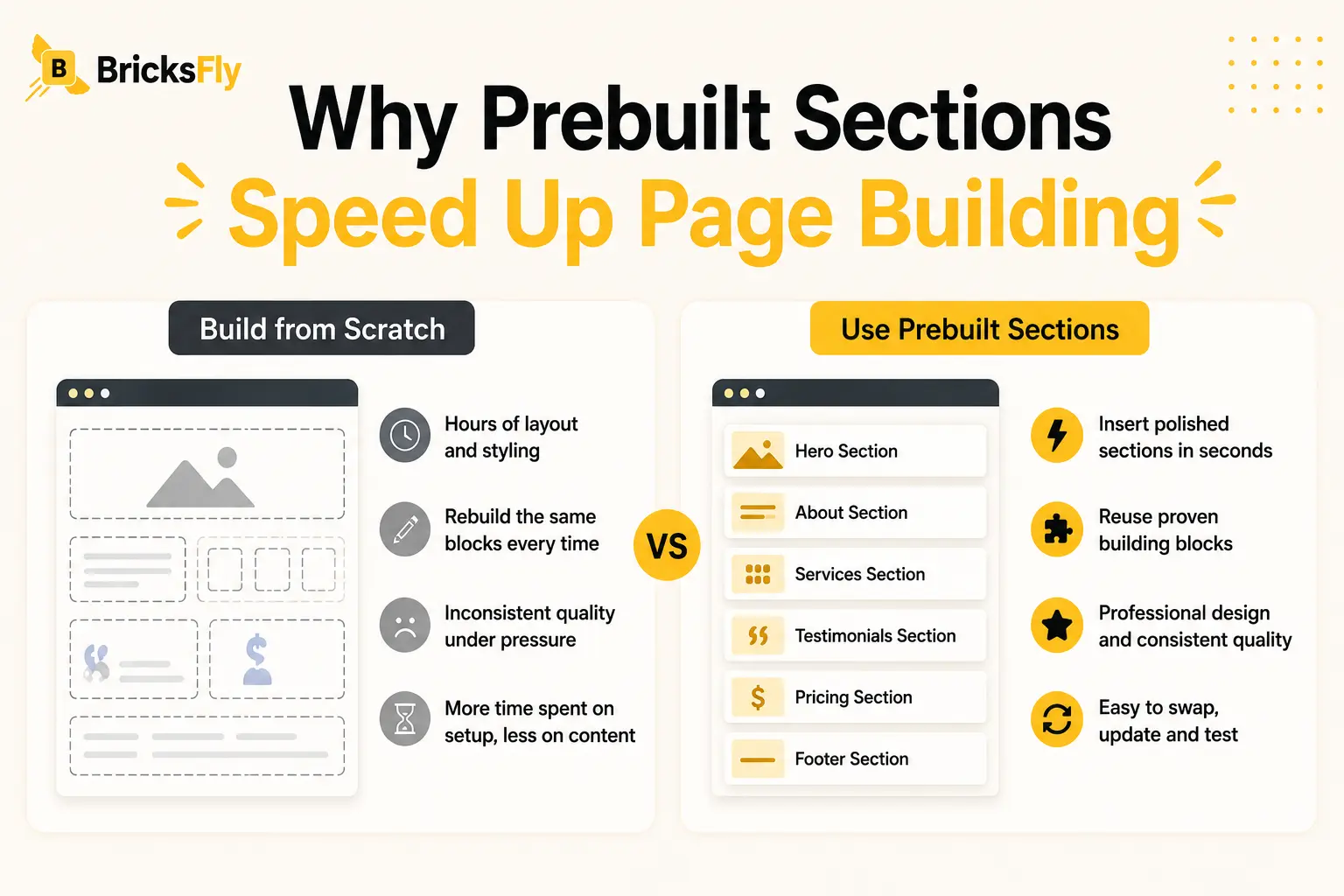
Consider a typical service-business page. It needs a hero, a short about block, a services grid, a few testimonials, a pricing or quote section, and a footer. Built by hand, that’s hours of layout, spacing, and styling decisions, most of which you’ve made a dozen times before. With a section library, you pull in a polished version of each block and spend your time on the content and branding that actually differ between clients.
There’s a quality dimension too. Prebuilt sections are professionally designed, so spacing, typography, and hierarchy are already considered. Even under deadline pressure, a page assembled from good sections looks intentional. That consistency is hard to maintain when you’re rebuilding blocks from scratch on every project.
And because sections are modular, they make iteration easy. Don’t like the hero? Swap it for a different prebuilt one in seconds. Need to test two pricing layouts? Drop both in and compare. This flexibility, fast to add, fast to change, is exactly what makes section libraries a core part of a professional Bricks workflow.
The Best Bricks Section Types You’ll Actually Use
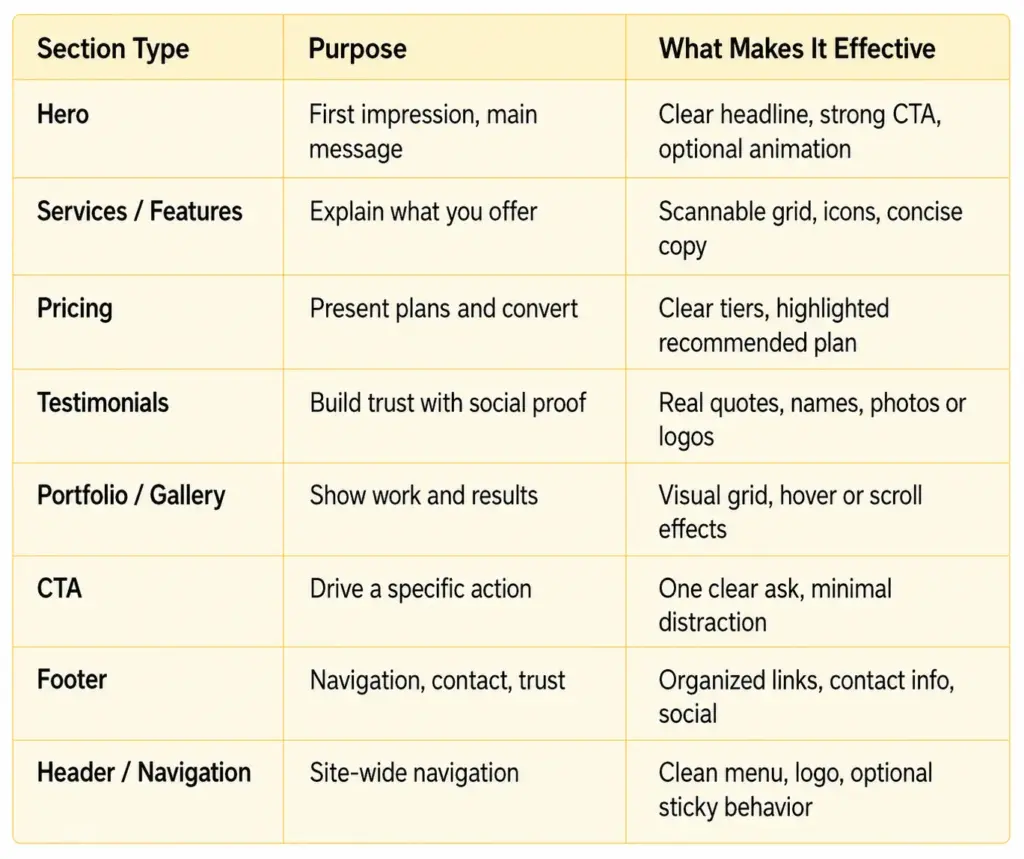
Here are the section types worth having in your library, what each does, and what makes a good one. All of these are covered in BricksFly‘s 500+ section library.
Hero Sections
The hero is the first thing visitors see, so it carries the most weight. A strong hero section pairs a clear headline with a single primary CTA and often a supporting visual. The best hero sections are animation-ready, so you can add a split-text reveal or a subtle scroll effect to make the opening feel premium.
Services and Features Sections
These explain what you offer in a scannable format, usually a grid of cards with icons and short descriptions. Effective ones keep copy concise and use consistent card sizing so the layout stays clean. A staggered scroll reveal works well here to bring the cards in one by one.
Pricing Sections
Pricing blocks need clarity above all. The best pricing sections present tiers side by side, highlight the recommended plan, and make the differences easy to scan. Clear pricing reduces hesitation and supports conversion directly.
Testimonials and Social Proof
Trust sections work when they feel real, actual quotes, names, and where possible photos or company logos. A testimonial row, a logo strip, or a case-study highlight all build credibility. These are some of the highest-impact sections on any conversion-focused page.
Portfolio and Gallery Sections
For agencies, freelancers, and designers, showing work is essential. Portfolio sections present projects in a visual grid, often with hover states or scroll animation. A horizontal-scroll gallery is a popular way to make a portfolio feel distinctive.
CTA and Footer Sections
A CTA section makes one clear ask, book a call, start a trial, get in touch, with minimal distraction. The footer wraps up the page with organized navigation, contact details, and trust signals. Both are used on nearly every page, so having strong prebuilt versions saves time on every build.
How to Add Bricks Sections Without Code
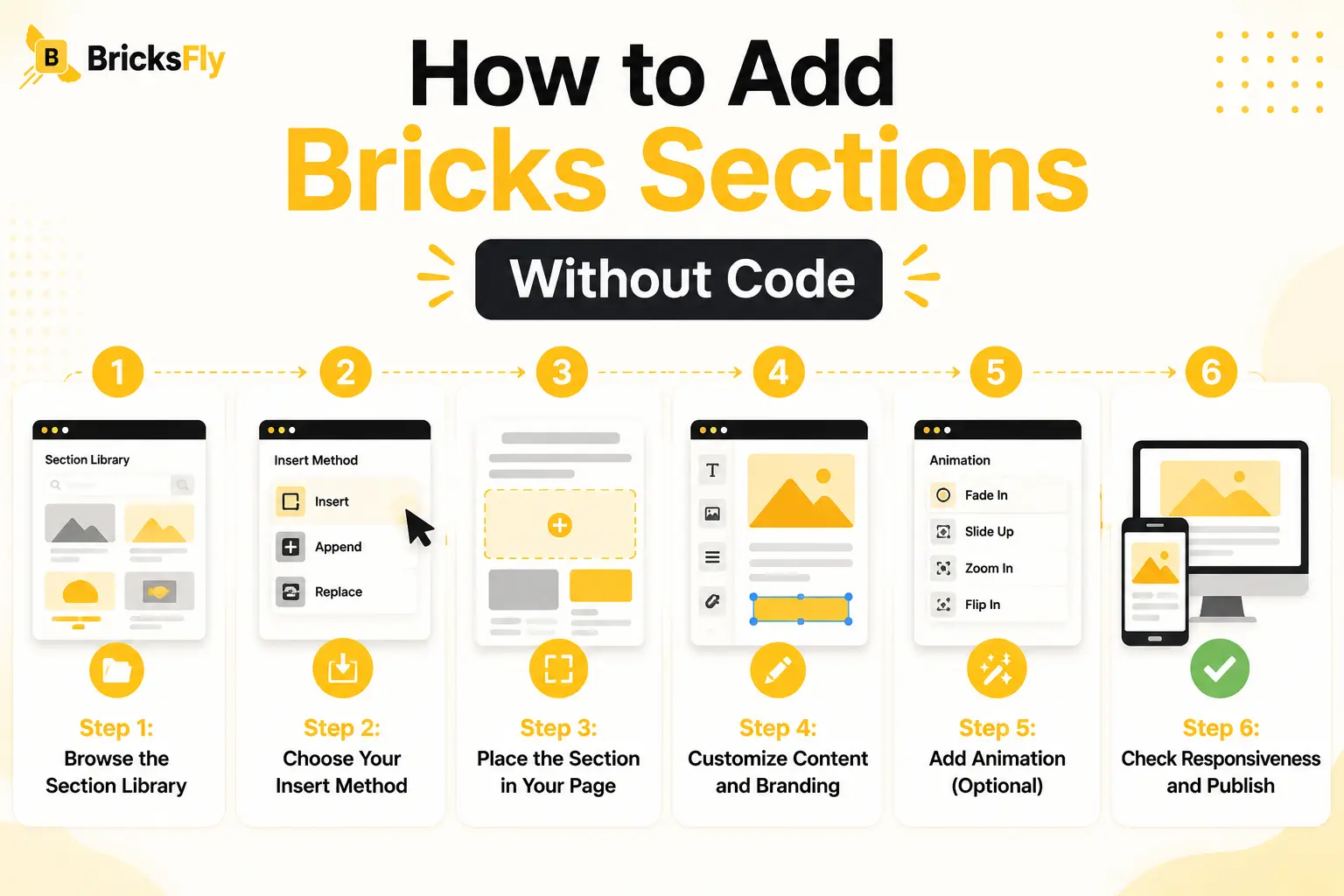
Adding sections is one of the simplest workflows in Bricks. Here’s how it works with a section library like BricksFly.
Step 1: Browse the Section Library
Open the section library and browse by category, hero, pricing, testimonials, and so on. Good libraries let you filter by type so you find the right block quickly instead of scrolling through everything.
Step 2: Choose Your Insert Method
Pick how to add the section. Live copy-paste is fastest: copy the section and paste it directly into your Bricks page. JSON import lets you download a file and import it. Direct import adds the section from inside the editor. Use whichever fits your workflow.
Step 3: Place the Section in Your Page
Drop the section where you want it in the page structure. Because sections are self-contained, they slot in cleanly between existing blocks without breaking the rest of the layout.
Step 4: Customize Content and Branding
Replace the placeholder text with your copy, swap in your images, and adjust colors to match the brand. The design is already done, so this step is quick, you’re personalizing, not building.
Step 5: Add Animation (Optional)
For extra polish, add a no-code scroll effect, a reveal on the hero, a staggered animation on a features grid, or a hover effect on portfolio items. With a toolkit that includes animation, this is a few clicks.
Step 6: Check Responsiveness and Publish
Review the section on mobile and tablet, adjust any spacing if needed, then publish. Always preview the live page, especially if you’ve added scroll animation, before going live.
That’s the whole process. Browse, insert, customize, and you’ve built a polished page section in minutes.
Examples and Use Cases
Sections shine in real, everyday building situations.
Agency assembling a custom landing page: No full template fits the campaign, so the team builds the page from sections: a hero, a benefits grid, a testimonial row, a pricing block, and a CTA. A custom page that looks bespoke, assembled in under an hour.
Freelancer adding a page to an existing site: The client wants a new services page. Rather than rebuild anything, the freelancer drops in a services section, a testimonials section, and a CTA, then matches the styling to the existing site.
Designer testing layout options: To compare two hero treatments, the designer pastes both prebuilt heroes onto a staging page and reviews them side by side, fast iteration that hand-building wouldn’t allow.
Agency standardizing client footers: The team keeps a consistent, well-organized footer section and reuses it across client projects, ensuring quality and saving setup time on every site.
In each case, sections provide speed and flexibility together, the page is custom, but the building blocks are ready-made.
What to Look for in a Bricks Section Library
Not all section libraries are equally useful. These are the things that matter.
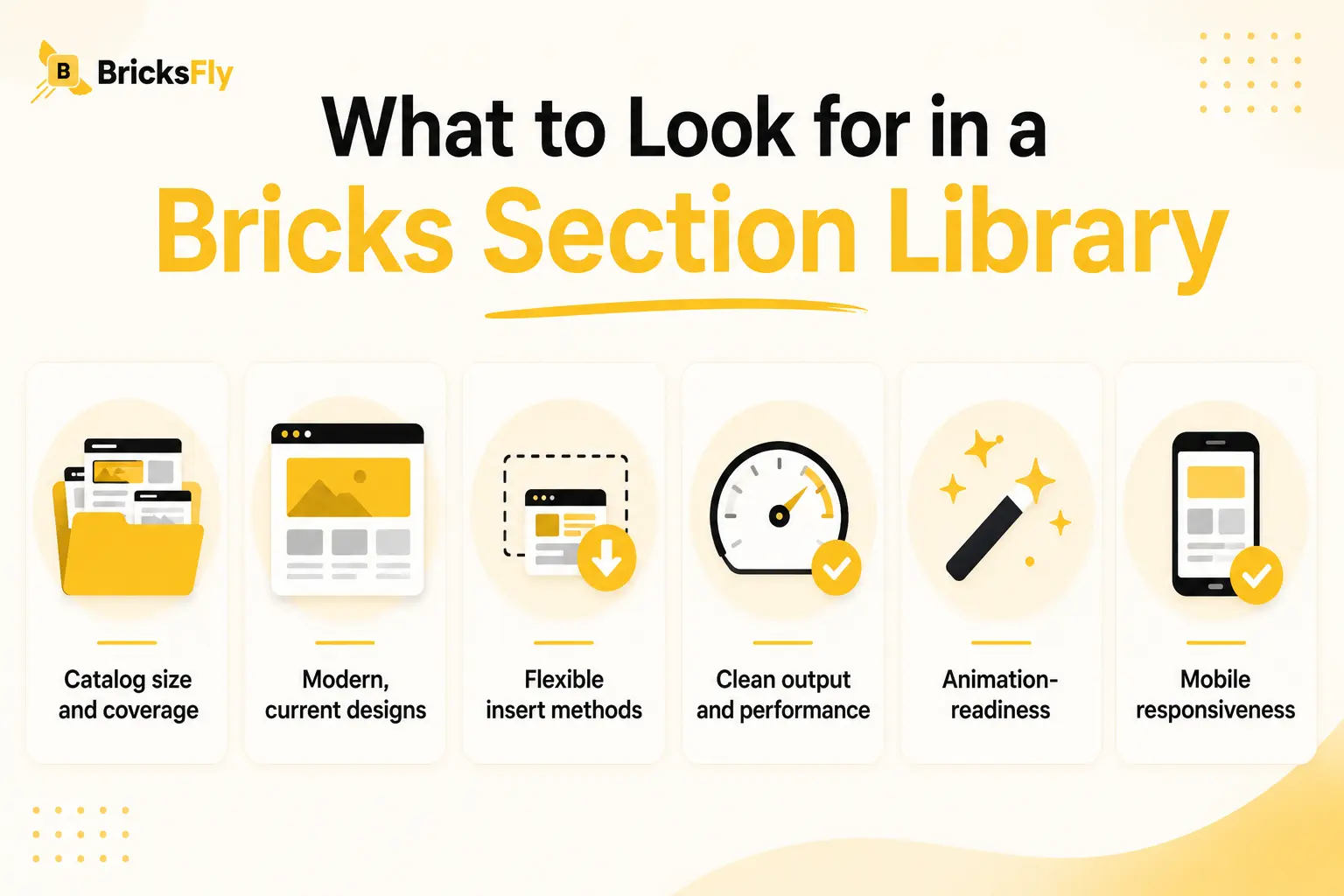
Catalog size and coverage
A library needs enough sections, and enough variety per type, that you can always find a fitting block. A handful of heroes isn’t enough; you want options.
Modern, current designs
Sections date quickly. Look for libraries with up-to-date, trend-aware designs so your pages don’t look like last year’s templates.
Flexible insert methods
Live copy-paste, JSON import, and direct import give you options for different workflows. More flexibility means fewer friction points.
Clean output and performance
Sections should produce clean Bricks structure and load efficiently. Bloated sections hurt Core Web Vitals and create cleanup work later.
Animation-readiness
Sections designed to support motion let you add scroll reveals and hover effects without fighting the layout, which matters for premium results.
Mobile responsiveness
Every section should be responsive out of the box, so you’re adjusting, not rebuilding, for smaller screens.
A library that covers all of these, at scale, is what lets you build pages genuinely fast.
Common Mistakes to Avoid
Sections are easy to use, which makes a few mistakes common.
Mixing inconsistent styles: Pulling sections from very different design languages creates a disjointed page. Keep a consistent system as you assemble.
Over-stuffing the page: More sections isn’t better. Each block should earn its place; too many dilutes the message.
Skipping the mobile check: Even responsive sections need a mobile review after you’ve added your content, longer headlines and bigger images change the layout.
Not customizing enough: A section left with placeholder styling looks generic. Adjust colors, spacing, and content so it feels like part of your brand.
Forgetting the front-end preview: If you’ve added scroll animation to a section, always check the live page, scroll effects don’t render properly in the editor.
Ignoring performance: Adding many heavy sections with large images can slow a page. Optimize images and keep the section count purposeful.
How BricksFly Helps
If you build a lot of custom pages, BricksFly’s section library is built for speed. BricksFly is a complete Bricks Builder toolkit that includes 500+ premium sections covering every common page block, hero, services, pricing, testimonials, portfolio, CTA, header, and footer, alongside full website templates, extra Elements, and no-code GSAP animation.
Adding sections is flexible: use live copy-paste to drop a block straight into your page, download JSON to import manually, or use direct import inside the editor. The sections are modern, responsive, and animation-ready, so you can layer on scroll reveals or hover effects without leaving your workflow. When a project needs a complete site instead, the same toolkit gives you 30+ full website templates to import whole.
The advantage is having sections, templates, Elements, and animation in one place. You assemble custom pages from 500+ sections, import full sites when that’s faster, and add motion to either, all from a single toolkit instead of stitching together separate plugins. For agencies, freelancers, and designers, that’s what turns custom page building into a few-minute job.
Final Thoughts
The best Bricks Builder sections are the ones you’ll use on nearly every project, hero, services, pricing, testimonials, portfolio, CTA, and footer, ready-made and easy to customize. Instead of designing each block from scratch, you assemble polished pages from prebuilt parts, which is the fastest way to build custom pages in Bricks without sacrificing quality.
The key is a library with enough coverage, modern designs, flexible insert methods, and animation-readiness, so you can always find a fitting block and make it your own quickly. Combined with full website templates for complete sites, a strong section library covers every building scenario you’ll face.
FAQs
Bricks Builder sections are prebuilt page blocks, like hero areas, pricing tables, testimonials, and footers, that you add to a page and customize instead of building from scratch. They speed up custom page building by giving you professionally designed blocks you assemble into a layout. BricksFly offers 500+ sections covering every common block.
You add a section using your library’s insert method. With BricksFly you can use live copy-paste (copy a section and paste it into your page), JSON import (download and import a file), or direct import inside the editor. Then you place the section, replace the placeholder content with your own, and adjust the branding.
A section is a single page block, like a hero or pricing table. A template is usually a complete multi-page website. Sections are best for custom pages and adding specific blocks; templates are best for building complete standard sites fast. Many builders use both, which is why BricksFly includes 500+ sections and 30+ full website templates.
It depends on your work, but a good library should cover every common type, hero, services, pricing, testimonials, portfolio, CTA, header, and footer, with multiple options for each. A larger catalog like BricksFly’s 500+ sections means you can always find a fitting block rather than compromising or building from scratch.
Yes. With a toolkit that includes no-code animation, you can add scroll reveals, staggered effects, or hover animations to sections without code. With BricksFly you select the section or its Elements and apply GSAP-powered effects visually, making prebuilt sections feel premium.
Quality sections are responsive out of the box, designed to adapt to mobile and tablet. That said, always review responsiveness after adding your own content, since longer headlines or larger images can change how a section behaves on smaller screens. Adjust spacing as needed before publishing.




2 responses to “Best Bricks Builder Sections for Building Pages Faster”
[…] at once, you reveal it step by step as the visitor scrolls, which is easier to absorb. A pinned sections that holds while details animate in is a classic way to walk someone through a product or […]
[…] your projects grow, needing more page types, more advanced sections, more design capability, BricksFly already covers them. An animation-only tool doesn’t, so […]