
Hero decorations
Add depth around a headline without heavy images.
Black Friday + Cyber MondayBiggest sale of the year. Up to 50% off.
Claim The DealGeneral element · Free
Scatter shapes, 3D objects or stickers around a section and let them float, spin or wiggle — with scroll speed for depth.
Live examples
Four real-world examples, each built with one Floating Elements element and no custom code. The tags under every example list the exact settings used, so you can rebuild it in Bricks in a few minutes.
Example 01
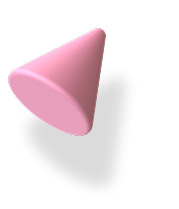
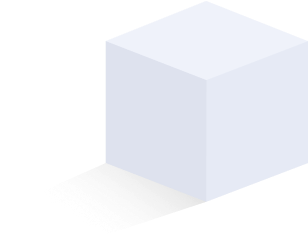
Five glass and 3D shapes placed around the heading, each with its own live animation. All five are items in one Floating Elements element.

Floating Elements
Each object is one item in the element, with its own position and live animation.
Example 02
Round portrait images float slowly around a signup box to add social proof without a testimonial section.




Example 03
Bright 3D icons on a dark background. Wiggle on the chat bubble draws the eye to the support message.

Support
Most questions get a reply within one working day.
Example 04
A single item can be enough: a 3D character with a slow Float Y next to a feature description.
For teams
Shared classes, global colors and saved sections keep every page consistent, even with several people editing.

Floating Elements is a free BricksFly element for Bricks Builder that places decorative images around a section. Each image has its own position, size, z-index and live animation — Float Y, Float X, Spin, Scale or Wiggle — and can move at a different scroll speed when Scroll Smoother is enabled.
Key facts
Use cases
Add depth around a headline without heavy images.
Place shapes near features or CTAs to guide the eye.
Stickers and objects that move on their own.
Settings
Every option below is a control in the Floating Elements element’s panel in Bricks. Responsive values can be set per breakpoint.
How to
Install and activate the free “BricksFly Elements and Templates for Bricks” plugin from WordPress.org (Plugins → Add New → search “BricksFly”).
In WordPress, open BricksFly → Elements, find Floating Elements under General and switch it on.
Edit a page with Bricks, click + (Add element), search for “Floating Elements” and drag it into your layout.
Fill in the Content settings, then adjust the Style tab. Preview on desktop, tablet and mobile and save.
FAQ
No. Bricks does not include an element for floating decorative images. BricksFly adds the Floating Elements element to the Bricks editor as part of the free BricksFly plugin, with no custom code.
Yes. It is part of the free BricksFly Elements plugin.
The items sit in their own layer. Set z-index so they stay behind your content.
With Scroll Smoother on, it makes an item move faster or slower than the page for a parallax effect.
No. Its CSS and JavaScript load only on pages where the element is used, and you can switch the element off in BricksFly → Elements if you don’t need it.
Related
Combine them to build complete, animated sections — every one is configured visually in Bricks.
More from BricksFly
Full websites that already use BricksFly elements and animation.
Copy-paste heroes, pricing, testimonials and more.
Scroll, split text, pin and horizontal scroll effects.
Everything the BricksFly addon adds, free vs Pro.
It is part of the free BricksFly plugin on WordPress.org. BricksFly Pro adds the GSAP engine, 70+ templates and 1000+ sections.