

You add a smooth reveal, a pinned section, maybe a bit of parallax, and suddenly your Bricks website feels more polished. But then the page starts loading slower, animations stutter on mobile, and your Core Web Vitals begin to suffer. That is where animation stops helping the experience and starts working against it.
The problem is rarely animation itself. In most cases, slow performance comes from heavy media, unnecessary scripts, poor loading choices, or too many effects running at once. With the right setup, you can keep the motion without sacrificing speed.
In this guide, you’ll learn how to optimize animated Bricks websites, load assets more efficiently, improve mobile performance, reduce unnecessary rendering, and use tools like BricksFly to create smooth GSAP-powered animations without adding avoidable performance overhead.
Quick Answer: To keep animated Bricks websites fast, load animation scripts only where needed, optimize and lazy-load images, keep effects subtle and purposeful, respect reduced-motion settings, and avoid stacking heavy animations. GSAP itself is efficient. Most performance issues come from over-animating and unoptimized assets. Measure performance with Core Web Vitals and test the site on mobile.
Key Takeaways
- Animation does not have to slow down a Bricks website. Performance issues usually come from unnecessary scripts, heavy media, poor loading choices, and excessive effects.
- Load animation assets only where needed and avoid overlapping tools that may add unnecessary scripts.
- Optimize images and videos carefully, especially hero media that can affect Largest Contentful Paint.
- Prefer transform and opacity animations because they are generally more efficient than properties that trigger frequent layout recalculations.
- Reduce animation intensity on mobile and support
prefers-reduced-motionfor better performance and accessibility. - Measure performance with Core Web Vitals and real testing tools instead of judging speed only by how the page feels.
- BricksFly can simplify the workflow by combining Bricks-focused layouts and visual GSAP animation tools in one toolkit.
How Animation Affects Website Performance
Understanding where animation costs performance is the first step to keeping a site fast. Animation affects performance in a few distinct ways.
- Script load: Animation libraries like GSAP and its plugins (ScrollTrigger, SplitText) are JavaScript that has to download and parse. Loading them where they’re not needed adds weight to every page.
- Rendering cost: Animations that force the browser to recalculate layout repeatedly (rather than using efficient properties) can cause jank, especially on lower-powered devices.
- Heavy media: Large hero images and videos, which are frequently the real performance bottleneck, not the animation code itself.
GSAP is one of the most performant animation libraries available, and a handful of well-built animations have negligible impact. The performance problems attributed to “animation” usually trace back to three things: unnecessary script loading, unoptimized images, and over-animation. Fix those, and you can have a rich animated site that still scores well on Core Web Vitals.
The properties you animate matter too. Animating transform and opacity is cheap because the browser can handle them efficiently, often on the GPU. Animating properties that trigger layout recalculation (like width, height, or top/left) is more expensive. Good animation tools default to the efficient properties, which is part of why how you animate matters as much as how much.
Smart Asset and Script Loading
The single biggest lever for animation performance is loading only what a page actually needs.
Load Animation Scripts Conditionally
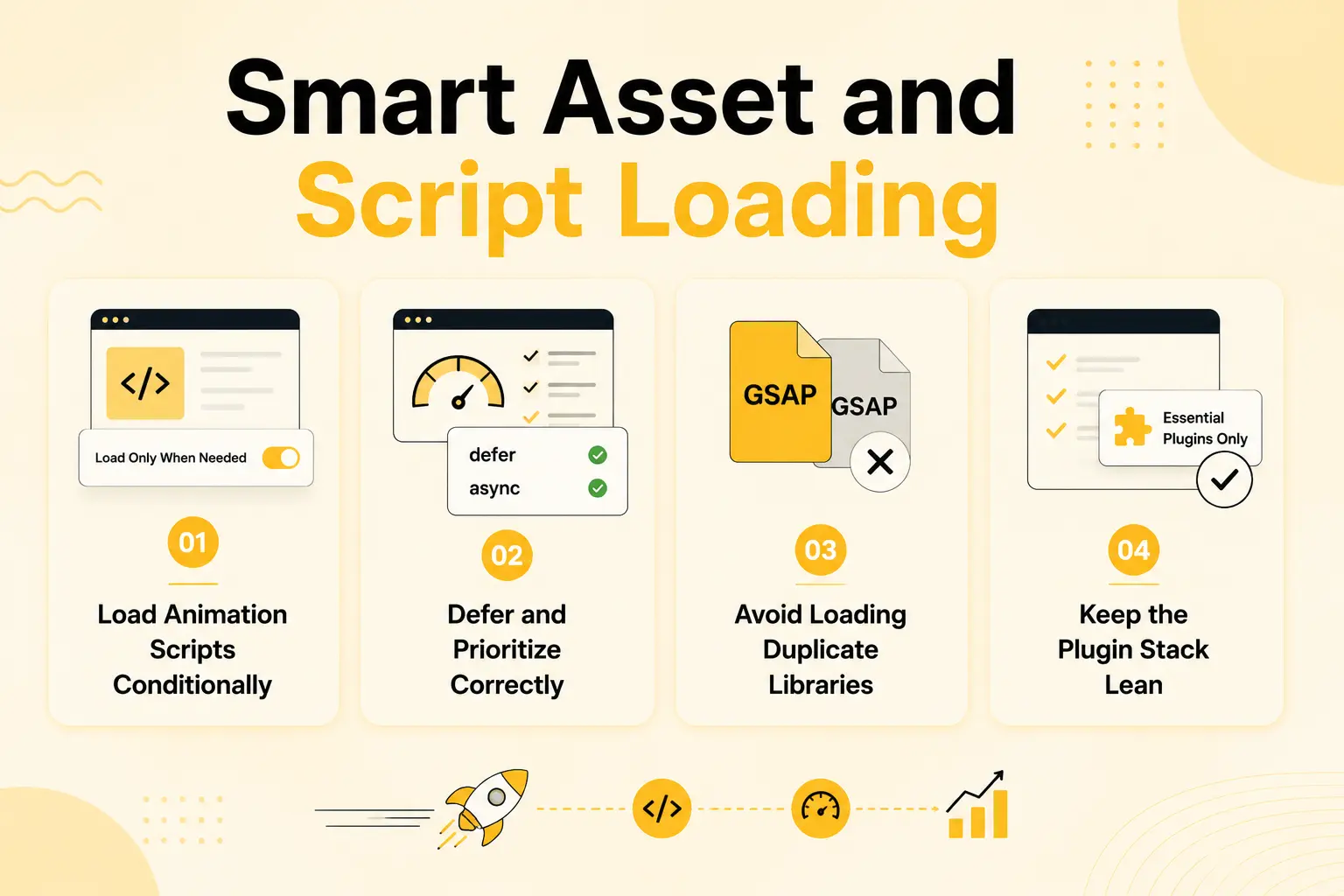
The GSAP library and its plugins should load only on pages that use animation, and ideally only the plugins in use. A page with no animation shouldn’t download ScrollTrigger. Efficient animation tools handle this conditionally, loading assets based on what’s actually present. If you’re managing this manually, avoid enqueuing animation libraries globally.
Defer and Prioritize Correctly
Animation scripts generally don’t need to block the initial render. Loading them in a way that doesn’t hold up first paint keeps perceived performance high. The critical content should appear fast; the animation can initialize just after. Be careful, though, that above-the-fold animations don’t cause a visible flash of unstyled or unanimated content.
Avoid Loading Duplicate Libraries
A common issue on Bricks sites with multiple plugins is loading GSAP more than once, one copy from an animation addon, another from a different plugin. This is wasted weight. Consolidating your animation into a single tool avoids duplicate library loads, which is one quiet advantage of not running multiple animation plugins.
Keep the Plugin Stack Lean
Every plugin adds scripts and potential overhead. Running several overlapping animation or design plugins multiplies the load. A leaner stack, or a single consolidated toolkit, generally loads less and performs better than a sprawl of specialist plugins each loading their own assets.
Optimizing Images and Media for Animated Sites
Animated sites are often visual, which means media is frequently the real performance bottleneck. Optimizing it matters more than optimizing the animation code.
Use modern formats
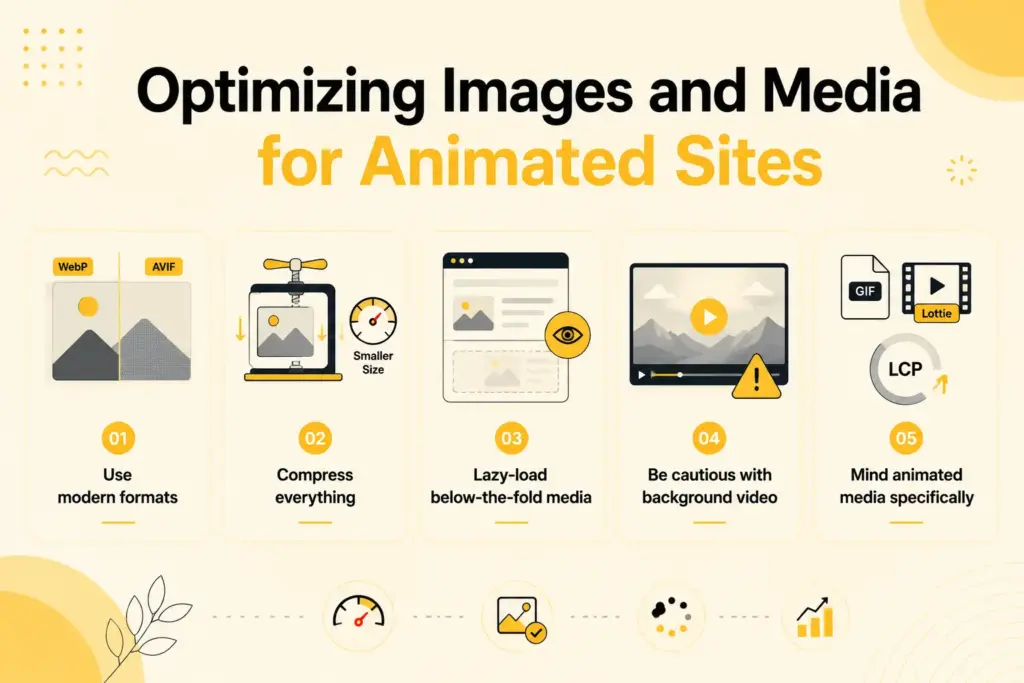
Serve images in WebP (or AVIF where supported) rather than large PNGs and JPEGs. The file-size savings are substantial with no visible quality loss for most images.
Compress everything
Compress images before uploading in a WordPress website. A hero image that’s animated draws attention, so it needs to be sharp, but sharp doesn’t mean uncompressed. Right-size the dimensions to how the image is actually displayed.
Lazy-load below-the-fold media
Images and videos further down the page should load as the user scrolls toward them, not all at once on initial load. This is especially important on long, animated pages where content reveals on scroll anyway.
Be cautious with background video
Video backgrounds are heavy. If you use one, compress it aggressively, consider a poster image, and avoid autoplaying large video on mobile.
Mind animated media specifically
An image that both loads large and animates in compounds cost. Optimize the asset first, then animate, so the effect enhances a lightweight image rather than drawing attention to a heavy one.
For animated Bricks sites, getting media right often delivers a bigger Core Web Vitals improvement than any change to the animation itself.
Using Animation Efficiently
Beyond assets, how you design the animations affects performance and perceived speed.
| Practice | Why It Helps Performance |
| Animate transform & opacity | Cheap for the browser, often GPU-accelerated |
| Keep effects subtle and short | Less work per frame, feels snappier |
| Limit simultaneous animations | Fewer concurrent calculations |
| Avoid animating layout properties | Prevents expensive layout recalculation |
| Reduce or disable on mobile | Lower-powered devices handle less well |
| Don’t over-animate | Fewer effects means less to load and run |
Prefer Efficient Properties
As noted, animating transform (moves, scales, rotations) and opacity is far cheaper than animating properties that trigger layout. Fades and slides built on these are both premium-looking and performant. Good tools default to them.
Limit Concurrent Animations
Many elements animating at the exact same moment creates a spike of work. Staggering animations, which also looks better, spreads that cost and keeps frame rates smooth.
Simplify or Disable on Mobile
Mobile devices are typically less powerful and often on slower connections. Heavy effects like large parallax or complex pinning can stutter. Reducing or disabling the heaviest effects on mobile protects both performance and experience.
Don’t Over-Animate
The simplest performance tip is also a design tip: use fewer, purposeful animations. Every effect you don’t add is a script you don’t load and frames you don’t have to render. Restraint serves both speed and quality.
Reduced Motion: Performance and Accessibility Together
Respecting the reduced-motion setting is both an accessibility requirement and a performance benefit, which makes it easy to justify.
Some users enable a “reduced motion” preference in their operating system, often because motion causes discomfort or for medical reasons. Honoring this setting means those users get a static or minimal-motion version of your site. It’s the right thing to do for accessibility, and increasingly an expectation for professional sites.
The performance angle is a bonus: when reduced motion is active, animations that would otherwise run don’t, which means less script execution and rendering work for those users. Well-built animation tools detect the preference and adjust automatically. If you implement animation manually, honoring prefers-reduced-motion is essential.
Measuring and Testing Animation Performance
You can’t improve what you don’t measure. Testing is how you confirm an animated site is actually fast.
Use Core Web Vitals as your benchmark
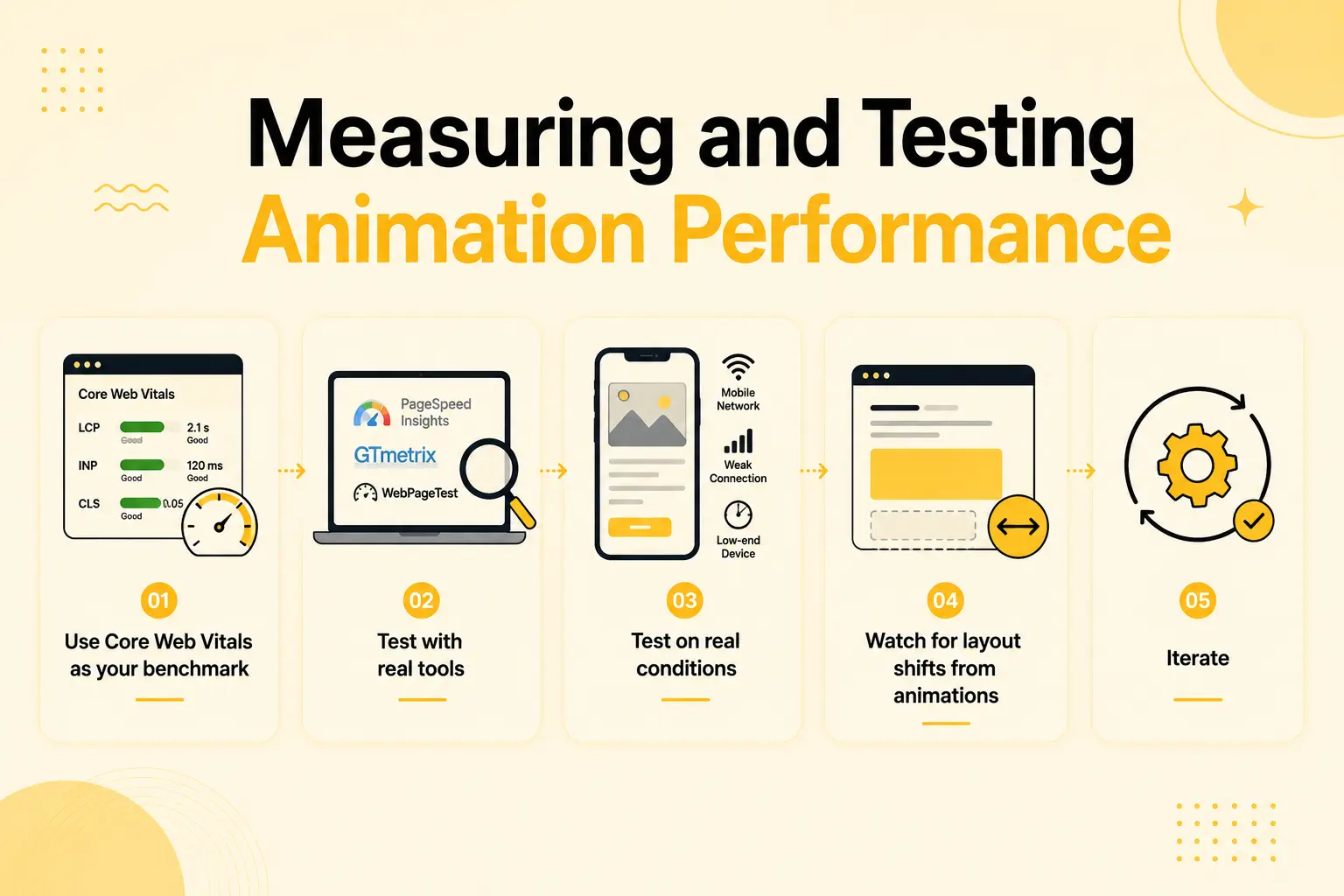
Largest Contentful Paint (LCP), Interaction to Next Paint (INP), and Cumulative Layout Shift (CLS) are the key metrics. Animation can affect all three, heavy scripts hurt INP, unoptimized hero media hurts LCP, and poorly built entrance animations can cause layout shifts (CLS).
Test with real tools
Use a page performance tool (like Lighthouse or a field-data source) to measure your animated pages, not just your gut feel. Test the actual published page, since editor previews don’t reflect real load.
Test on real conditions
Check performance on mobile and on a throttled connection, not just your fast desktop. Many visitors experience your site under far less ideal conditions than your dev machine.
Watch for layout shifts from animations
Entrance animations that move content into place can cause CLS if not handled carefully. Confirm your reveals don’t shift surrounding content unexpectedly.
Iterate
Measure, fix the biggest issue (often an image or a duplicate script), and measure again. Performance work is incremental, and the biggest wins usually come from assets and script loading rather than the animations themselves.
How BricksFly Helps
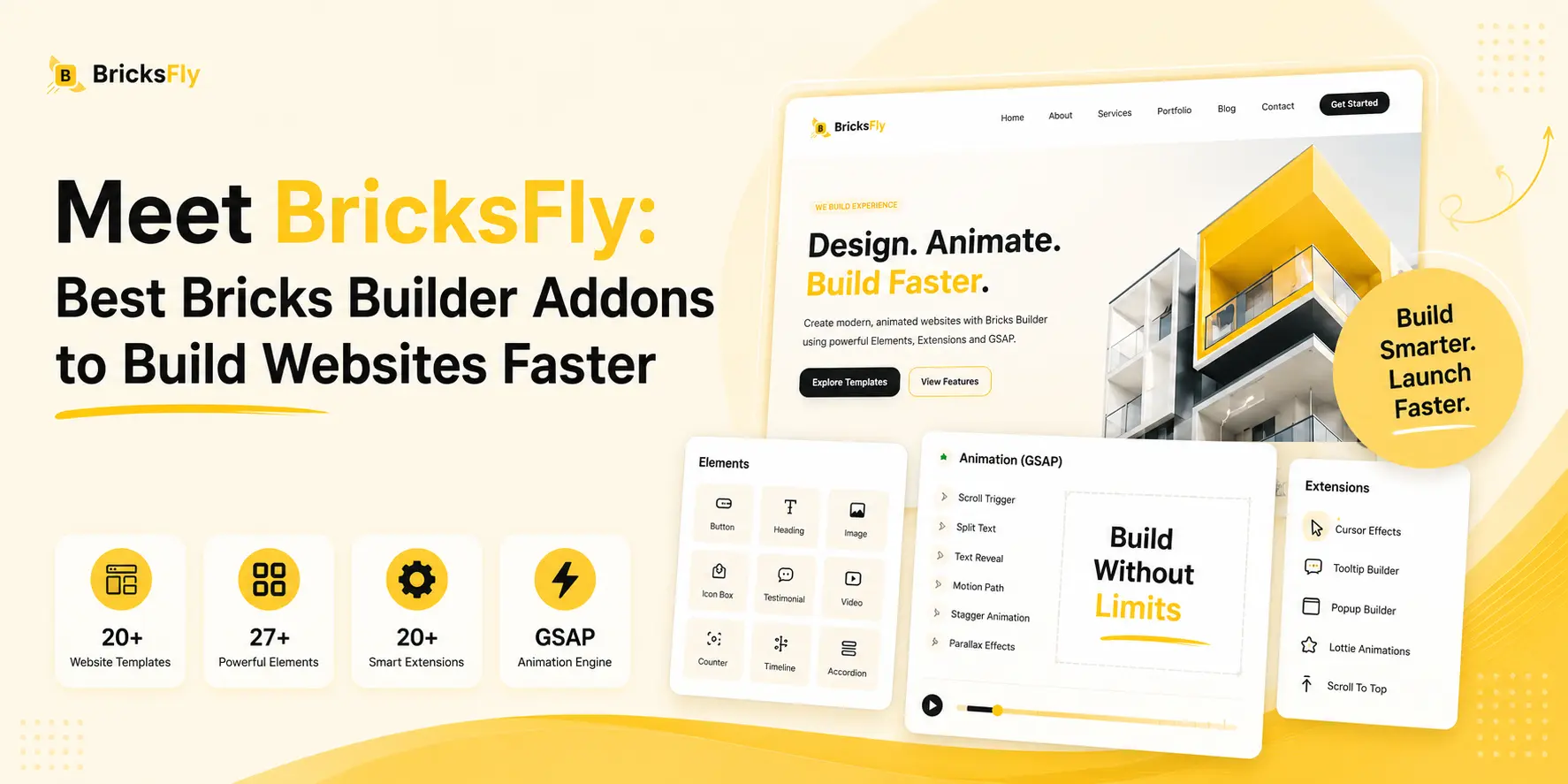
BricksFly is an all-in-one toolkit for Bricks Builder that brings website templates, ready-made sections, Elements, Extensions, and visual GSAP animation tools into one workflow.
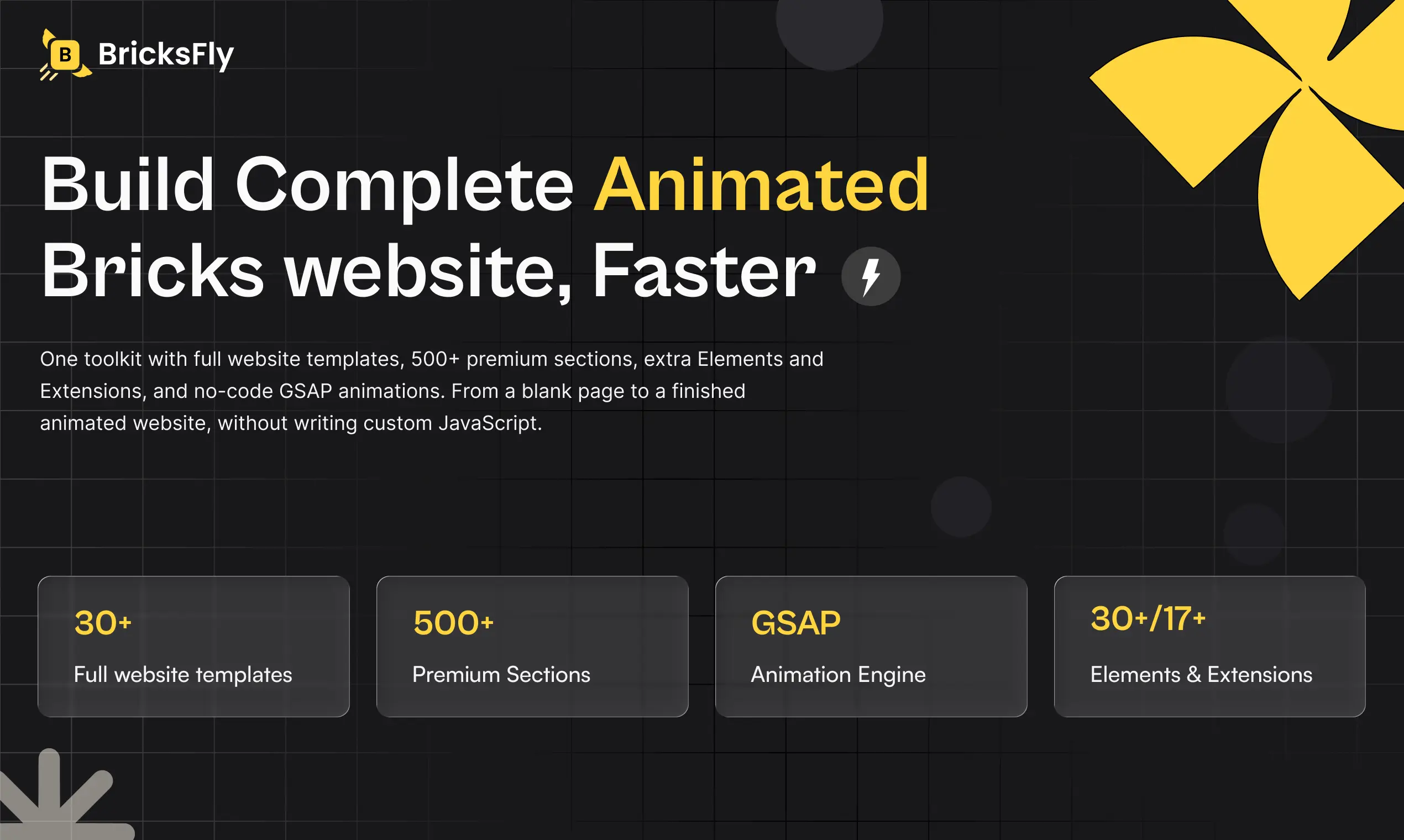
Its built-in animation system lets you create effects like ScrollTrigger animations, SplitText reveals, parallax, horizontal scrolling, sticky and pin interactions, and smooth scrolling directly inside Bricks without writing custom JavaScript.
Note: BricksFly also includes 30+ full website templates and 500+ ready-made sections, helping you start faster instead of building every page from scratch.
Key features
- Visual GSAP animation tools inside Bricks Builder
- No custom JavaScript required for common animation effects
- 30+ full website templates for faster project setup
- 500+ ready-made sections for landing pages, pricing, CTAs, testimonials, and more
- Extra Elements and Extensions to expand Bricks
- Advanced scroll effects including ScrollTrigger, SplitText, parallax, pinning, and horizontal scroll
- Built specifically for Bricks Builder for a smoother, more connected workflow
BricksFly helps freelancers, agencies, designers, and Bricks users build polished, interactive WordPress websites faster with reusable layouts and advanced animation tools in one place.
Common Mistakes to Avoid
These are the most frequent causes of slow animated Bricks sites.
Loading animation scripts everywhere: Enqueuing GSAP globally, including on pages with no animation, adds needless weight. Load conditionally.
Unoptimized images: Large, uncompressed media is usually the real bottleneck, not the animation. Optimize before you animate.
Over-animating: Too many effects mean more scripts, more rendering, and a cluttered feel. Use motion purposefully.
Animating layout properties: Animating width, height, or position triggers expensive recalculation. Prefer transform and opacity.
Ignoring mobile performance: Heavy effects that run fine on desktop can stutter on phones. Reduce or disable them on mobile.
Running duplicate animation libraries: Multiple plugins loading their own copy of GSAP wastes weight. Consolidate your animation tooling.
Skipping reduced-motion and testing: Failing to respect reduced motion hurts accessibility, and not measuring means you never catch the real issues.
Final Thoughts
Animated Bricks websites can be fast, animation and performance aren’t in conflict. The key is understanding that most “animation” performance problems actually come from how assets are loaded, unoptimized media, and over-animation, not from the animation engine itself. GSAP is efficient; the implementation is where speed is won or lost.
The practical playbook is clear: load animation scripts only where needed, optimize and lazy-load images, animate efficient properties like transform and opacity, keep effects subtle and purposeful, respect reduced motion, and measure with Core Web Vitals on real devices. Get these right and you can deliver premium motion that still scores well on performance.
FAQs
They can, but they don’t have to. GSAP, the engine behind most Bricks animation, is highly optimized. Slowdowns usually come from loading scripts where they’re not needed, unoptimized images, or over-animating, not from the animation code itself. Load assets conditionally, optimize media, and keep effects purposeful to stay fast.
Usually unoptimized media, large, uncompressed hero images and videos, rather than the animation code. Animation draws attention to visuals, so the media it highlights is often the real bottleneck. Optimizing images (WebP, compression, correct sizing) and lazy-loading below-the-fold media typically delivers the biggest Core Web Vitals improvement.
Animate transform (moves, scales, rotations) and opacity. These are efficient because the browser can handle them without recalculating page layout, often using the GPU. Avoid animating layout-affecting properties like width, height, or top/left, which force expensive recalculation. Good animation tools default to the efficient properties.
Respecting the prefers-reduced-motion setting is primarily an accessibility requirement, some users need less motion for comfort or medical reasons. The performance bonus is that when reduced motion is active, animations don’t run, reducing script execution and rendering work for those users. Well-built tools detect and honor the preference automatically.
Use Core Web Vitals (LCP, INP, CLS) as your benchmark and test with a tool like Lighthouse on the actual published page, not the editor. Test on mobile and a throttled connection to reflect real conditions, watch for layout shift from entrance animations, then fix the biggest issue and re-measure.
Yes. Multiple plugins can each load their own copy of GSAP and their own scripts, adding duplicate weight and increasing conflict risk. Consolidating animation into a single tool avoids duplicate libraries and keeps your stack leaner, which generally improves load performance across the site.




One response to “Bricks Builder Performance Tips for Animated Websites”
[…] the fourth is repeatability. Once you know the template workflow, every future site follows the same reliable process. For freelancers and agencies, that […]