

A video mask shows moving footage only inside a chosen area: the letters of a headline, a circle, an arch, a blob, or a logo. The rest of the section stays clean. It is a quick way to make a hero section feel premium without a full-screen background video competing with the text.
This guide shows how to create a Bricks video mask effect three ways:
- Method 1, no code: the BricksFly Video Mask Element.
- Method 2, CSS text mask: video inside a headline using mix-blend-mode, which keeps the headline as real, selectable text.
- Method 3, CSS shape mask: video inside a circle, an arch, or any SVG shape using clip-path and mask-image.
You will also get video file guidelines, an accessibility and speed checklist, and fixes for common problems.
To create a video mask in Bricks Builder without code, enable the BricksFly Video Mask Element under BricksFly > Elements > Video and add it to your page.
With CSS, place a video behind a white layer containing black text
and set the layer to
mix-blend-mode: screen for a text mask.
Alternatively, apply clip-path or
mask-image to the video’s wrapper to create a
custom shape mask.
Text Masks vs Shape Masks
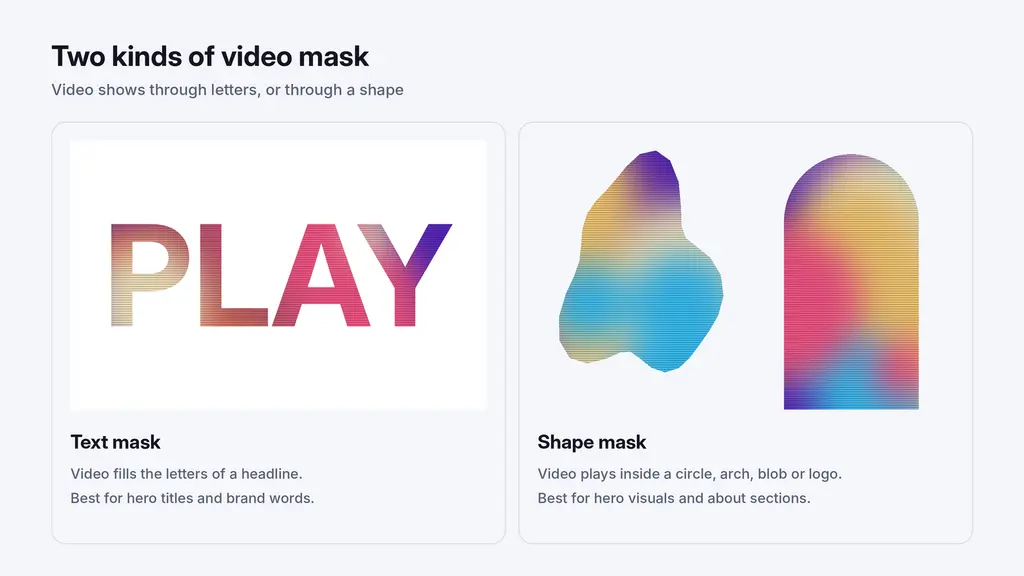
Text masks and shape masks
| Text mask | Shape mask | |
| What visitors see | Video playing inside the letters of a word | Video playing inside a circle, arch, blob or logo |
| Best for | Hero titles, brand names, single bold words | Hero visuals, about sections, product teasers |
| CSS technique | mix-blend-mode on a text overlay | clip-path, border-radius or mask-image |
| Design rule | Very large, heavy letters (one or two words) | Simple, recognizable shapes |
Method 1: Add a Video Mask With BricksFly (No Code)
BricksFly is a complete Bricks Builder toolkit that helps users build modern animated websites faster with full website templates, 500+ sections, extra Elements, Extensions, and no-code GSAP animations. It includes a Video Mask Element in its Video category, alongside Video Popup, Video Box, YouTube Video, Scrollable Video and Video Box Slider.
Step 1: Enable the Video Mask Element
- Go to your WordPress Dashboard and click BricksFly.
- Open the Elements tab.
- Select the Video category and toggle on Video Mask.
- Click Save Settings.
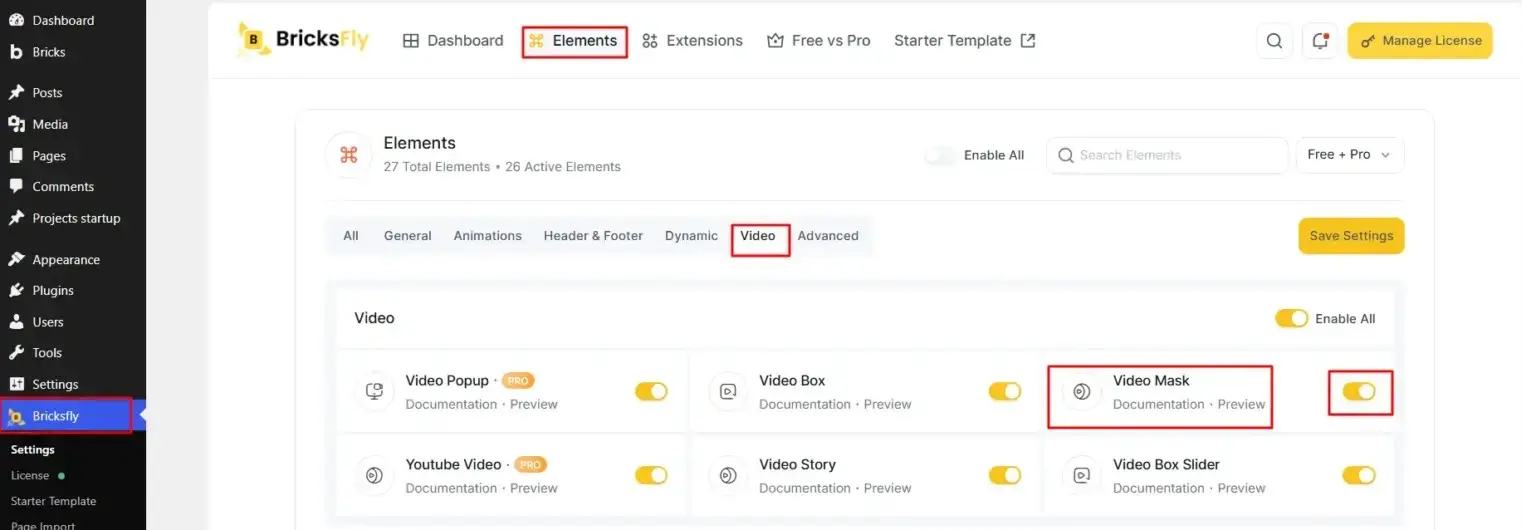
BricksFly > Elements > Video, with Video Mask marked
In the Elements tab, Video Mask appears without the Pro badge that marks Elements such as Video Popup, YouTube Video and Scrollable Video.
Step 2: Add the Element and Your Video
Open your page in the Bricks editor, find Video Mask in the BricksFly group of the Elements panel, and drag it into a Section.
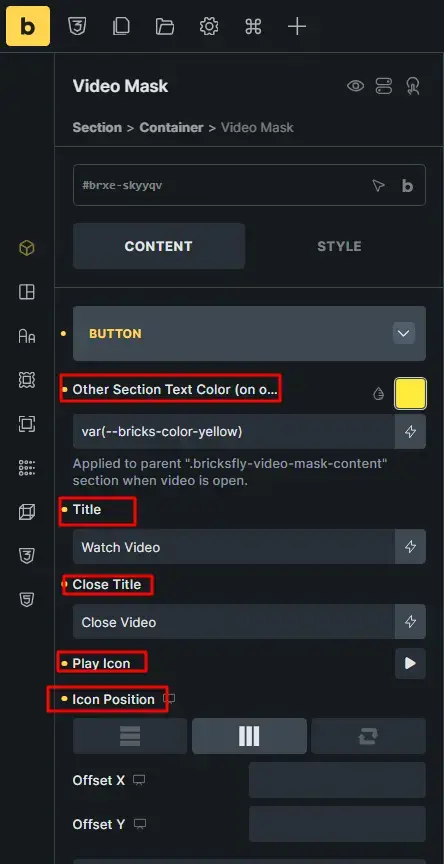
You can choose Section Text Color, Title, Close title, play icon and icon position according to your requirements of the supporting text around the Video Mask button area.
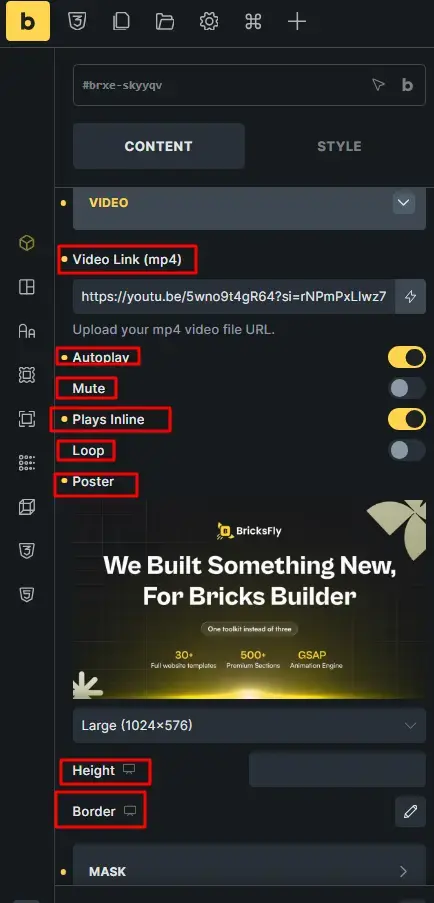
Place the video link in the required area. You can use autoplay, mute or loop according to your requirements. Select an image that appears as the video preview before playback begins. Also, one can customize the border height size around the video.
Add your video and mask settings in the Element’s Content tab. The full list of options is in the Video Mask documentation.
Step 3: Finish the Section
- Give the Element room: video masks need size to read well, especially text masks.
- Add motion around it with BricksFly Extensions, such as Advanced Animation to fade the section in, or Parallax Effect for depth.
Want Video Masks Without CSS?
The Video Mask Element is part of the BricksFly toolkit, together with Video Popup, Video Box and other video Elements, 30+ starter templates and the GSAP animation engine.
See BricksFly Plans →Method 2: Create a Text Video Mask With CSS
CSS cannot fill text with a video directly. background-clip: text works with images and gradients, not with a video element. The reliable workaround is a blend mode:
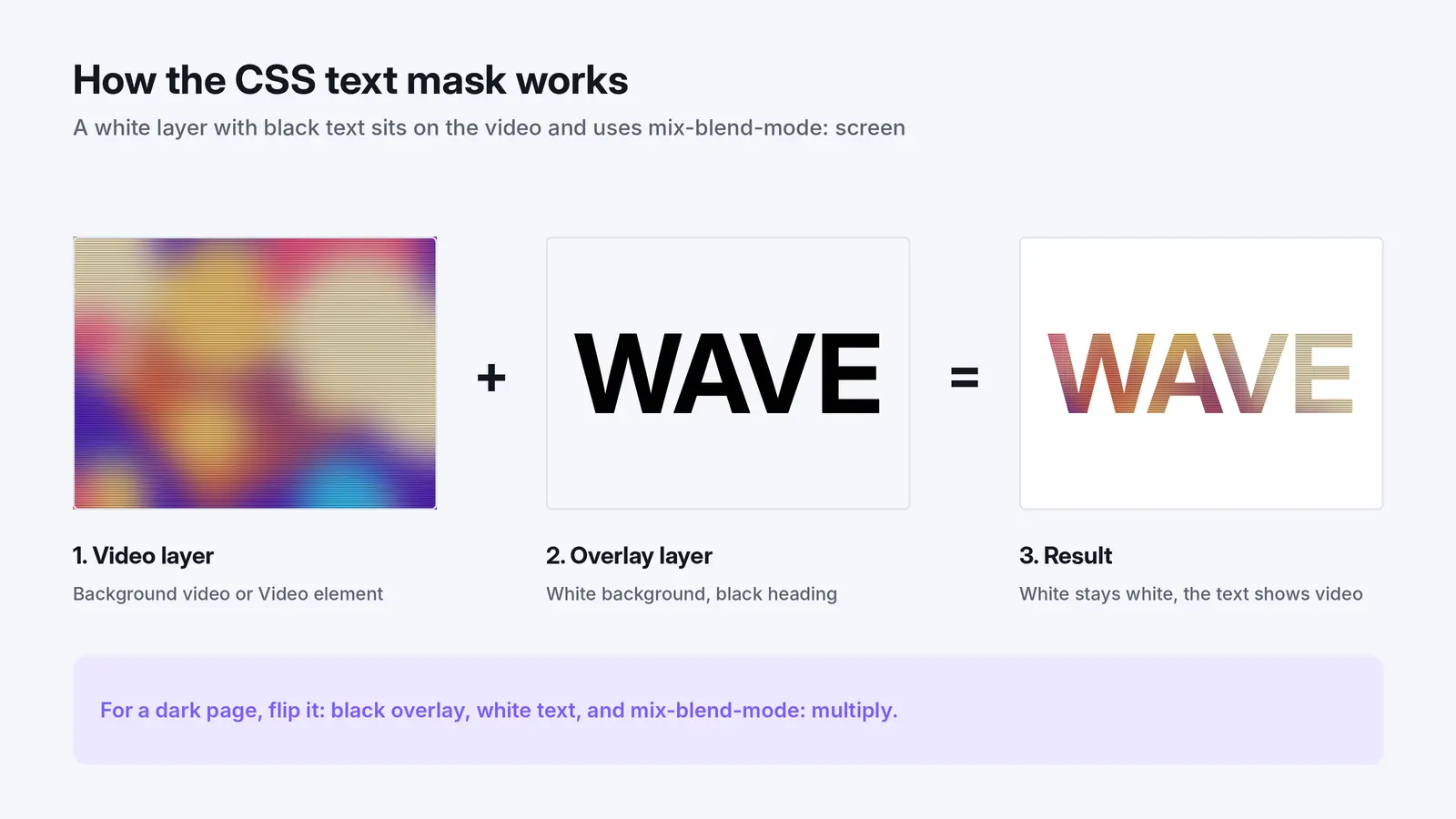
Video layer + overlay layer = text mask
- A video fills the section.
- On top sits a layer with a white background and black text.
- The layer uses mix-blend-mode: screen. With screen, white stays white and black lets the layer below show through, so the video appears only inside the letters.
Because the headline stays a real Heading Element, it remains selectable, readable by screen readers, and visible to search engines.
Step 1: Build the Structure
- Add a Section and give its Container the class vm-text.
- Add your video inside the Container. Use a Video Element with a self-hosted MP4 file, set to autoplay, muted, looped and without controls. Alternatively, set a background video on the Container under Style > Background.
- Add a Div inside the Container with the class vm-text__overlay.
- Put a Heading inside the Div with one or two words, for example MOTION.
Step 2: Add the CSS
Paste this into Bricks > Settings > Custom code > Custom CSS:
.vm-text {

  position: relative;

  min-height: 60vh;

  overflow: hidden;

  isolation: isolate;          /* keep the blend inside this section */

}

/* Make the video fill the section */

.vm-text video {

  position: absolute; inset: 0;

  width: 100%; height: 100%;

  object-fit: cover;

}

.vm-text__overlay {

  position: absolute; inset: 0;

  display: flex; align-items: center; justify-content: center;

  background: #fff;

  mix-blend-mode: screen;      /* white stays white, black shows the video */

}

.vm-text__overlay :is(h1, h2) {

  margin: 0;

  color: #000;

  font-size: clamp(4rem, 16vw, 14rem);

  font-weight: 900;

  line-height: .9;

  text-transform: uppercase;

  text-align: center;

}
Dark Page Variant
On a dark design, reverse the colors and the blend mode: a black overlay with white text and mix-blend-mode: multiply. With multiply, black stays black and white lets the video show through.
.vm-text--dark .vm-text__overlay { background: #000; mix-blend-mode: multiply; }

.vm-text--dark .vm-text__overlay :is(h1, h2) { color: #fff; }Text masks need thick letters. Use a heavy font weight (800 or 900), one or two short words, and footage with strong color and movement. Thin fonts show too little video to read.
Method 3: Create a Shape Video Mask With CSS
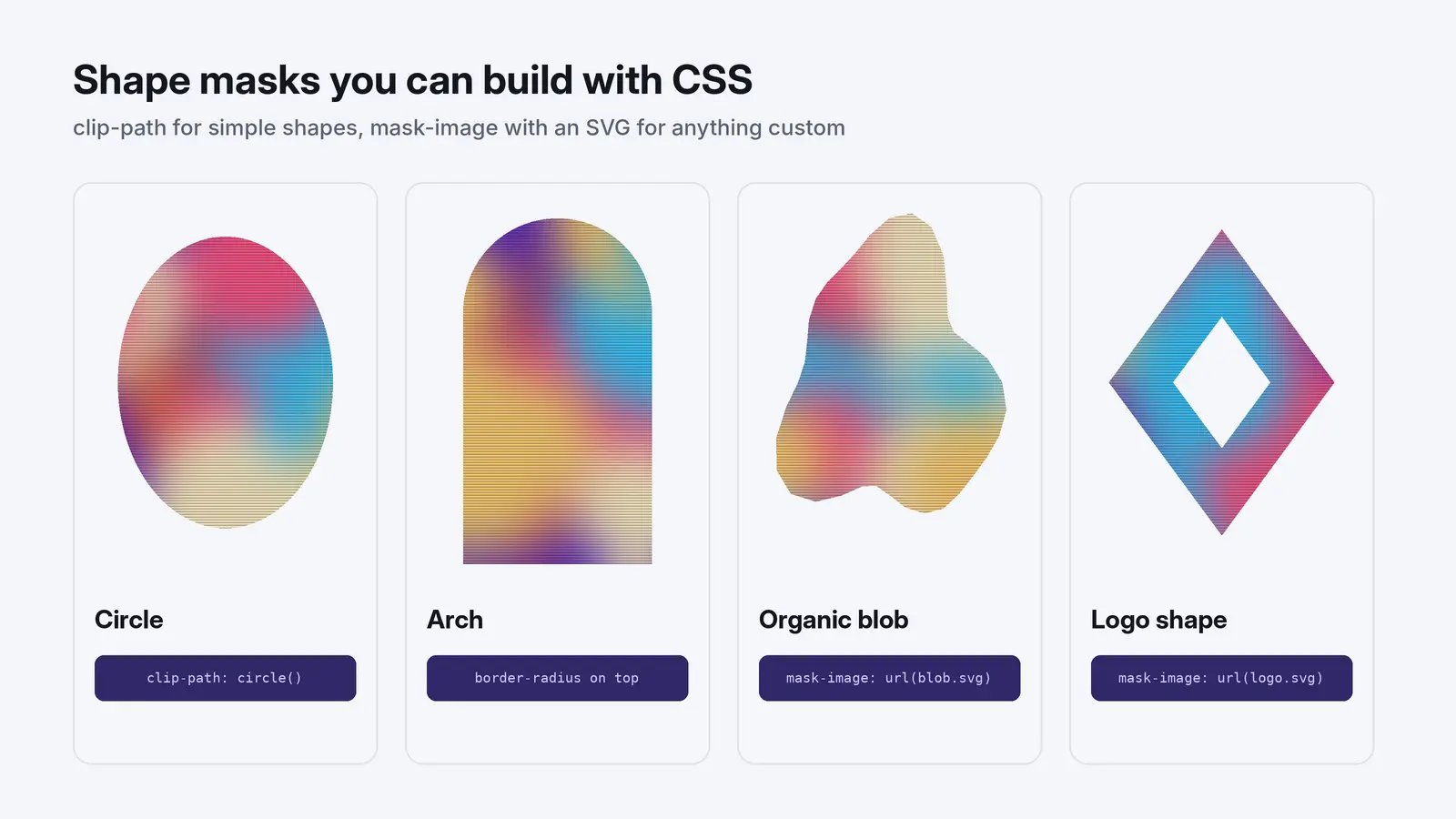
Four shape masks and the CSS behind them
Step 1: Build the Structure
Add a Div with the class vm-shape and one modifier class, such as vm-shape–circle. Place a Video Element inside it with a self-hosted MP4 set to autoplay, muted and looped.
Step 2: Add the CSS
.vm-shape {

  aspect-ratio: 4 / 5;

  overflow: hidden;

}

.vm-shape video {

  display: block;

  width: 100%; height: 100%;

  object-fit: cover;

}

/* Circle */

.vm-shape--circle { clip-path: circle(50% at 50% 50%); }

/* Arch: rounded top, flat bottom */

.vm-shape--arch { border-radius: 999px 999px 0 0; }

/* Any custom shape from an SVG file (blob, logo, icon) */

.vm-shape--svg {

  -webkit-mask-image: url("/wp-content/uploads/2026/11/blob.svg");

          mask-image: url("/wp-content/uploads/2026/11/blob.svg");

  -webkit-mask-size: contain;      mask-size: contain;

  -webkit-mask-repeat: no-repeat;  mask-repeat: no-repeat;

  -webkit-mask-position: center;   mask-position: center;

}
How the Shape Masks Work
- clip-path cuts the element to a basic shape such as circle(), ellipse() or polygon(). Use it for simple geometric shapes.
- border-radius with overflow hidden is the lightest way to make arches and rounded panels.
- mask-image uses an image as a mask: the opaque parts of the SVG show the video, and the transparent parts hide it. Use it for blobs, logos and icons.
- Host the SVG on your own domain. Mask images loaded from another domain are subject to cross-origin rules and may not display.
- Keep the -webkit- prefixed properties for older versions of Safari and Chromium-based browsers.
Video File Guidelines
| Setting | Recommendation | Why |
| Format | MP4 (H.264); add WebM as a second source if you can | Wide browser support |
| Length | A short loop of a few seconds | Smaller file, no visible jump |
| Resolution | Size it for the mask, often 1280 px wide or less | A text mask rarely needs 4K |
| Audio | Remove the audio track and mute the video | Browsers allow muted video to autoplay |
| Inline playback | Enable plays inline | Keeps iPhones from opening fullscreen |
| Poster | Set a poster or preview image | Something shows while the video loads |
Chrome’s autoplay policy always allows muted autoplay, while autoplay with sound depends on how the visitor has interacted with the site. For decorative masks, always mute the video.
Accessibility and Speed
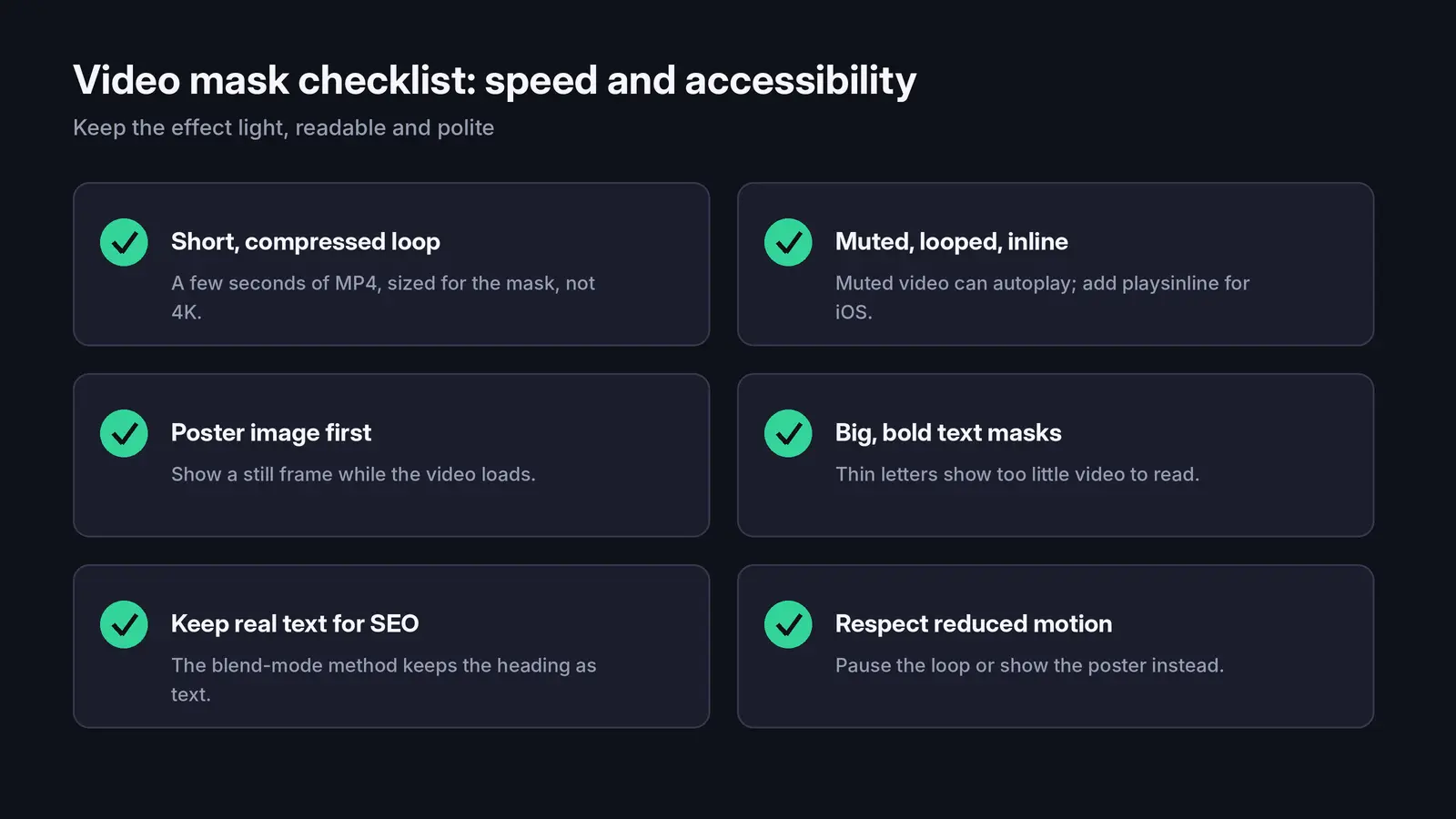
Six checks before publishing
- Keep real text. The blend-mode method keeps your headline as a Heading Element. Avoid baking words into the video file.
- Hide decorative video from screen readers. Add aria-hidden=”true” to the video wrapper under Style > Attributes when the video is purely decorative.
- Check readability. Footage with very light or very busy areas makes masked text harder to read. Test with real visitors, and keep text masks for large display words, not for important information.
- Respect reduced motion. Visitors who ask their system for less motion should see a still frame. Add this script to Body (footer) scripts:
<script>

if (window.matchMedia("(prefers-reduced-motion: reduce)").matches) {

  document.querySelectorAll(".vm-text video, .vm-shape video").forEach(function (v) {

    v.removeAttribute("autoplay");

    v.pause();

  });

}

</script>- Measure the page. A video in the hero can affect Largest Contentful Paint. Compare PageSpeed Insights results before and after adding the mask, and keep the file small.
Troubleshooting for Video Mask
| Problem | Likely cause | Fix |
| Video shows outside the letters | The blend mixes with content outside the section | Add isolation: isolate to the section Container |
| Text looks white or grey, not video | Overlay text is not pure black, or the blend mode is missing | Use color #000 with mix-blend-mode: screen |
| SVG mask shows nothing | SVG path is transparent, or the file is on another domain | Use a solid shape and host the SVG on your own domain |
| Video does not autoplay | Video is not muted, or inline playback is off | Mute the video and enable plays inline |
| Video opens fullscreen on iPhone | Plays inline is off | Enable plays inline on the Video Element |
| Page feels slow | Large or long video file | Shorten the loop, lower the resolution, compress it |
| Video Mask Element missing in the editor | Element not enabled | Enable it in BricksFly > Elements > Video and save |
Common Mistakes to Avoid When Creating Video Masks in Bricks Builder
Avoid these common mistakes to create clean, professional video mask effects that look great across desktop and mobile devices.
Using Thin Fonts for Text Masks
Thin fonts can make video masks look less attractive because they reveal only small slivers of the video. Choose bold or extra-bold fonts to create wider letter shapes and make the video more visible. This also helps your text mask stand out and improves readability.
Masking Long Sentences
Using long sentences or paragraphs as video masks can make the design look cluttered. Instead, use one or two short, impactful words to create a stronger visual effect. Short text also makes the video mask easier to understand and more visually appealing.
Uploading Full-Length, Full-Resolution Footage
Large video files can increase page loading times and affect website performance. You only need a few seconds of footage at a sensible resolution to create an effective video mask. Optimize your video before uploading it to keep the effect lightweight.
Leaving the Audio Track in the Video
Background audio is unnecessary for most video mask effects and can create an unpleasant experience for visitors. Remove the audio track from your video file and make sure the video is muted. This keeps the effect focused on visuals without unexpected sound.
Placing Key Information Only Inside the Video
Important information should never depend entirely on video content because visitors may not be able to access or understand it. Keep essential messages, headings, and descriptions in actual HTML text outside the video mask. This improves accessibility, readability, and content visibility for search engines.
Skipping Mobile Device Testing
Video mask effects may look different on smaller screens because of changes in text size, spacing, and video dimensions. Test the text size, loop playback, and inline playback on an actual mobile device. Make sure the effect remains smooth, readable, and visually appealing across different screen sizes.
Where Video Masks Work Well
| Section | Mask idea |
| Agency or studio hero | The studio name or a one-word promise as a text mask |
| Product launch page | Product footage inside the product’s silhouette or logo |
| About section | Team footage inside an arch next to the story text |
| Event page | The event year or city name filled with highlight footage |
| Portfolio intro | Showreel clips inside a circle beside the introduction |
How BricksFly Helps
BricksFly gives you the Video Mask Element for the no-code route and a full set of video Elements for related layouts, including Video Popup for play-button popups. Start from one of the starter templates, add sections from the Bricks section library, browse all BricksFly Elements, and animate the rest of the page with the GSAP animation engine.
Add Video Effects to Your Bricks Sites
Get the Video Mask, Video Popup and other video Elements, plus 30+ starter templates, 500+ sections and the no-code GSAP animation engine with BricksFly Pro. The Black Friday sale runs until December 10, 2026, with up to 50% off yearly and lifetime plans.
Get BricksFly Pro →Last Thoughts
A Bricks video mask turns footage into a design element: video inside a headline, a circle, an arch or a logo. Use the BricksFly Video Mask Element for a no-code setup, the blend-mode overlay for a text mask that keeps real text, and clip-path or mask-image for shape masks.
Whichever method you choose, keep the video short, muted and compressed, use bold display type for text masks, and give visitors who prefer reduced motion a still frame.
FAQs
Can I put a video inside text in Bricks Builder?
Yes. Use the BricksFly Video Mask Element, or build it with CSS: place a video in a section, add a white overlay with black heading text, and set the overlay to mix-blend-mode: screen. The video then shows only through the letters, and the heading stays real text.
Why doesn’t background-clip: text work with video?
background-clip: text clips a background image or gradient to the text, but a video element is not a background image. That is why video text masks use a blend mode overlay, an SVG mask, or a dedicated Element instead.
How do I put a video inside a circle or custom shape?
Wrap the video in a Div and apply clip-path: circle() for a circle, border-radius for an arch, or mask-image with an SVG file for any custom shape such as a blob or logo. Set the video to object-fit: cover so it fills the shape.
Will a video mask slow down my Bricks site?
It can if the video file is large. Use a short, muted, compressed MP4 sized for the mask, set a poster image, and measure the page in PageSpeed Insights before and after. The CSS for the mask itself adds almost nothing.
Is the BricksFly Video Mask Element free?
In the BricksFly Elements tab, Video Mask is shown without the Pro badge that appears on Elements such as Video Popup, YouTube Video and Scrollable Video. Check the Free vs Pro tab in the BricksFly dashboard for the current status.
Do video masks work on mobile?
Yes, if the video is muted and set to play inline. Test text size on small screens, since text masks need large letters, and consider a shorter or lighter video for phones.




Leave a Reply
You must be logged in to post a comment.